
Editing message-based stubs for Contract validation
When you want to use a message-based stub as part of producer-driven Contract testing, you must edit the stub that you create based on a Message Exchange Pattern (MEP) in an operation.
Before you begin
You must have completed the following tasks:
- Created a project. See Creating a project.
- Created a logical resource and bound it to its corresponding type of physical resource.
- Created a service component under the logical resource. See Creating a service component.
- Created an operation under the service component. See Creating an operation.
- Added a schema that is used to validate the incoming messages. See Adding a schema.
- Configured the MEP for the operation. See Configuring the MEP settings to create producer-driven Contract tests.
- Created a test or multiple tests based on the MEP. See Creating a single test by using MEP or Creating multiple tests by using MEP.
- Created a message-based stub under the operation. See Creating a stub by using MEP.
- Opened the project in the Test Factory view.
Procedure
- Select the stub that you created under the operation.
-
Right-click the stub and in the menu, click .
The stub is displayed in the Test Editor.
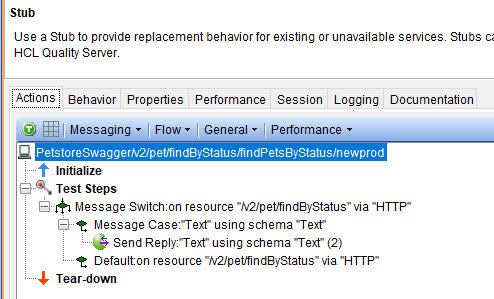
The Message Switch and Message Case are created as the Test Steps with the configurations that you provided for the MEP.
-
Click the Properties tab.
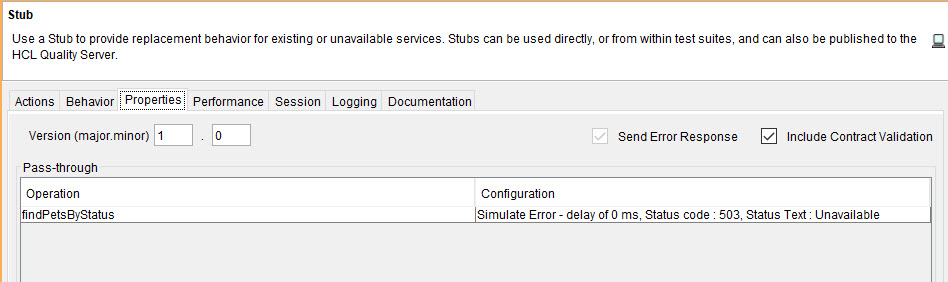
The Properties tab of the stub is displayed.
-
Select the Include Contract Validation option.
Note:When the Include Contract Validation option is selected, the following events occur:
- The Send Error Response option is automatically selected. When this option is selected, the stub is forced to send a response if the incoming message fails the validation that is set.
- The schema that is added to the messages configured for the Publish or Request MEP in the operation is automatically considered as the schema to be validated.
- Save the stub.
Results
What to do next
You can perform the following tasks:
- Start the stub that you edited for validating the Contract.
- Run the test in the operation that sends messages as the producer.
- View in the console log, after the test runs that the incoming messages are validated
against the contract.Note:If the validation fails, a response indicating an error in Contract validation is automatically sent to the producer.