To use the ISO 20022 schemas, you must first load the XSD schema files on the computer running HCL OneTest™ API. Then, you must load the schema files for the HCL OneTest™ API
Agent on the computer on which the agent is installed.
Before you begin
Make sure you have the required permission. On Windows™, you must be able to run a command prompt as an administrator. On Linux™ or Mac OS you must be the same user who installed the HCL OneTest™ API or HCL OneTest™ API
Agent software.
Procedure
-
Load the schemas on the computer on which HCL OneTest™ API is installed.
-
Close the HCL OneTest™ API user interface.
-
Open a command prompt or terminal window.
- If you use a Windows™ computer, open the command prompt by right-clicking the Command Prompt icon, and then click Run as administrator.
- If you use a Linux™ or Mac OS computer, open a terminal window. Ensure that you were the one who installed HCL OneTest™ API.
-
Run the following command to change the directory:
cd <install_dir>/tools/ISO20022XSDDownloaderFor example, the <install_dir> in Windows can be C:\Program Files\HCL\HCLProducts\API
-
Run the following script that depends on the operating system of your computer:
- startup.bat on Windows™
- startup.sh on Linux™
- startup_mac.sh on Mac OS
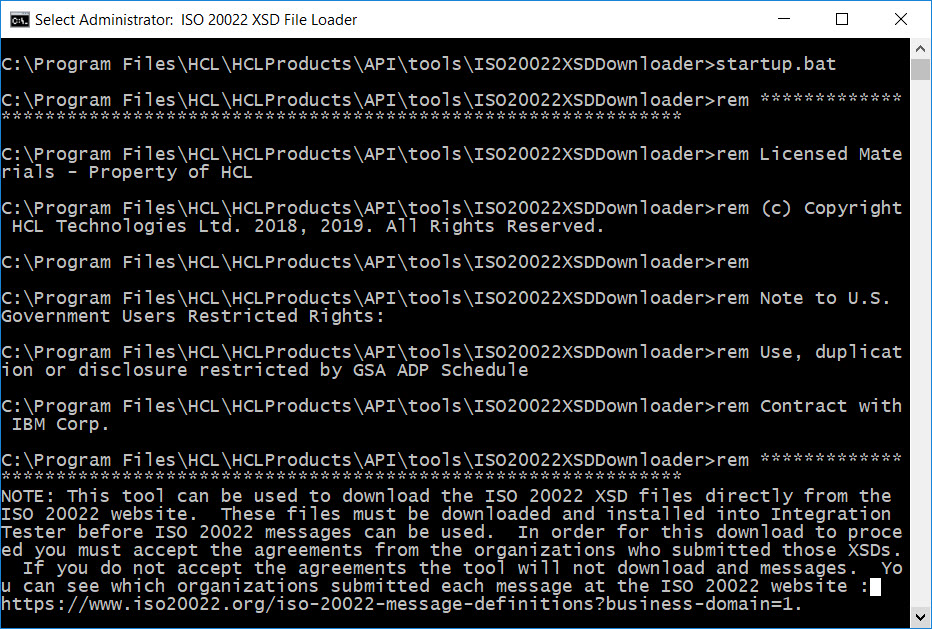
After the script starts, explanatory text is displayed.
-
Press Enter. For each of the submitting organizations, enter Y if you accept the displayed conditions and want to continue with the download. Otherwise, enter N and end the download.
The ISO20022 schema files are downloaded to the following directory: <install_dir>/externalSchemaCache/schemas.iso20022.org
-
Close the command prompt or terminal window and restart HCL OneTest™ API.
You can now see the ISO 20022 schemas in the Schema Library view.
-
Load the schemas on the computer on which HCL OneTest™ API
Agent is installed. Perform the following steps for each computer:
-
Stop the HCL OneTest™ API
Agent service on the Agent computer.
-
Open a command prompt or terminal window.
- If you use a Windows™ computer, open the command prompt by right-clicking the Command Prompt icon, and then click Run as administrator.
- If you use a Linux™ or Mac OS computer, open a terminal window. Ensure that you were the one who installed HCL OneTest™ API.
-
Run the following command to change the directory:
cd <agent_install_dir>/tools/ISO20022XSDDownloaderFor example, the <agent_install_dir> in Windows can be C:\Program Files\HCL\HCLProducts\Agent
-
Run the following script that depends on the operating system of your computer:
- startup.bat on Windows™
- startup.sh on Linux™
After the script starts, explanatory text is displayed.
-
Press Enter. For each of the submitting organizations, enter Y if you accept the displayed conditions and want to continue with the download. Otherwise, enter N and end the download.
The ISO20022 schema files are downloaded to the following directory: <agent_install_dir>/externalSchemaCache/schemas.iso20022.org
-
Close the command prompt or terminal window and restart the HCL OneTest™ API
Agent service.
What to do next
You can view the ISO20022 schemas in the Schema Library. See ISO 20022 schema overview.

 The ISO20022 schema files are downloaded to the following directory: <install_dir>/externalSchemaCache/schemas.iso20022.org