Viewing a Functional Report
When the test run is complete, you can view the Functional Report in HCL DevOps Test Hub (Test Hub). The report contains a summary of the execution, the test environment, a detailed view of all tests, and the test steps that you executed.
Procedure
-
Go to in the navigation pane.
The test assets that have completed their run are listed.
-
Select the tab based on the type of test assets that you ran as indicated in
the following table:
If... Then... You ran AFT Suites, API Suites, Server Suites, or Compound Tests.
Click the SUITES tab.
You ran API Tests, Functional Tests, or Server Tests.
Click the TESTS tab.
You ran Suites or Tests and you want to find the test assets by using custom filters. Click the ADVANCED tab.
-
Click the test asset under the Test column.
The results and reports panel is displayed.
- Click the Reports tab, if it is not already open.
-
Click the Functional Report link.
The Functional Report opens in a new tab.
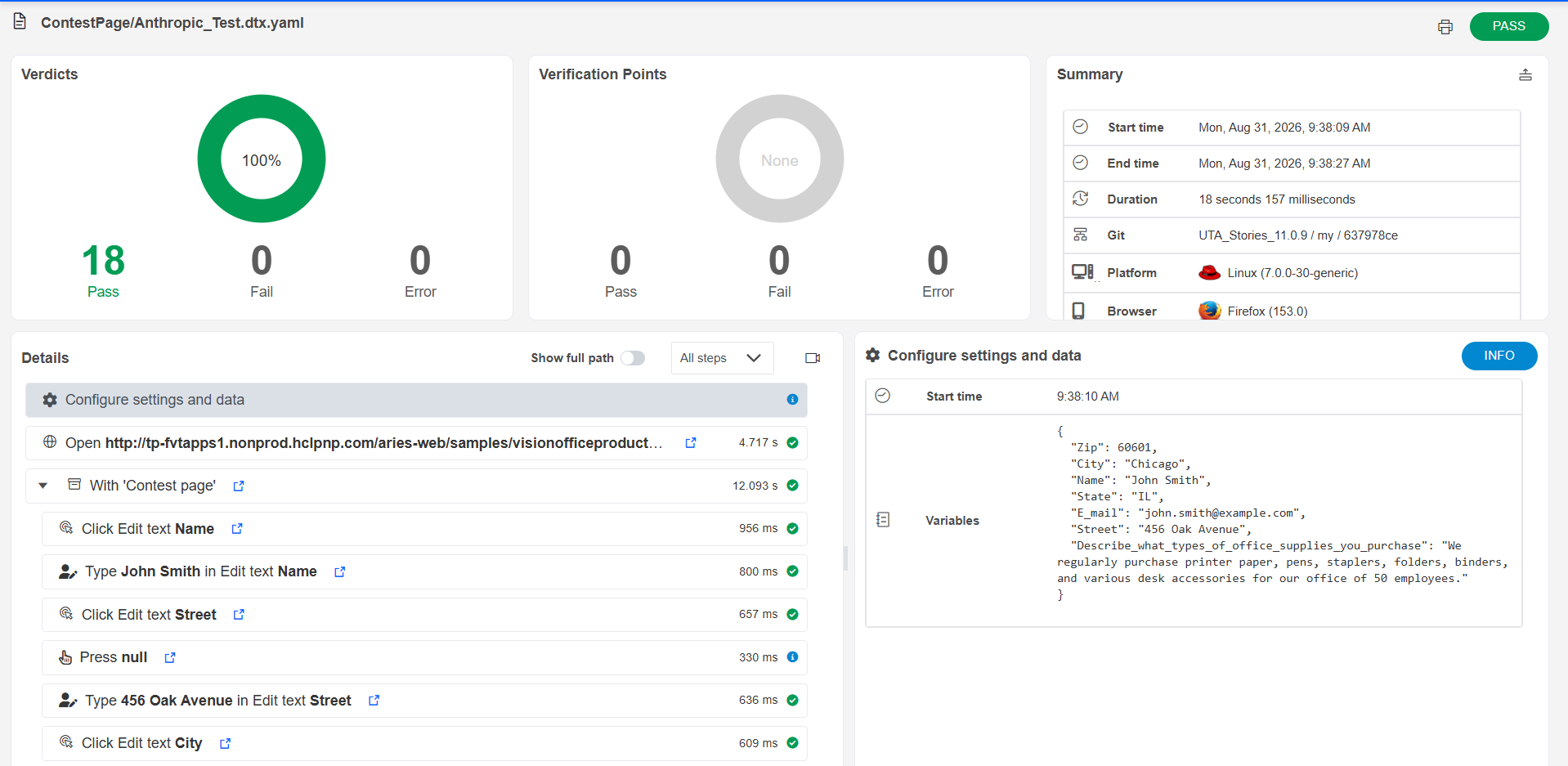
You can see the following information in the report:- Click the Configure settings and data node to view the initial variable values and dataset details used during test run. Variable details are now displayed directly in the parent activity viewer for better readability and navigation.
- The top-level steps and first-level child steps are automatically expanded to provide better visibility.
- A summary of the test run, including passed or failed status, count of passed or failed tests or test steps, and the verification points.
- A summary of the test environment with the details of deployments, datasets, and components.
- A detailed view of all tests that were executed in the case of an intelligent test suite, or in the case of a test with invoked tests.
- A detailed view of all steps that were executed for each of the tests, including screenshots if any.
-
In the report, you can perform the following actions:
-
Click the Print icon
 to
print the report or save it as a PDF.
to
print the report or save it as a PDF.
-
Click the Browse Screenshots icon
 to
view all the screen captures taken during the test run.
to
view all the screen captures taken during the test run.
-
Click the View content icon
 to view
the variables or stack trace, if available.
to view
the variables or stack trace, if available.
-
Click the Download attachment icon
 to
download the variables or stack trace as a .txt
file, if available.
to
download the variables or stack trace as a .txt
file, if available.
-
Click the Previous failure icon
 and
Next failure icon
and
Next failure icon  to
navigate between the failed steps, if there are failed steps in the
report.
to
navigate between the failed steps, if there are failed steps in the
report.
-
Click the Collapse icon
 to hide the test, verdict, and summary sections and provide
more space for test and step details.
to hide the test, verdict, and summary sections and provide
more space for test and step details.
-
Click the Expand icon
 to view the test, verdict, and summary sections.
Note:The Functional Report retains its last-used state. If it was last viewed in collapsed or expanded mode, it opens in the same mode the next time you access it.
to view the test, verdict, and summary sections.
Note:The Functional Report retains its last-used state. If it was last viewed in collapsed or expanded mode, it opens in the same mode the next time you access it.
-
Click the Print icon