Viewing Functional Report (Experimental)
When the test run is complete, you can view the Functional Report (Experimental) in HCL DevOps Test Hub (Test Hub). The report contains a summary of the execution, the test environment, a detailed view of all tests, and the test steps that you executed.
Procedure
Important:
The Functional
Report is an experimental feature, its content and structure
might change depending on future upgrades or changes.
-
Go to .
The test assets that have completed their run are listed.
-
Select the tab based on the type of test assets that you ran as indicated in
the following table:
If... Then... You ran AFT Suites, API Suites, or Compound Tests.
Click the SUITES tab.
You ran API tests or Functional tests.
Click the TESTS tab.
You ran Suites or tests and you want to find the test assets by using custom filters. Click the ADVANCED tab.
-
Click the test asset under the Test column.
The results and reports panel is displayed.
- Click the Reports tab, if it is not already open.
-
Click the Functional Report (Experimental) link.
The Functional Report (Experimental) opens in a new tab.
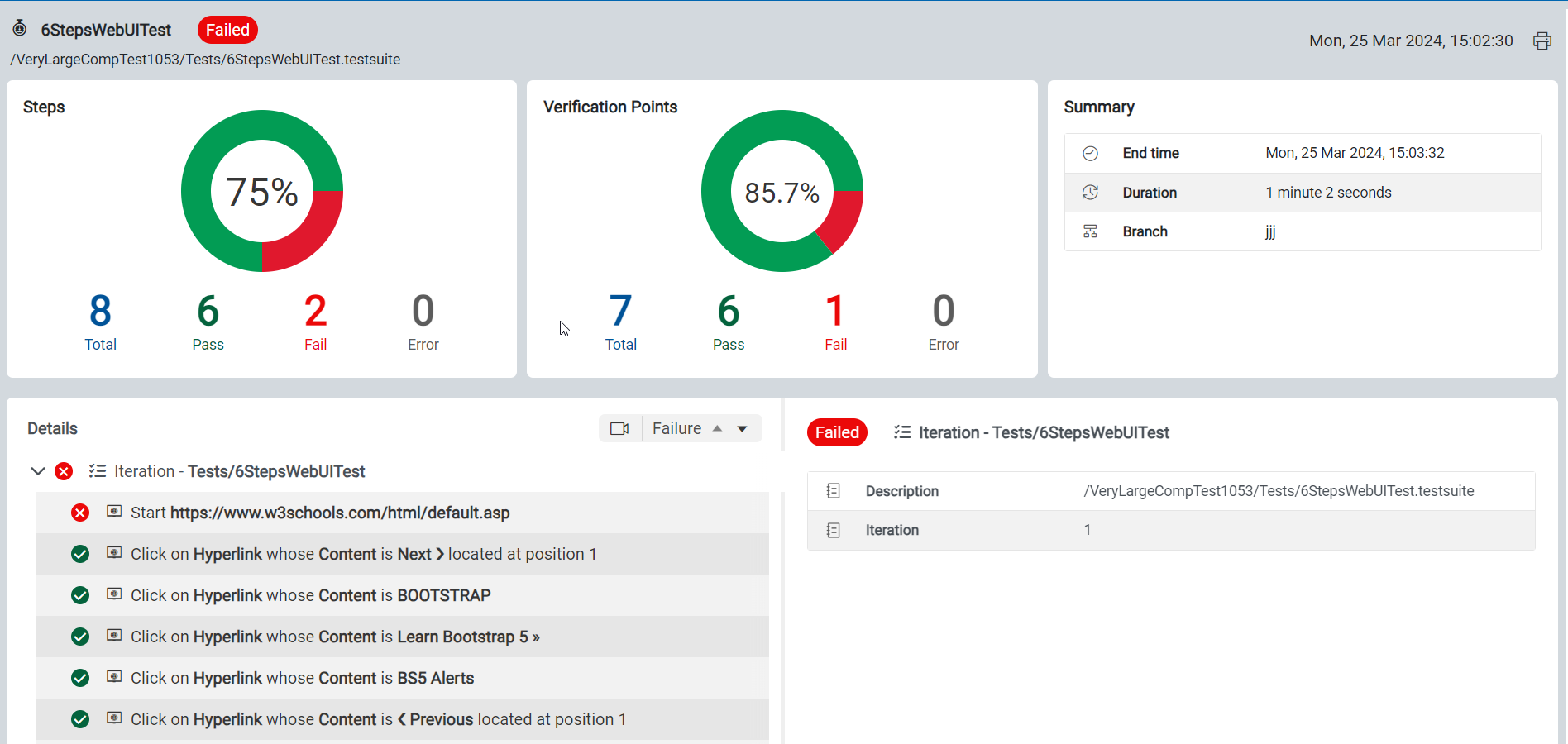
You can see the following information in the report:- A summary of the execution, including passed or failed status, count of passed or failed tests or test steps, and the verification points.
- A summary of the test environment with the details of deployments, datasets, and components.
- A detailed view of all tests that were executed in the case of an intelligent test suite, or in the case of a test with invoked tests.
- A detailed view of all steps that were executed for each of the tests, including screenshots if any.
-
In the report, click the Print icon
 to print the
report or save it as a PDF.
to print the
report or save it as a PDF.