
DevOps Loop User Interface
You can find an overview of the HCL DevOps Loop user interface.
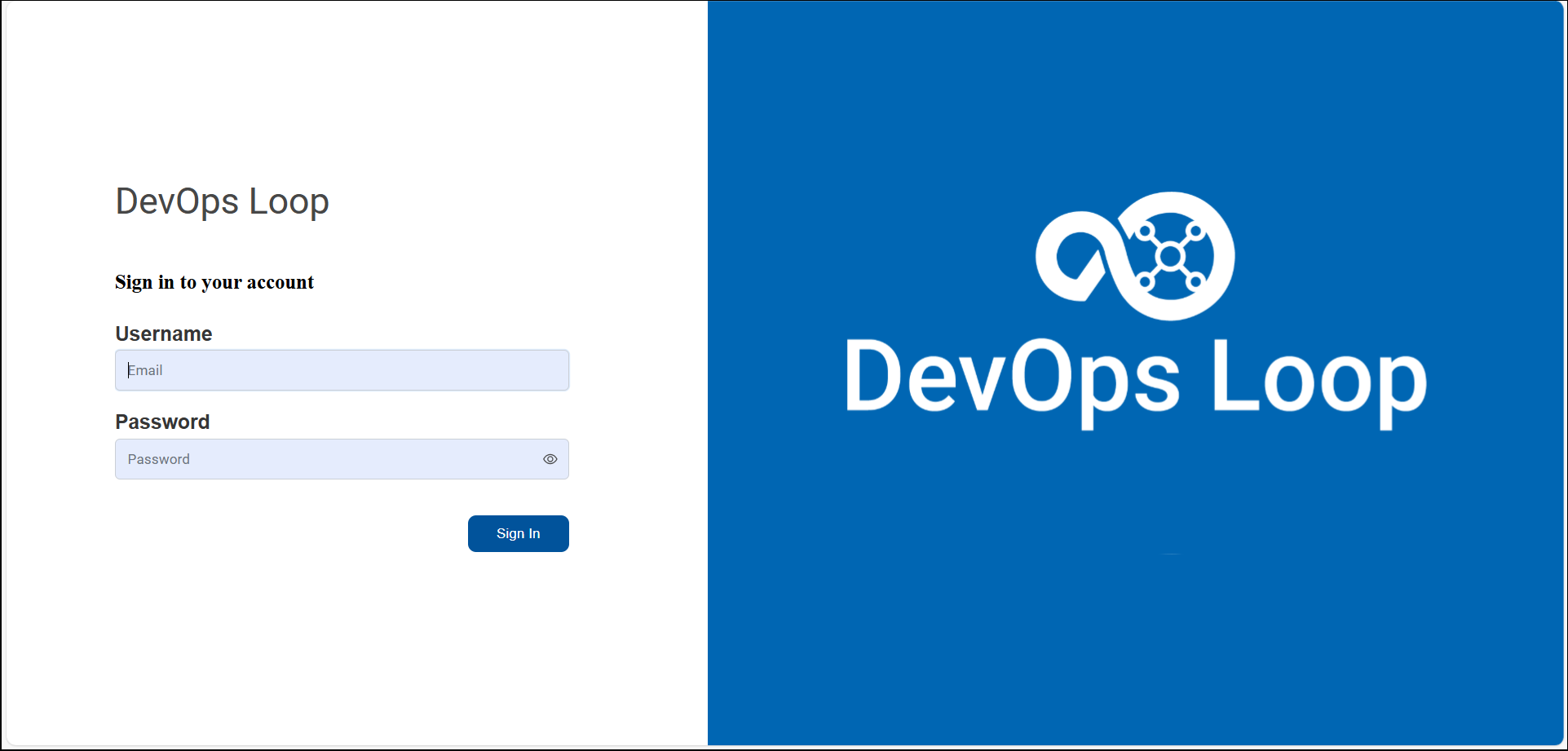
- Login page
- The login page provides an option to sign in to the DevOps Loop platform.
You are logged in to the initial teamspace that displays the My Loops page.
- My Loops
- The My Loops page provides an option to create a
teamspace.
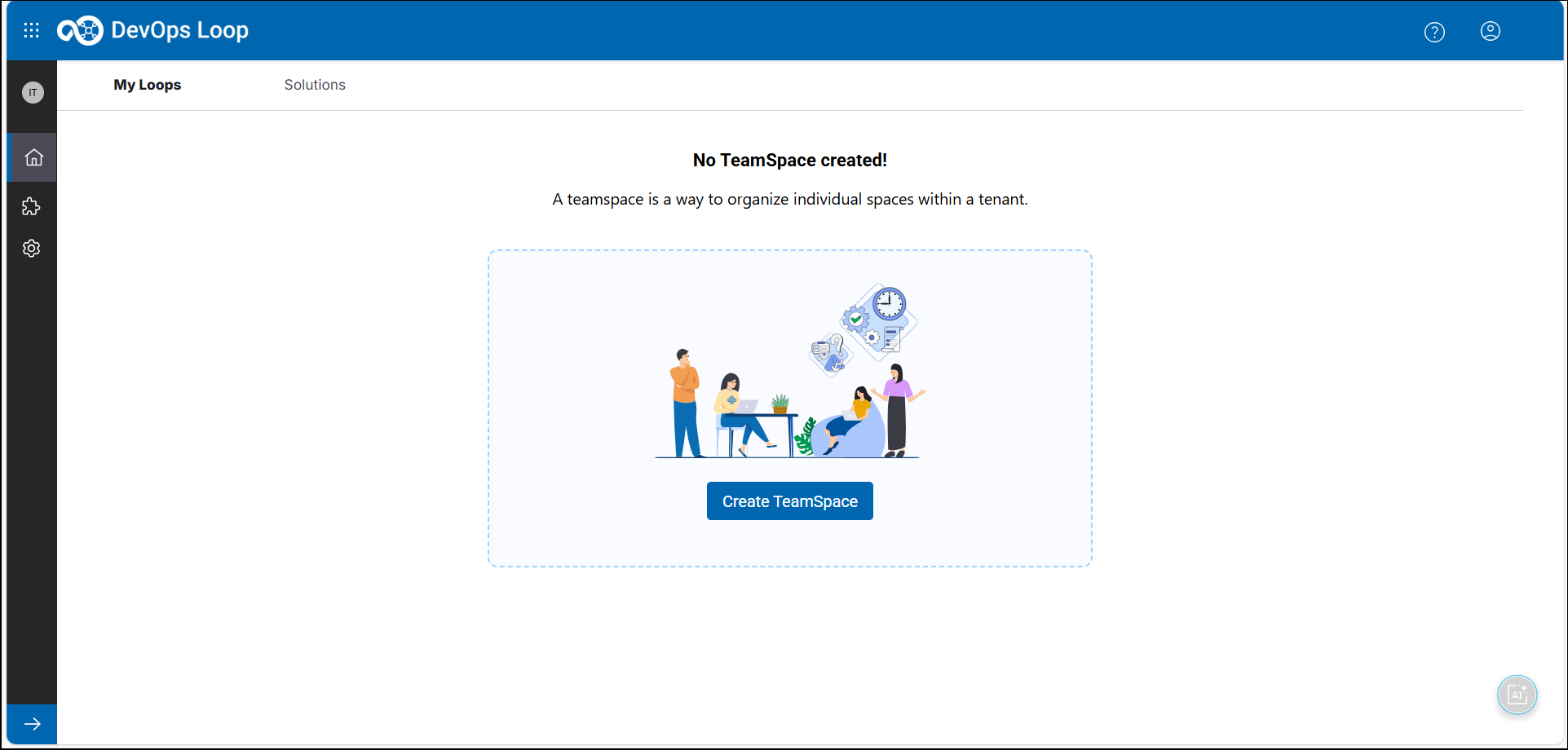
You must create a new teamspace to create a loop. After you create a loop in your teamspace, the My Loops page lists the loop with its dashboard. See Teamspace management and Loop management.
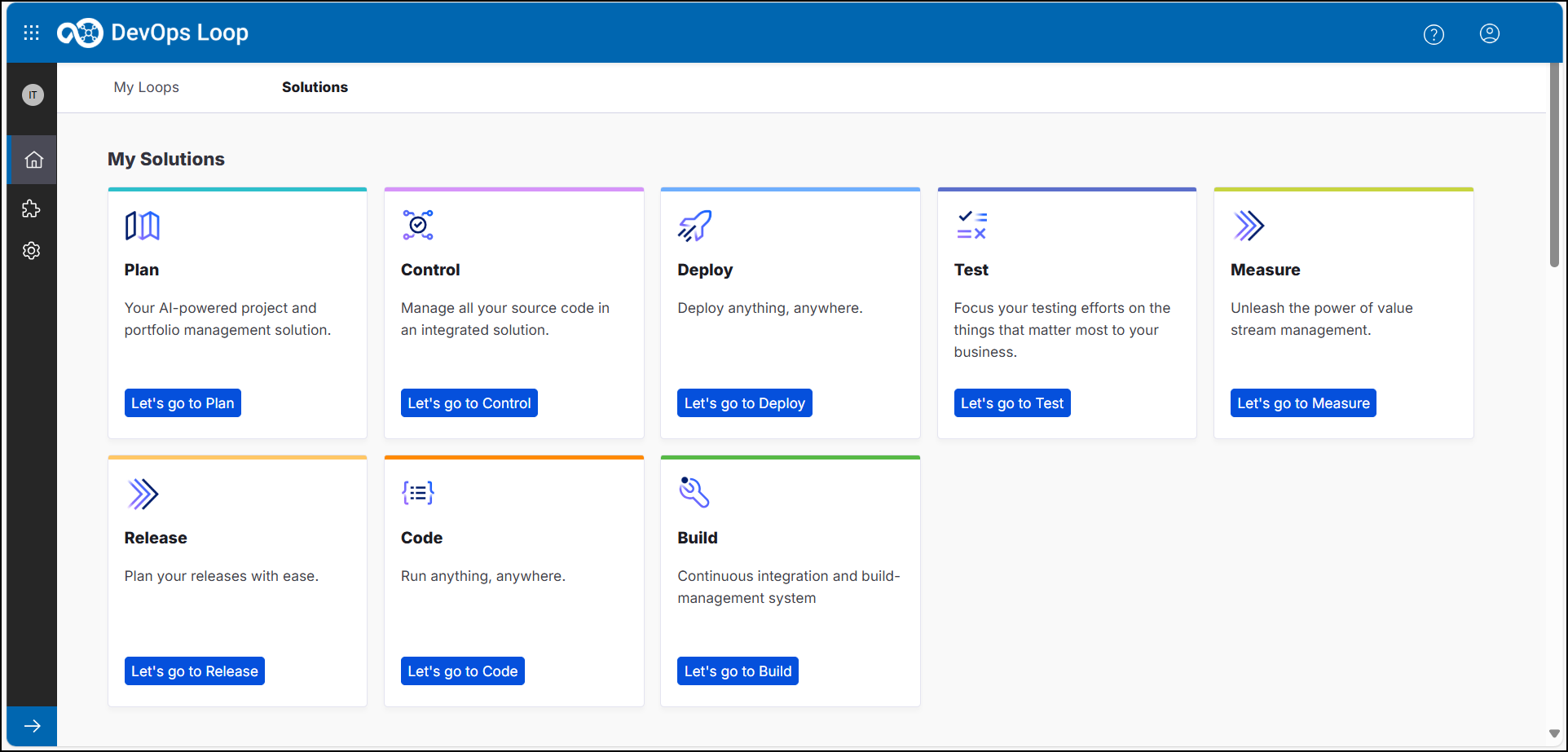
- Solutions
-
The Solutions page lists the DevOps tools that you are entitled to use on the DevOps Loop platform.
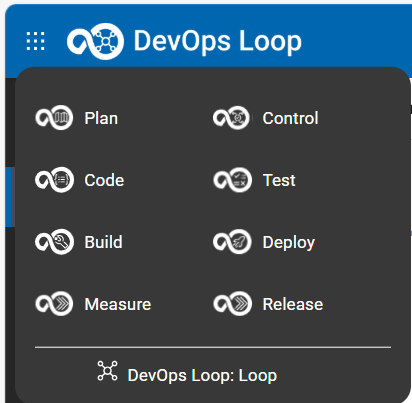
Alternatively, the switcher at the top-left corner also provides options to switch to a DevOps tool as shown in the following image:
- Plugins
-
The sidebar provides the
 option to navigate to the Toolchain
Engineering page that lists the Featured
plugins and All plugins sections. You
can choose a plugin that is required for a specific solution from the
All plugins section and click
option to navigate to the Toolchain
Engineering page that lists the Featured
plugins and All plugins sections. You
can choose a plugin that is required for a specific solution from the
All plugins section and click  to download a plugin.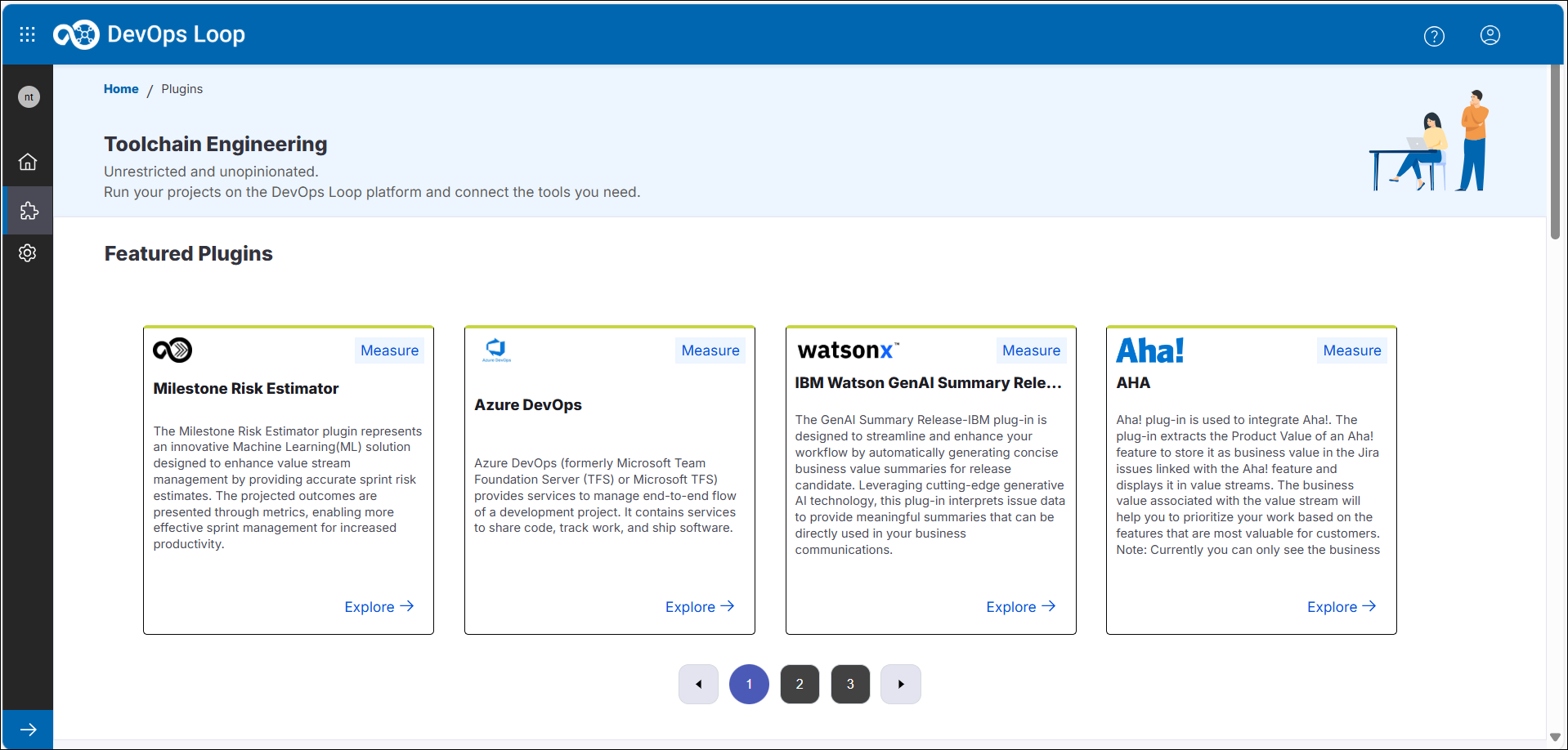
- Settings
-
The sidebar provides the
 option to administer users through the User
Administration page and manage integrations through the
Integrations page. See Revoking a license and Integrations - Tech Preview.
option to administer users through the User
Administration page and manage integrations through the
Integrations page. See Revoking a license and Integrations - Tech Preview.
- Logout
-
To log out of DevOps Loop, you can click the profile icon
 , and then click Logout.
Alternatively, you can click the profile icon
, and then click Logout on any of the
solution pages such as Plan, Test, or Deploy. The following logout page is
displayed.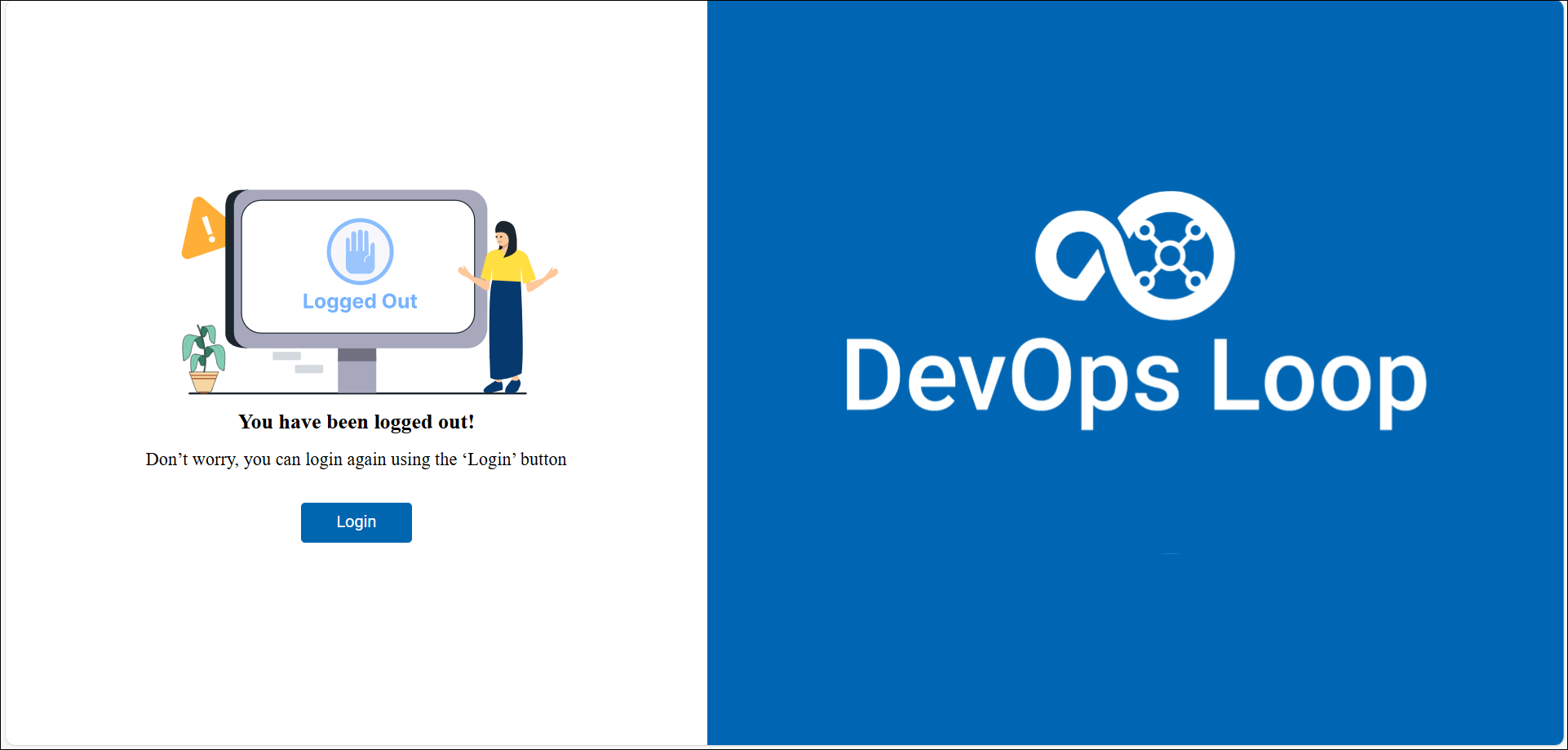
You can click Login to log in again.