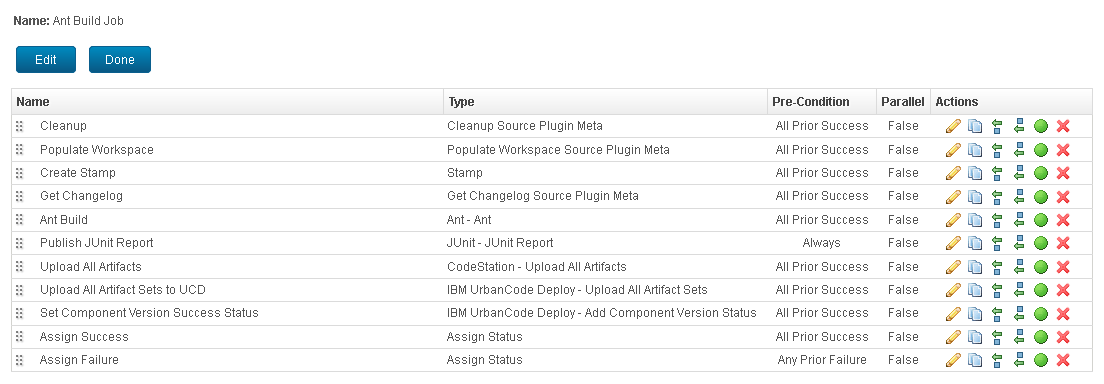
Lesson 2: Creating a job and adding steps
A job is a series of steps that, together, complete an activity, such as building a project. When a project runs, the steps run one at a time in the order that you specify.
Before you begin
About this task
Creating a job
Most job steps are created from plug-ins. Plug-in steps can be thought of as distinct pieces of automation.
About this task
Create a job by completing these steps:
Procedure
- On the left navigational panel, click .
- On the Jobs page, click Create.
- In the Create a Job window, name the job Ant Build Job.
-
Click Save.
The Main tab for the new job is displayed.
Results
Cleaning the workspace
To ensure that no files from a previous build get incorporated into the new one, add a step to clean the agent's workspace. This step is part of most build jobs.
Procedure
- If the Main tab for the Ant Build Job is not displayed, then from the Build dashboard, click , and then click Ant Build Job.
- Click Create Step.
-
Using the Steps dialog box, click Source.
The Source list expands to display the available source-related steps and plug-ins.
-
In the Steps dialog box, click Clean Workspace, and then click Select.
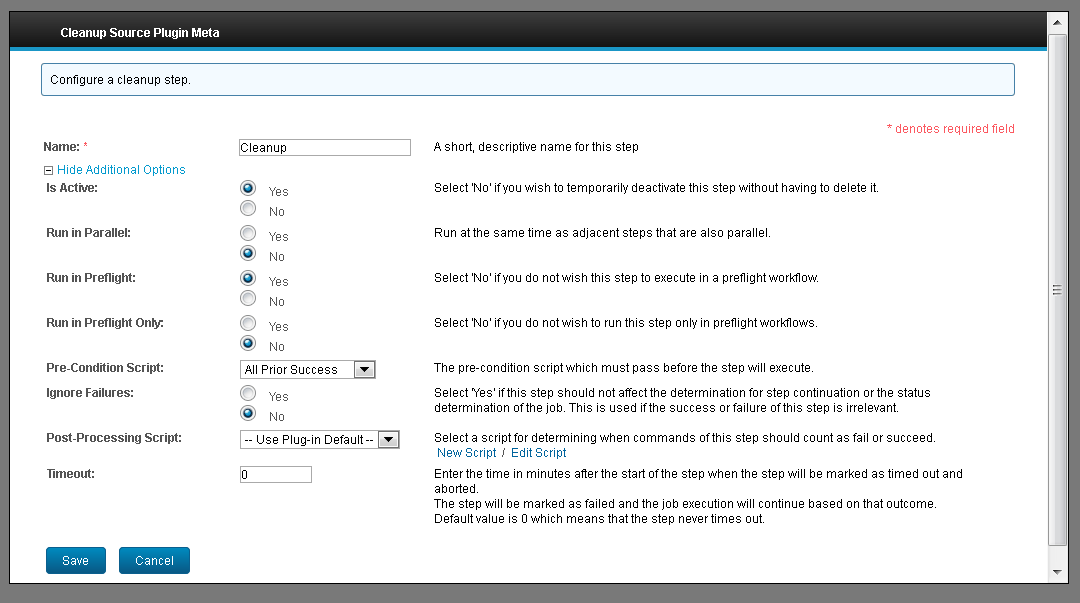
The Change Source dialog box is displayed. The dialog box that is displayed after you select a step contains options that are related to the selected step. Some of the options are unique to the step, while others are common to all steps.Note: Each step dialog box has more options available than are initially displayed. To see the other options, click Show Additional Options. The additional options are the same for all steps and are set to default values that are acceptable for most jobs. For example, the default value for the Pre-Condition Script field is All Prior Success, which means that the step runs only if the preceding steps succeed. The additional options are shown in the following figure. For most of the steps in this tutorial job, the default values are fine.
-
On the Cleanup Source dialog box, in the Name field, type
Cleanup. - Click Save.
Results
After a job has a step, the Create Step push button is no longer used and actions are used instead to insert steps.
Populating the workspace
This step places the checked-out code, which is defined later in the project's source configuration, in the agent's workspace.
Procedure
-
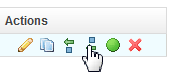
Use the Insert After action for the Cleanup step.
- In the Steps dialog box, click Source, and then click Populate Workspace.
- Click Select.
-
Using the Populate Workspace dialog box, in
the Name field, type
Populate Workspace. -
In the Date String field, type the
${bsh:WorkspaceDate.get()}BeanShell script line.This script sets the date to the date that the source is checked out. The default date is theworkspace.dateproperty on the job. - Click Save.
Results

Creating a stamp step
A stamp is an identifier that is applied to a build. Stamps are often used in addition to the automatically generated build life identifiers. A stamp step is part of most jobs.
Procedure
- If the Main tab for the AntBuild Job is not displayed, then from the Build dashboard, click , and then click Ant Build Job.
- Use the Insert After action for the Populate Workspace step.
-
Using the Steps dialog box, click Build.
The Build list expands to display the available build-type steps and plug-ins.
-
In the Build list, click Create
Stamp, and then click Select.
The Stamp dialog box is displayed.
-
In the Name field, type
Create
              Stamp
. -
In the Stamp field, enter a script to define the stamp:
${p:product.version}.${gvy:BuildLifeLookup.current.id}.The Groovy script looks up the current build-life ID, which is part of every build life, and appends it to theproduct.versionproperty. You create theproduct.versionproperty later in the tutorial when you create the build process. - Click Save.
Results

Creating a get changelog step
This step retrieves source changes that were saved since the last build. The prior build life is located by using status or stamp parameters.
Procedure
- Click the Insert After action for the Create Stamp step.
- In the Steps dialog box, click Source, and then click Get Source Changes.
- Click Select.
-
In the Get Changelog Source Plugin Meta dialog box, in the Name field, type
Get Changelog. -
Select Success on the Start
Status list.
The value that is selected determines which source items are retrieved. In this case, only items with a
Successvalue are retrieved. -
Ensure that Save Changes in Database is selected,
it is selected by default.
This parameter makes the data available to the web application's user interface, and for reporting.
- Click Save.
Results

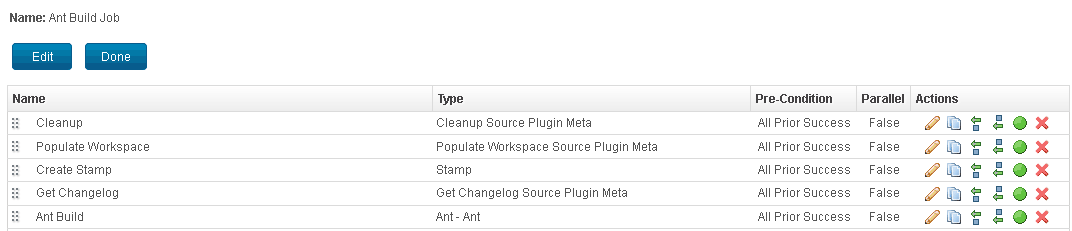
Creating an Ant build step
Create a step that runs an Ant build process.
About this task
Procedure
- Click the Insert After action for the Get Changelog step.
- In the Steps dialog box, click , and then click Select.
-
In the Plugin Command window, in the Name field, type
Ant Build. -
In the Working Directory Offset field, type
${p?:dir.offset}.The question mark character, ?, can be used to reference properties. The format is${p?:propertyName}. In this instance, if the user specifies a value for thedir.offsetproperty, this script returns the value. Otherwise, it returns an empty string. -
In the Ant
Script File field, type
${p:build.script.name}. -
In the Targets field, type
${p?:ant.targets}. -
In the Properties box, type
${p?:build.properties}. -
In the Ant
Properties box, type
${p?:ant.properties}.Note: The ANT_HOME and JAVA_HOME fields are set to default values for the computer where the agent is located. - Click Save.
Results
Creating the publish JUnit tests step
JUnit is a testing framework for Java™. This step runs tests and reports the results.
Before you begin
About this task
Procedure
- Click the Insert After action for the Ant Build step.
- In the Steps dialog box, click , and then click JUnit Report.
- Click Select.
-
In the Name field, type
Publish JUnit
              Report
. -
In the Report Name field, type
JUnit
              Report
. -
In the Source Directory field, type
${p:junit.report.base.dir}.Reports are written to the specified location. -
In the Include Patterns field, type
TEST*.xml.Test files that match the specified pattern are written to the same directory. - Display the Pre-Condition Script list by clicking Show Additional Options, and then select Always.
- Click Save.
Results
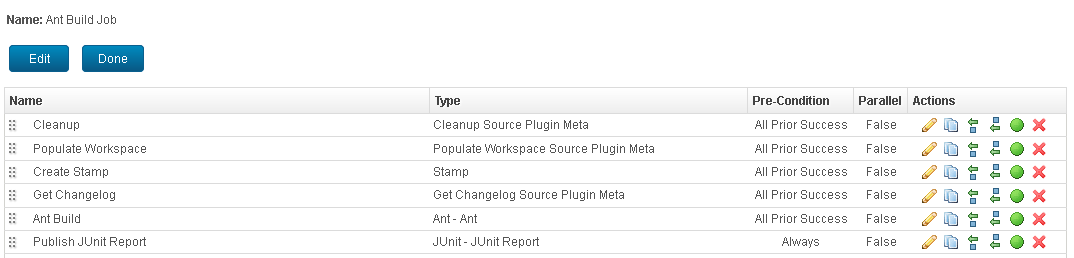
Creating the upload artifacts step
Create a step that uploads the build artifacts into the artifact repository, CodeStation.
Procedure
- Click the Insert After action for the Publish JUnit Report step.
- In the Steps dialog box, click , and then click Select.
-
In the Name field, type
Upload All
              Artifacts
. - Accept the default values for the other fields and click Save.
Results
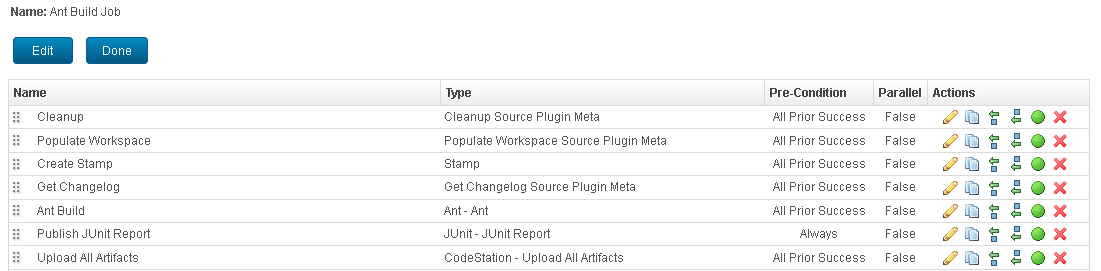
Creating the step to upload artifacts to DevOps Deploy
Create a step to upload the build artifacts to HCL DevOps Deploy (Deploy).
Before you begin
About this task
Procedure
- Click the Insert After action for the Upload All Artifacts step.
- In the Steps dialog box, click , and then click Select.
-
In the Name field, type
Upload All
              Artifact Sets to UCD
. -
In the Component Name field, type
${p:project/name}.Note: This property value loads the artifacts into an Deploy component with the same name as the project that runs the build. Later you create a tutorial project that is named Ant. If you name your project something else, make sure that you name a component in Deploy with the name that you use for the project. -
In the Component Version field, type
${p:buildlife/latestStamp}.This value generates a version number for the Deploy component version. The component version ID that is created in Deploy is equal to the value that the Create Stamp job step creates. - In the DevOps Deploy Server list, select the server that you integrated with Build.
- Accept the default values for the other fields and click Save.
Results
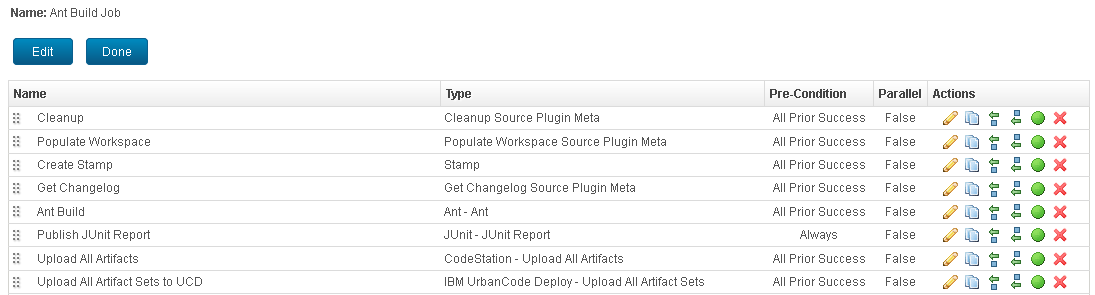
Creating the component version status step
Create a step that sets the component version status in HCL DevOps Deploy (Deploy).
Before you begin
Success in Deploy, as described
in Configure the tutorial system.About this task
Procedure
- Click the Insert After action for the Upload All Artifact Sets to UCD step.
- On the Steps dialog box, click , and then click Select.
-
In the Name field, type
Set Component
              Version Success Status
. -
In the Component Name field, type
${p:project/name}. -
In the Version Name field, type
${p:buildlife/latestStamp}. -
In the Status Name field, type
Success.The status value is applied to the component version that was created in the previous step. - In the DevOps Deploy Server list, select the server that you integrated with Build.
- Accept the default values for the other fields and click Save.
Results
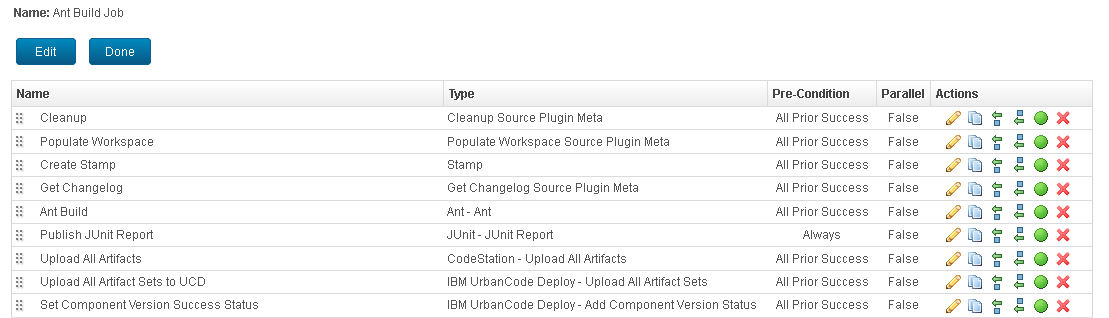
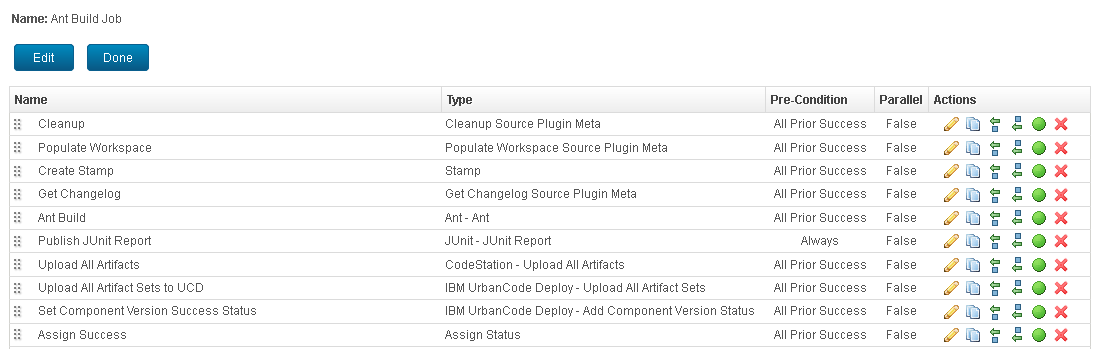
Creating the assign success step
If all previous steps succeed, this step assigns a status of Success to the entire job. If the preceding steps fail, this step does not run, and the next step runs instead.
Procedure
- Click the Insert After action for the Set Component Version Success Status step.
- In the Steps dialog box, click Build, and then click Assign Status.
-
In the Name field, type
Assign
              Success
. - In the Status list, select Success.
-
Click Save.
Because the Pre-Condition Script field is set to All Prior Success by default, you can accept the value.
Results
Creating the assign failure step
This step assigns a status of Failure to the job. The step runs if any of the preceding steps fail.
Procedure
- Click the Insert After action for the Assign Success step.
- In the Steps dialog box, click Build, and then click Assign Status.
-
In the Name field, type
Assign
              Failure
. - In the Status list, select Failure.
- Display the Pre-Condition Script list, and select Any Prior Failure.
- Click Save.
Results
Lesson checkpoint
In this lesson, you created job and added steps to it.
About this task
This job retrieves source from GitHub and runs an Ant build process on it. It uploads the artifacts into HCL DevOps Deploy (Deploy) and generates JUnit test reports. Steps are configured individually as you insert them into a job.