Lesson 1: Adding components
Components are groups of deployable artifacts that make up an application. Components include runnable files, images, databases, and configuration instructions.
Before you begin
- Make sure that your HCL DevOps Deploy (Deploy) server has the prerequisites that are listed in Prerequisites.
- Make sure that you have set up the agent for the sample application as described in Configuring the agent and target system.
About this task
- The application component includes the logic of the application. This component consists of a single web archive file that is named JPetStore.war.
- The web component includes the static web content for the application, including images for the web interface.
- The database component includes the database for the application and scripts that upgrade the database schema to new versions.
Procedure
- Download the artifacts.zip file by clicking the following link:
- Copy the artifacts.zip file
to the Deploy agent
computer and extract it.
This file contains a folder named shared which contain separate folders for each of the components; these folders are named app, web, and db. Each of these folders contains one or more folders with names such as 1.0 or 1.1; these folders represent different versions of the artifacts.
Notes:- For the tutorial, these folders must be on the same system that hosts the Deploy agent.
- Note the locations of these folders as you will need the locations later.
- Ensure that the JARs in the db folder are compatible with the version of MySQL/MariaDB database installed on the agent computer.
- Log in to the Deploy server.
- Create the application component:
-
Import the versions of the component:
-
Verify that version 1.0 of the component is included in the list of versions, as in the
following figure:
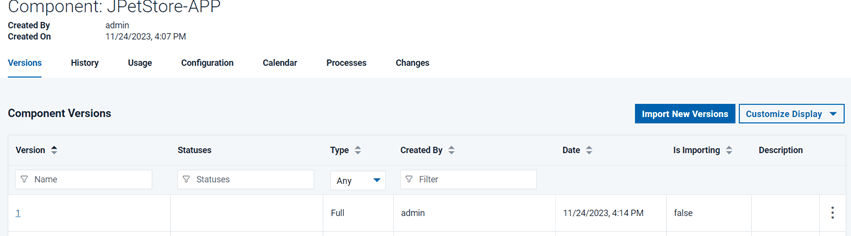
If the version import failed, make sure that the files are available on the agent system and that the location of these files is correct on the component Configuration tab.
The component is available to be used in one or more applications. -
Verify that version 1.0 of the component is included in the list of versions, as in the
following figure:
- Create the database component:
- Click the Components tab, and then click Create Component again.
- Specify the name to be JPetStore-DB.
- In the Source Configuration Type list, select File System (Versioned).
- In the Base Path field, specify the location of the db folder on the server, such as /home/user1/artifacts/shared/db.
- Under Default Version Type, click Import new component versions using a single agent and then select your agent in the Agent for Version Imports list
- Accept the default values for the other fields on the page.
- Click Save.
- Click Versions and then click Import New Versions.
Now the server shows two versions of the database component. - Create the web component:
- Click the Components tab and then click Create Component again.
- Specify the name to be JPetStore-WEB.
- In the Source Configuration Type list, select File System (Versioned).
- In the Base Path field, specify the location of the web folder on the server, such as /home/user1/artifacts/shared/web.
- Under Default Version Type, click Import new component versions using a single agent and then select your agent in the Agent for Version Imports list
- Accept the default values for the other fields on the page.
- Click Save.
- Click Versions and then click Import New Versions.
Now the server shows two versions of the web component. - So that you can try updating the components later, delete
the newest versions of the database and web components:
Results
In this lesson, you added components that are based on files in the file system. In a production scenario, you would connect the component to a source-code management system such as Subversion or a build system such as Jenkins.
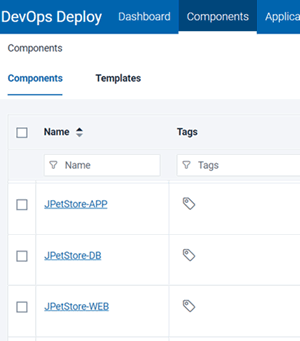
In a later lesson, you add these components to an application.