Replacing text strings
Use Find and Replace to change text strings in business objects such as product
descriptions, promotion names, or attachment descriptions. You can use Find and Replace in all
Commerce Lab tools.
Procedure
- Open a tool.
-
Open a list view, and ensure that the table is in focus by clicking on a cell within the table,
or the table header as highlighted in the screen capture; click . Alternately, you can click the Find and Replace
 icon in the toolbar.
An example of a Catalog Entry list view 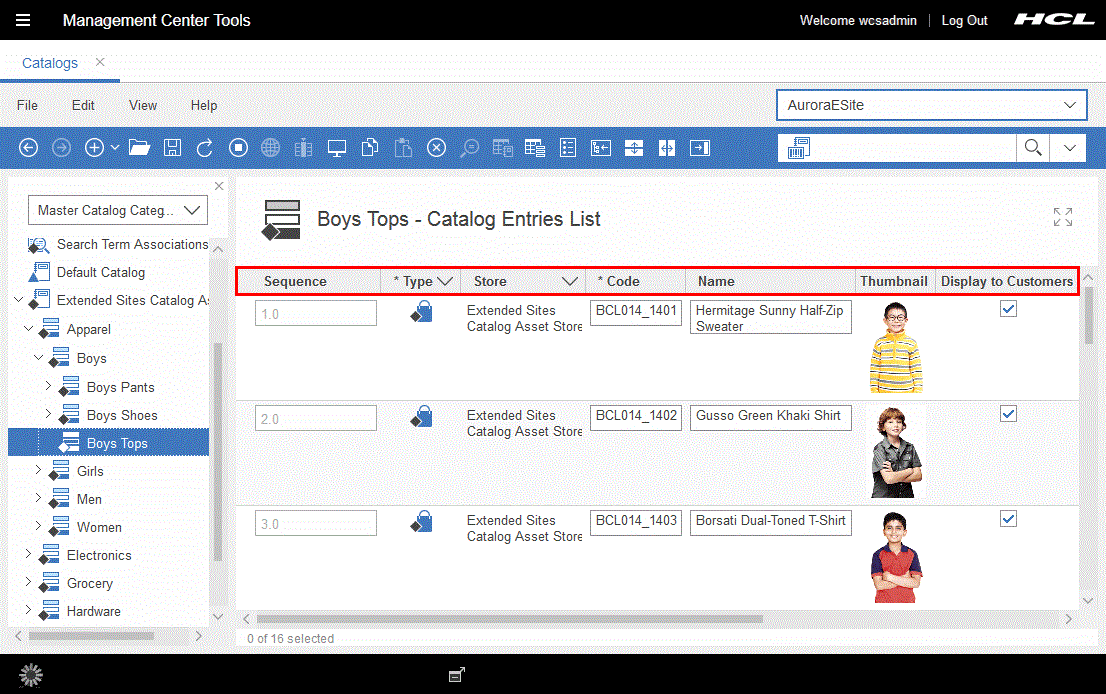
- In the Find and Replace window:
Note: You cannot replace text if:
- You cannot edit the text in the list view.
- The text contains mixed formatting, for example, if part of a word is underlined.