

Setting up Fixlet Streams
Setting up Fixlet Streams involves defining which devices participate in a stream and configuring automation to control when and how Fixlets are deployed. You subscribe devices using dynamic filters that are continuously evaluated, and then create an automation to schedule deployments, define execution behavior, and activate continuous remediation. Once configured, Fixlet Streams automatically apply relevant Fixlets to matching devices without requiring manual deployments. Once devices are subscribed, you can create automation for seamless patch deployments and monitor compliance and progress in real time.
To set up your Fixlet Stream, complete the following steps:
1. Accessing the Fixlet Stream
-
Loging in
Log in to BigFix UI using your Admin credentials.
-
Go to the Fixlet Stream Section
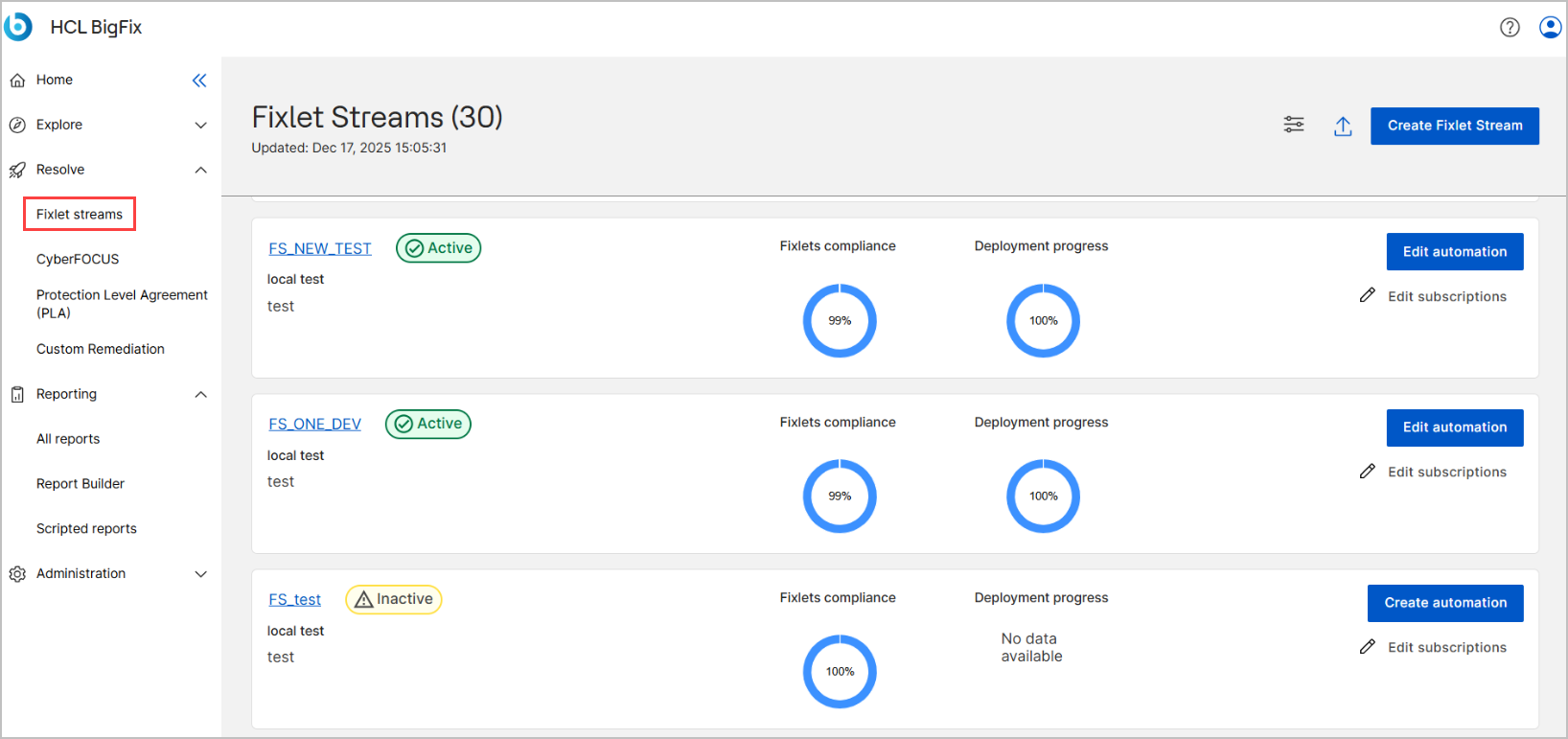
In the BigFix UI application, expand Resolve from the side navigation, and then select Fixlet streams. This opens the list of available streams. All built-in Fixlet Streams are presented as cards. Each card provides:
-
The name of the Fixlet Stream.
-
Its status (Active/Inactive).
-
A brief description of the Fixlet Stream.
- Actions to Create subscriptions or Create automation.
-
2. Subscribing Devices to a Fixlet Stream
-
On the desired Fixlet Stream card, click Create Subscriptions.
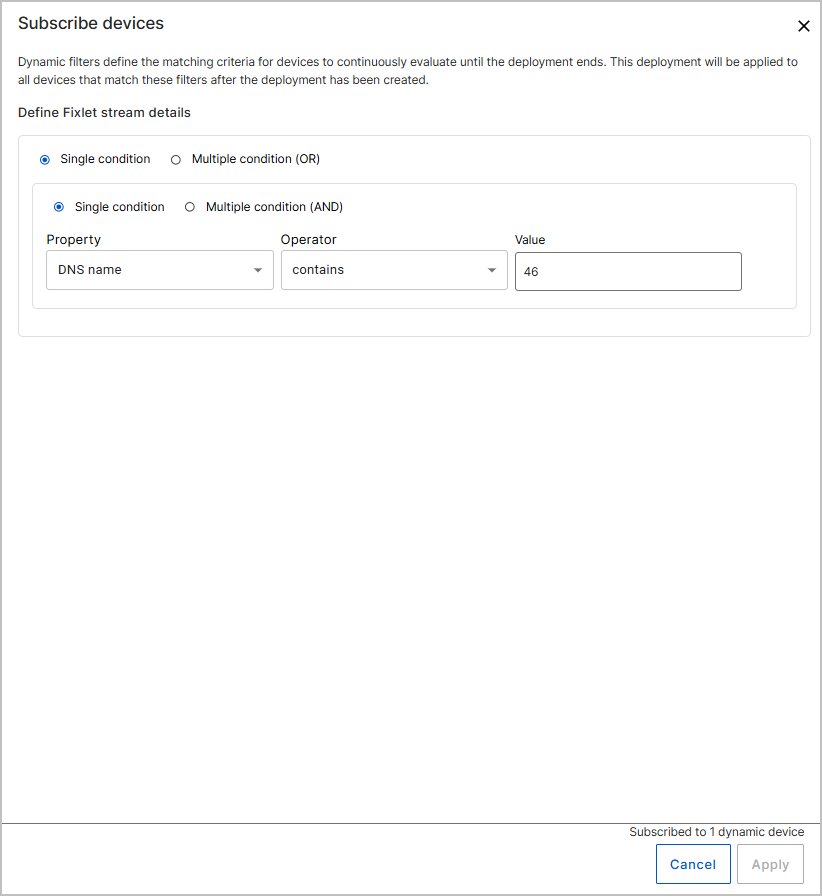
The Subscribe devices page opens.
-
Under Define Fixlet stream details, choose how to define the subscription criteria:
- Select Single condition to define one filter condition.
- Select Multiple condition (AND) to require all conditions in the block to match.
- Select Multiple condition (OR) to create multiple blocks where any block can match.
-
Define a condition by specifying the following fields:
- Property – Select a device attribute (for example, CPU or Agent type).
- Operator – Select a comparison operator (for example, equals or in).
- Value – Enter one or more values for matching.
- (Optional) To add more conditions within the same block, click Add Condition.
- (Optional) To create another block of conditions evaluated using OR logic, click Add Block.
- (Optional) To remove a condition or block, click Remove condition or Remove block.
- Review the subscribed device count displayed at the bottom of the page.
-
Review the device count. As per the dynamic filters, the system automatically displays the total number of devices that are eligible for subscription.
- Click Apply to subscribe devices to the Fixlet
Stream. This triggers a continuous evaluation of matching devices.
- Devices that match the defined criteria are subscribed to the Fixlet Stream.
- The subscription is evaluated continuously, and newly matching devices are automatically included.
- The Subscription definition status changes to Set.
- The Create automation button becomes available.
Note: If an error occurs, you will see the message "Error fetching devices. Please try again." Review your conditions and try again.
Tip: If you want to modify the conditions or start over, click Edit subscriptions to clear the current filters.
3. Creating Automation
-
On the desired Fixlet Stream card, click Create automation.
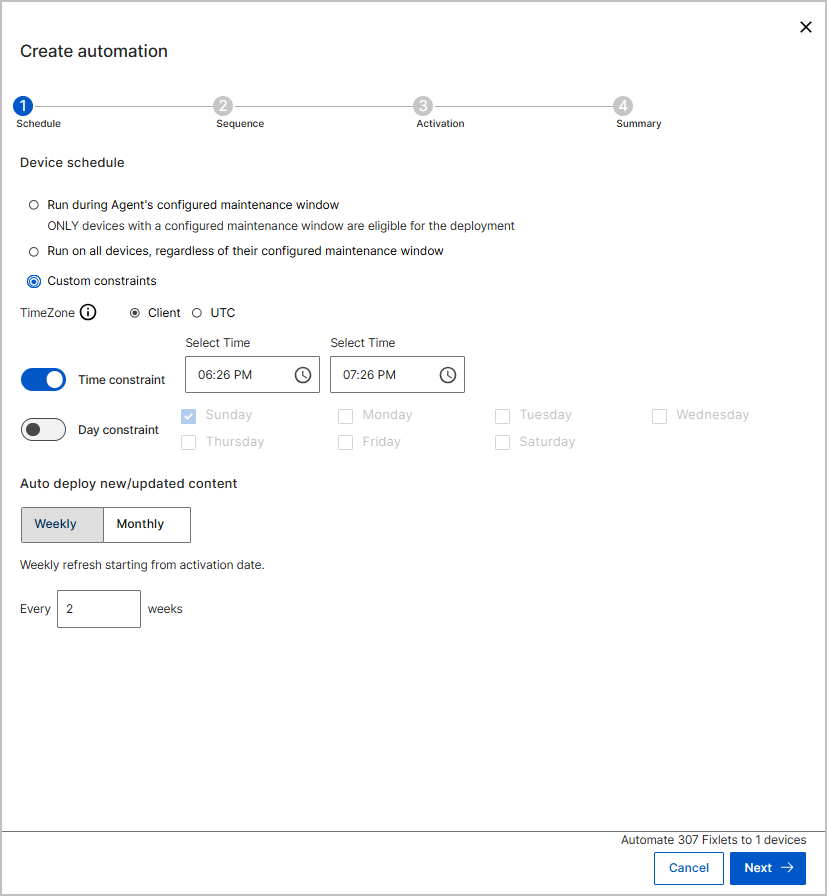
The Create automation wizard opens at the Schedule step.
-
Schedule:
Under Device schedule, choose one of the following options:
- Run during Agent’s configured maintenance window: Only devices with a configured maintenance window are eligible.
- Run on all devices, regardless of their configured maintenance window
- Custom constraints: If you select Custom constraints, define a
specific time window for deployment.
-
Time zone – Select Client or UTC
-
Time constraint – Specify the start and end time
-
Day constraint – Select specific days (optional)
-
-
Under Auto deploy new/updated content, choose how often the Fixlet Stream refreshes:
- Weekly or Monthly
- Specify the interval (for example, every 2 weeks)
- Click Next.
- Sequence: Configure the execution sequence
- On the Sequence step, configure how Fixlets are executed on devices.
- (Optional) Enable Offer to user to notify end users before deployment.
-
Under Order of events, configure the following options as required:
-
Start downloading immediately
-
Before running message – Enter a message displayed to users before execution
-
Specify how long to notify users before running
-
(Optional) Allow users to cancel
-
- (Optional) Configure additional behavior:
-
While running message
-
Reboot/Restart devices on completion of deployment
-
On failure, retry – Specify retry count and wait time
-
Reapply whenever it becomes relevant again – Specify wait time between attempts
-
- Click Next.
- Activation: Configure activation:
- On the Activation step, set when the automation starts.
- Select the Time zone: Client or UTC.
- Specify the Start date and Start time.
- Click Next.
- Summary: Review and create the automation.
- On the Summary step, review the configured settings, including:
-
Device schedule and time range
-
Auto-deploy frequency
-
Execution behavior and retry settings
-
User notification settings
-
Activation date and time
-
- Enter an Automation name (required).
- Once everything is configured to your satisfaction, click the Create button. A message will display: "Automation created successfully."
- On the Summary step, review the configured settings, including:
-
The automation is created and activated based on the configured start date and time.
-
Fixlets are automatically deployed to subscribed devices according to the defined schedule.
-
New or updated Fixlets that match the stream criteria are deployed automatically.
-
Deployment activity appears in the Deployments tab of the Fixlet Stream.
What to do next:
- Click on the name of the Fixlet Stream to access the Fixlet Stream Details Page.
- Monitor deployment progress from the Deployments tab.
- Review device compliance from the Overview tab.
- Edit or deactivate the automation if deployment behavior needs to change.