

Create Fixlet Stream
The Create Fixlet Stream feature enables you to set up custom Fixlet streams to meet specific organizational needs by defining conditions and selecting targeted devices for updates. The guided workflow helps you specify Fixlet criteria, scope target devices, and review the configuration before creating the stream, which can later be automated for continuous remediation.
Before you begin:
- You must have permission to create Fixlet Streams.
- Relevant Fixlet content must be available in the environment.
- Device properties used for filtering must be reported by agents.
Steps to Create a Fixlet Stream
-
Open the Create Fixlet Stream Widget
From the BigFix UI navigation, go to Resolve → Fixlet Streams.

Click Create Fixlet Stream in the top-right corner.
The Create Fixlet Stream wizard opens on the Properties step.
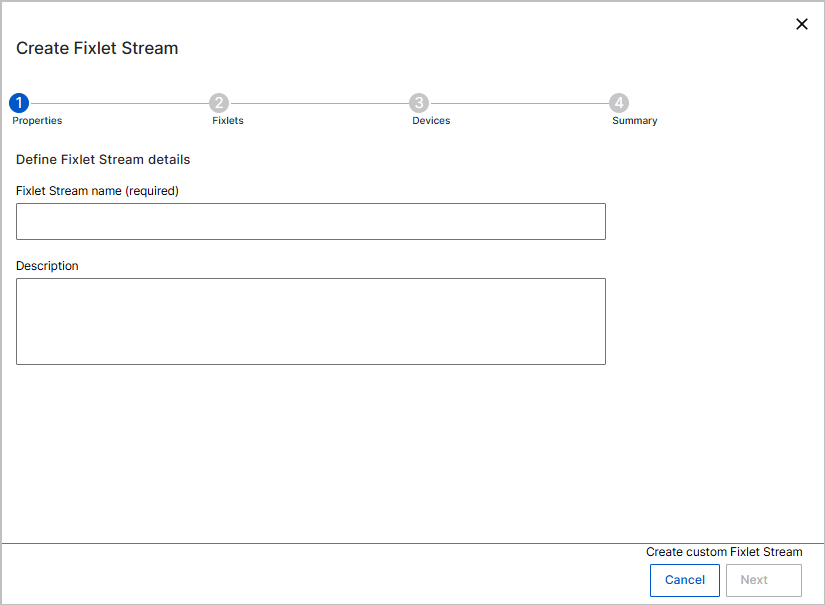
- Properties: Define Fixlet Stream properties.
- In Fixlet Stream name, enter a meaningful name for the stream. For example: Windows Critical Security Updates.
- (Optional) In Description, enter additional details to explain the purpose of the stream.
- Click Next to continue.
- Fixlets: Select Fixlets for the stream.
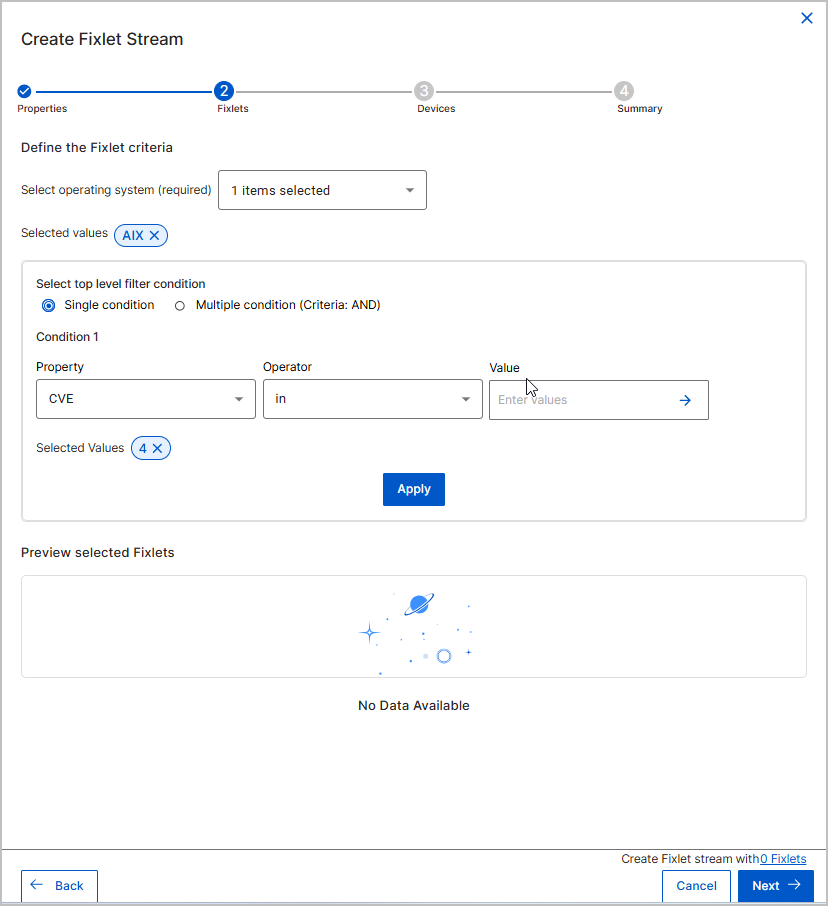
- On the Fixlets step, select the Operating System for which the Fixlet Stream applies. Only Fixlets relevant to the selected operating system are considered.
- Under Define the Fixlet criteria, choose how Fixlets are filtered:
-
Select Single condition to define one criterion, or
-
Select Multiple condition (Criteria: AND) to require all conditions to match.
-
-
Define the Fixlet criteria by specifying:
- Property – For example, CVE
- Operator – For example, in
- Value – One or more values that identify the Fixlets
- Click Apply. The system evaluates the criteria and identifies matching Fixlets.
- Review the Preview selected Fixlets section to confirm that the expected Fixlets are included.
- Click Next.
- Devices: Define target devices.
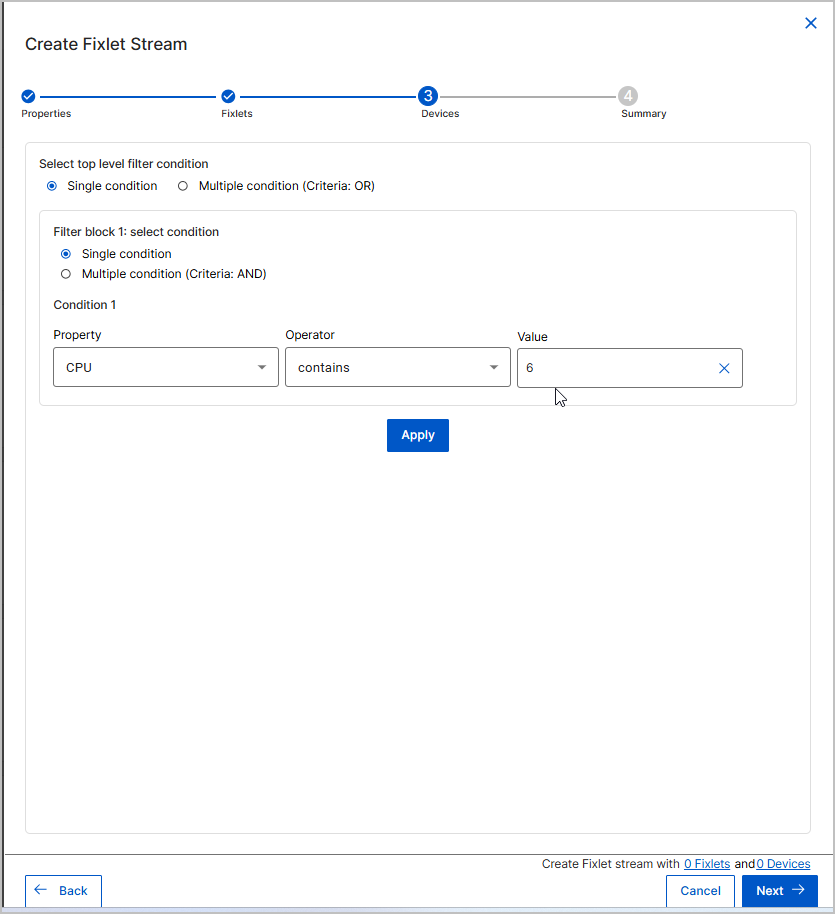
- On the Devices step, specify how devices are selected for the Fixlet Stream.
- Choose the Select top levet filter condition
based on device properties. Choose how devices are filtered:
- Select Single condition to define one criterion, or
-
Select Multiple condition (Criteria: AND) to require all conditions to match.
- Click Apply to evaluate the filters.
- Review the Preview of dynamically applicable targeted devices section to verify which devices match the criteria.
- Click Next.
- Summary: Review and create the Fixlet Stream:
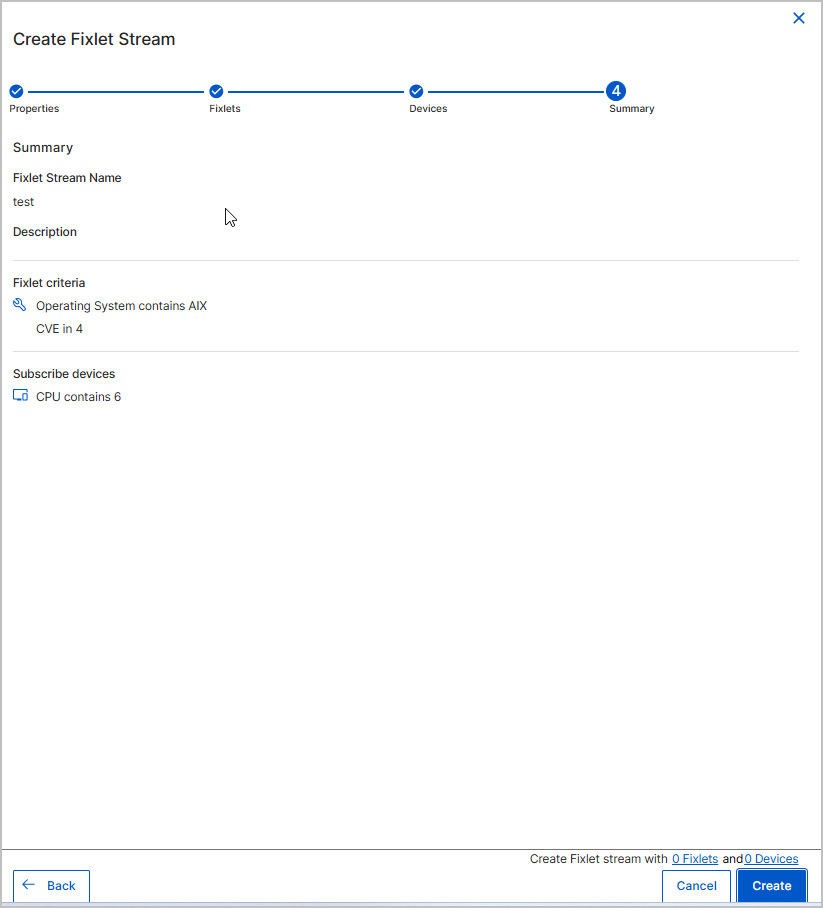
- On the Summary step, review all configured details
- Fixlet Stream name and description
- Fixlet selection criteria
- Device filtering criteria
- Confirm that the configuration matches your intended scope. Click
Create.
-
The Fixlet Stream is created and appears on the Fixlet Streams landing page.
-
The stream does not deploy Fixlets until devices are subscribed and automation is configured.
-
You can now proceed to set up the Fixlet Stream for remediation.
-
- On the Summary step, review all configured details
-
Edit Fixlet Stream
- To adjust conditions, click on your custom Fixlet stream card to access the Fixlet Stream Details Page and edit any attribute settings as needed.
What to do next
- Subscribe devices to the Fixlet Stream.
- Create automation to schedule and control Fixlet deployments.
- Monitor compliance and deployments from the Fixlet Stream details page.