
Windows Drivers Management Dashboard
The Windows Drivers Management Dashboard is a BigFix Console feature designed to centralize and simplify the management of Windows device driver updates across an enterprise infrastructure. It provides a structured way to discover, deploy, and monitor driver updates to ensure endpoint consistency and reduce manual workloads.
Overview and Purpose
Dashboard details:
- Dashboard Name: Windows Drivers Management
- Released Site: Updates for Windows Applications Extended
- Site Version: 337
Key Capabilities:
- Centralized driver management
- Reduced manual driver updates
- Improved endpoint consistency
- Controlled deployment options
- Full audit visibility
Benefits:
- Centralized visibility of available driver updates
- Driver selection and deployment from the BigFix Console
- Monitoring of deployment status across endpoints
- Historical tracking of driver deployments.
How to Enable the Dashboard
To make the dashboard available in your BigFix Console, follow these steps:
- Open the BigFix Console.
- Navigate to the License Overview section.
- Locate the site named Updates for Windows Applications Extended.
- Gather version 337 or later.
- Once the site is gathered, the dashboard becomes available in the console. No additional configuration is required.
Dashboard Working Mechanism
The dashboard works using the following mechanism:
- A Driver Collection Task (ID: 3000) must be manually executed by the operator on the endpoint to collect driver update details. The task does not run automatically.
- The task collects applicable driver update information and writes the data to a predefined local file on the endpoint.
- A BigFix Analyses (ID: 3003) reads and processes the collected driver data. The analysis refreshes periodically (every 1 hour).
- Driver information is displayed in the dashboard in a structured format based on the latest available analysis data.
- Driver deployments are executed using Multiple Action Group (MAG). Each deployment action also includes re-running the Driver Collection Task to refresh the local file on the endpoint on the Driver update information after installation.
- Installation results are reported back to the console and reflected in the dashboard after the next analysis refresh cycle.
- All deployment and task execution activities are stored in the BigFix Console for tracking, monitoring, and audit purposes.
Periodic Driver Discovery: To ensure continuous driver requirement discovery,
the Driver Collection Task must be executed periodically on endpoints. Running the
task periodically ensures the following:
- New driver requirements are automatically discovered
- The dashboard reflects the most up-to-date driver status
Note: The dashboard interface must be manually refreshed
to view the most recent action results and updated deployment
status.
Note: The Driver Management Dashboard
leverages the Windows Update Agent API (WUA API) to check driver details
on each endpoint and identify drivers that require updates. This process is
executed through a BigFix task, which performs a scan using the WUA API to
collect applicable driver update information.This functionality requires an
active internet connection for WUA API to contact the Microsoft services.
Additionally, Windows service should not be disabled.
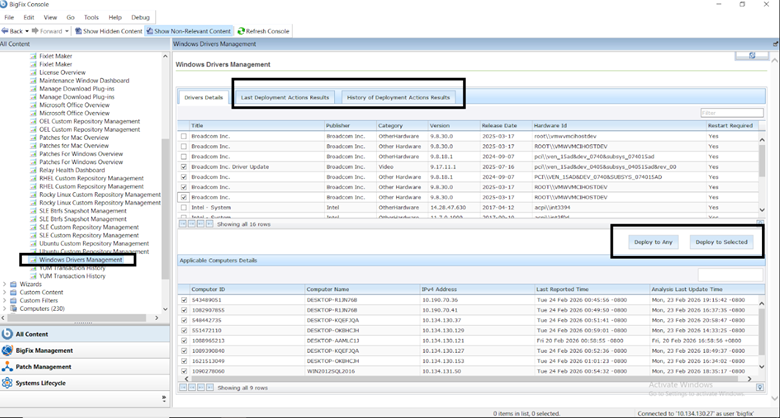
Dashboard Functionality & Tabs
- Driver Details
- Review all discovered drivers, including their publisher, category, version, release date, hardware id, and whether a restart is required.
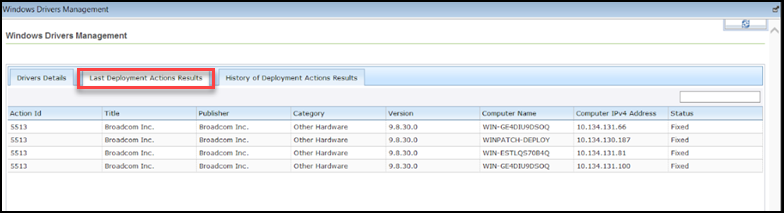
- Last Deployment Action Results
- Used for immediate validation, this tab shows the success, failure, detailed execution results, and endpoint-level outcome of the most recent deployment action.
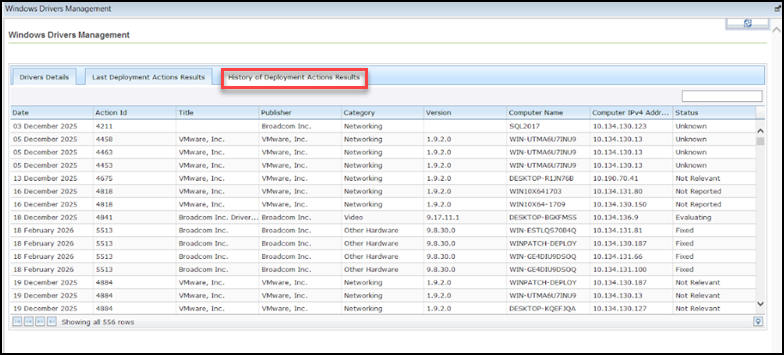
- History of Deployment Action Results
- A comprehensive log for auditing and tracking purposes. This records:
-
Target computers
-
Execution dates and times
-
Final deployment status.
-
- Deployment Options
- The dashboard offers two primary methods for triggering updates:
- Deploy to Any: Allows deployment of selected drivers to
any endpoint, regardless of whether the system specifically
flagged that driver as applicable. CAUTION: Use this cautiously in production environment.
Figure 4. Deploy to Any 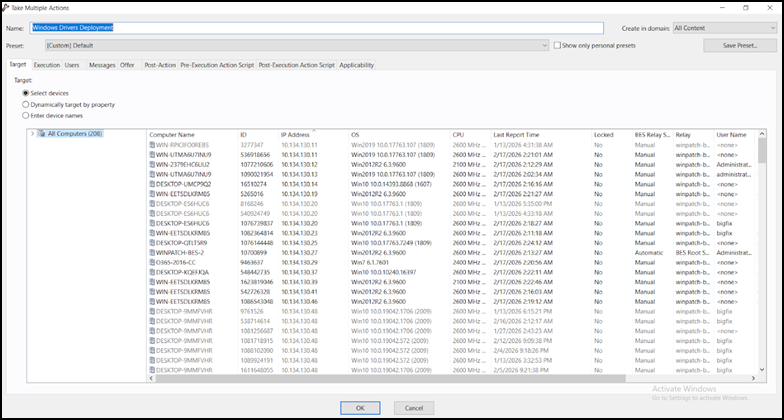
- Deploy to Selected: An "applicability-aware" method that
only deploys drivers to systems where they are relevant,
providing a safer deployment path.
Figure 5. Deploy to Selected Screenshot (A) 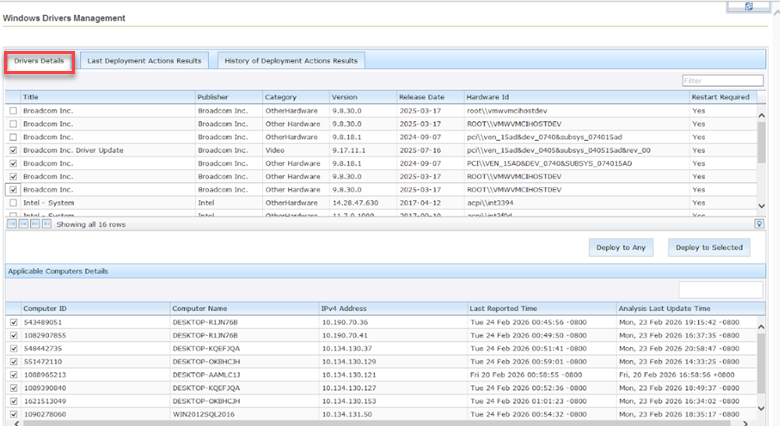
Figure 6. Deploy to Selected Screenshot (B) 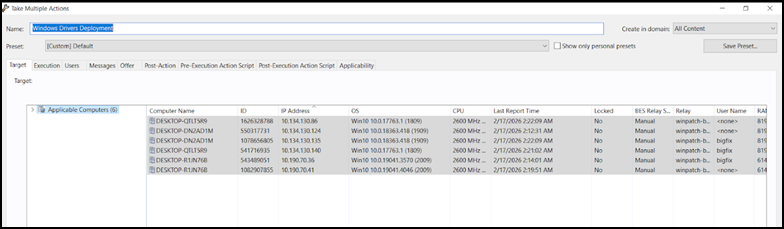
- Deploy to Any: Allows deployment of selected drivers to
any endpoint, regardless of whether the system specifically
flagged that driver as applicable.
Operating Procedures of Dashboard
Follow these steps to manage drivers effectively:
- Data Collection: Make sure that the driver collection task has successfully been executed on endpoints.
- Review: Open the dashboard to inspect available drivers and identify applicable system.
- Selection: Choose your deployment method (Deploy Any and Deploy Selected) based on your requirements.
- Execution: Select the specific endpoints and confirm the action to trigger the MAG.
- Monitoring: Check the View Last Deployment Action Results tab for immediate results and the View Deployment Action History tab for long-term audit tracking.
Known Considerations
- Driver data depends on successful execution of the collection task.
- "Deploy Any" option does not validate driver applicability before deployment.
- Operator permissions must be configured in the BigFix Console to allow driver deployment actions.
- Driver updates should be tested in a controlled environment before large-scale deployment.
The Windows Drivers Management dashboard is available in English only. Make sure that your environment meets this language requirement for full dashboard functionality.