Configuring analysis properties
Add a property, change its evaluation period and relevance clause, or remove it from an analysis.
Before you begin
You need custom content rights and write access to the site that stores the analysis. Reserved properties that are activated globally are read-only.
About this task
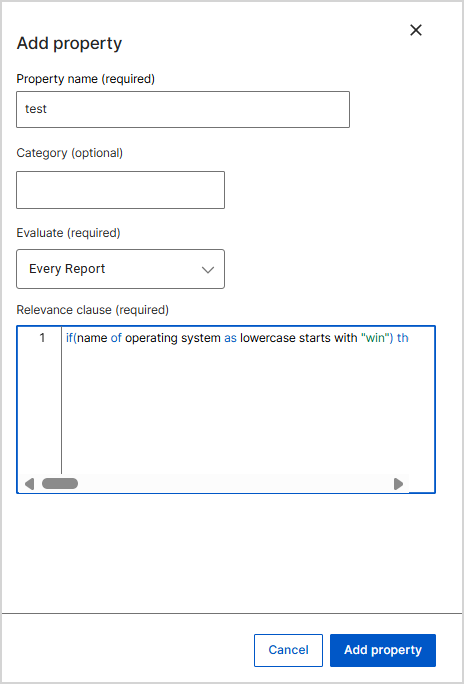
A property defines the data that the BigFix agent collects, how often it evaluates the data, and the relevance clause that returns the value. You can create a property from the Properties tab, or edit an existing one from the same tab.
Procedure
-
Expand Explore in the side navigation, select
Analyses, and then select the
Properties tab.
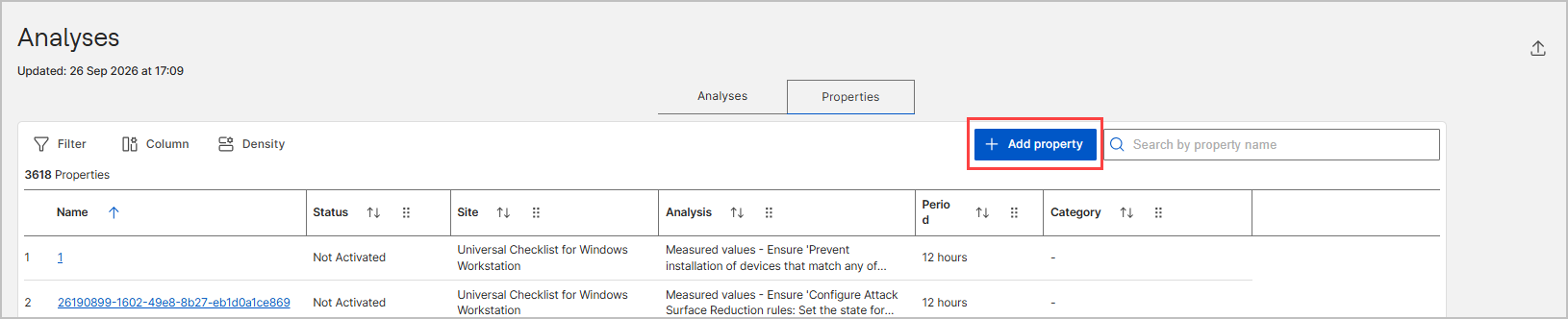
The Properties table lists every property with its status, site, parent analysis, evaluation period, and category.
-
To create a property, select Add property.
-
To change an existing property, select its name in the
Properties table.
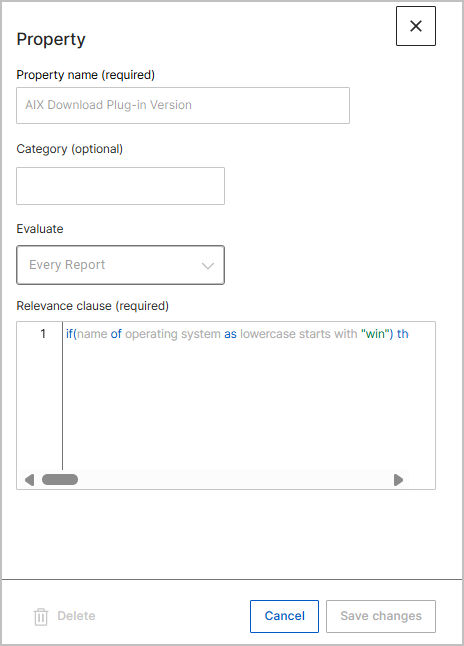
The Property panel opens on the right and shows the Property name, Category, Evaluate, and Relevance clause fields.
-
Update the fields, and then select Save changes.
Note:The Save changes button stays dimmed until you change a value. Select Cancel to close the panel without saving.
- Optional: To remove the property, select Delete in the panel.
-
Optional: To change the properties of a single analysis, open the analysis
details page and select Edit analysis.
The Edit analysis wizard opens with the same Details, Scope, and Properties steps that you use to create an analysis. Select Next to reach the Properties step, add or remove properties, and then select Update Analyses. To remove the analysis and its properties, select the delete icon on the analysis detail page, and then confirm the deletion. For more information, see Editing and deleting an analysis.
Results
The Properties table shows the updated evaluation period and relevance. Devices report the new values after the next agent evaluation.
What to do next
To share the collected values, see Exporting and sharing analysis results.