Fixlet Explorer Details page
The Fixlet Explorer – Detail Page provides complete information about a selected Fixlet, including its metadata, tags, relevance expressions, actions, applicable devices, and related deployments.
Use this page to understand how a Fixlet works and where it applies. It helps you decide whether to deploy a Fixlet, explore its relevance script, or learn more about its origins.
To open the detail page, select a Fixlet name in the Fixlet Explorer – List View data table. The page opens with three tabs: Overview, Relevant Devices, and Deployments.
From the top-right corner of the Fixlet Explorer – Detail Page, you can deploy, edit, or delete the Fixlet. The Edit and Delete icons are enabled only for custom Fixlets that you created; they don't appear for out-of-the-box Fixlets.
- Deploy: Select Deploy to create a deployment for this Fixlet. The deployment wizard opens and guides you through the deployment steps. For more information, see Deploying Fixlets.
-
Edit (custom Fixlets only): To change the Fixlet's details, detection rules, or actions:
- In the top-right corner, select the Edit icon. The Create fixlet wizard reopens with the Fixlet's current values.
- Update the values on the Details, Detection rules, or Actions steps as needed.
- On the Summary step, review your changes and save the
Fixlet.
For more information, see Managing custom Fixlets.
-
Delete (custom Fixlets only): To remove the Fixlet:
- In the top-right corner, select the Delete icon. A confirmation dialog opens.
- Optional: To keep a copy before you remove it, select the link in the dialog to download the Fixlet's .bes file.
- Confirm the deletion. The Fixlet is removed from the Fixlet Explorer – List
View table.
For more information, see Managing custom Fixlets.
Overview tab
The Overview tab displays Fixlet-level details, including its properties, tags, relevance expressions, and actions. Use it to validate Fixlet logic, understand targeting rules, and preview execution scripts before you deploy.
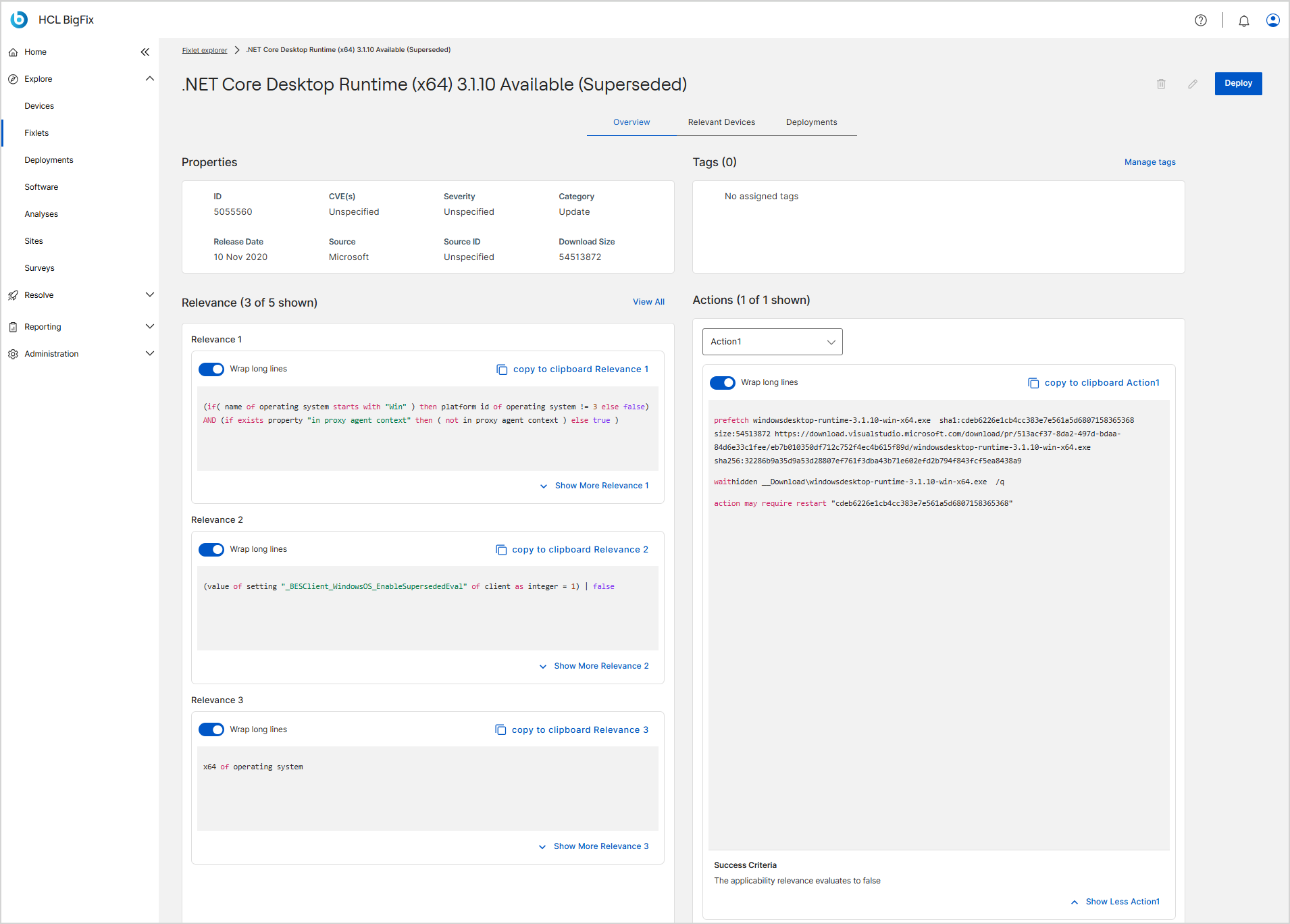
| Field | Description |
|---|---|
| ID | The unique identifier for the Fixlet. |
| CVE(s) | The Common Vulnerabilities and Exposures (CVE) identifiers linked to the Fixlet. |
| Severity | The severity level assigned by the source, such as Critical, Moderate, or Unspecified. |
| Category | The type of Fixlet, such as Update, Security Advisory, or Scanner. |
| Release Date | The date the Fixlet was released by its source. |
| Source | The origin or vendor of the Fixlet, such as Microsoft or HCL. |
| Source ID | The vendor-specific reference number for the Fixlet. |
| Download Size | The size of the patch or update file associated with the Fixlet. |
The Tags panel sits to the right of the Properties card and shows the tags assigned to the Fixlet. The heading includes the total, for example Tags (2). When no tags are assigned, the heading shows Tags (0) and the panel displays No assigned tags.
- Each tag appears as a chip. The panel displays up to two rows of chips; when a Fixlet has more tags than fit, use View all tags to see the rest.
- Select Manage tags to open the Manage tags drawer and apply more tags to this Fixlet. You can select existing tags or create new ones. After you select Save changes, the drawer closes and the Tags panel refreshes to show the new tags.
- Select View all tags to open a drawer that lists every tag assigned to the Fixlet. Select the X on one or more tag chips, and then select Save changes. The drawer closes, and the Tags panel and its count refresh immediately.
Removing a tag from this Fixlet doesn't delete the tag or affect any other object that uses it. For more information, see Managing Tags.
- The Relevance section shows the relevance expressions that determine whether the Fixlet applies to a device. The header shows how many expressions are displayed, such as Relevance (3 of 5 shown); select View All to see every expression. Each expression appears in its own numbered block, such as Relevance 1.
- The Actions section shows the commands the Fixlet runs on relevant devices. The header shows how many actions are displayed, such as Actions (1 of 1 shown). Select an action from the dropdown list, such as Action1, to view its script.
- Success Criteria appears below the action script and states the condition that determines when the action is complete, for example The applicability relevance evaluates to false.
Each relevance and action block provides the following controls:
| Control | Description |
|---|---|
| Wrap long lines | Turn on this toggle to wrap long expressions or scripts in the code viewer. |
| copy to clipboard | Copies the relevance expression or action script to the clipboard. The control names the block it belongs to, such as copy to clipboard Relevance 1 or copy to clipboard Action1. |
| Show More / Show Less | Expands or collapses the full code block. The control names the block it belongs to, such as Show More Relevance 1 or Show Less Action1. |
Fixlet descriptions in BigFix UI
Descriptions are not displayed: BigFix UI does not display Fixlet descriptions when you explore or deploy Fixlets. You can view the description only when you edit a custom Fixlet.
Description input is not available: Because descriptions are not displayed during deployment, you cannot enter values in input fields that are part of a Fixlet description. To deploy a Fixlet that requires this input, use the BigFix Console. For more information, see Known limitations.
Relevant Devices tab
The Relevant Devices tab lists the devices where the selected Fixlet is currently applicable, so you can confirm coverage across your network. Use Filter, Density, and the Search box to refine the list, select a column header to sort, and select More to load additional rows.
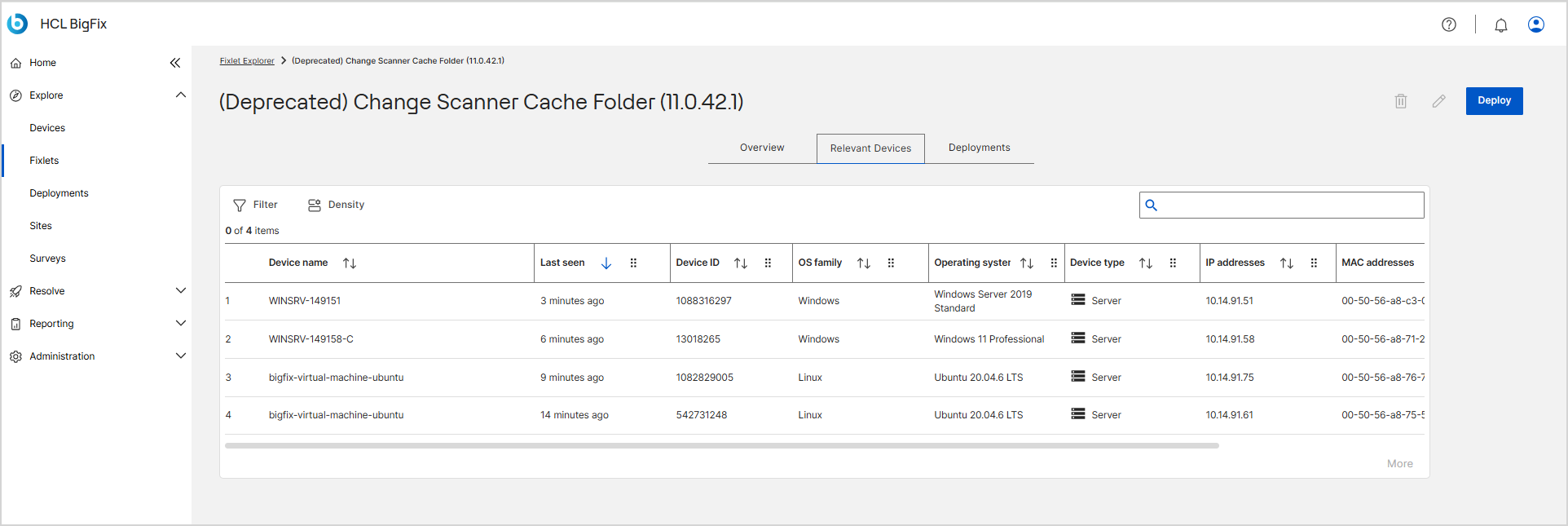
| Field | Description |
|---|---|
| Device name | The host name of the device. |
| Last seen | The time of the most recent contact received from the device. |
| Device ID | The unique BigFix-assigned computer identifier. |
| OS family | The operating system family, such as Windows or Linux. |
| Operating system | The specific operating system version installed. |
| Device type | The device classification, such as Server or Workstation. |
| IP addresses | The IP address or addresses of the device. |
| MAC addresses | The hardware MAC address or addresses of the device. |
| DNS name | The registered DNS name of the device. |
Deployments tab
The Deployments tab lists all deployments in which the Fixlet has run, giving you a complete history for auditing and tracking remediation progress. Use Filter, Density, and the Search box to refine the list, select a column header to sort, and select More to load additional rows.
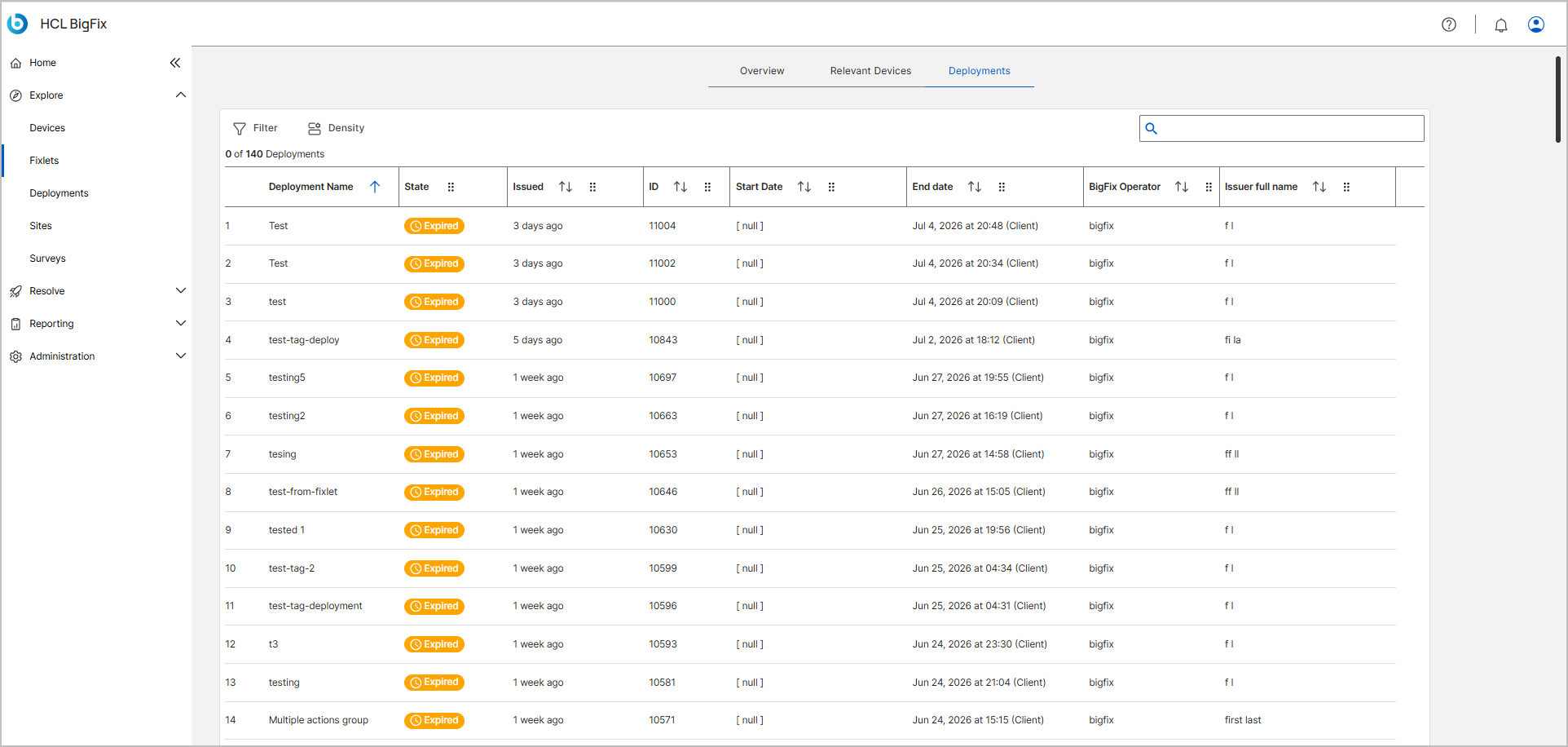
| Field | Description |
|---|---|
| Deployment Name | The name of the deployment. |
| State | The current state of the deployment, such as Active, Expired, or Stopped. |
| Issued | When the deployment action was issued. |
| ID | The unique identifier of the deployment. |
| Start Date | The date and time when the deployment started. |
| End date | The date and time when the deployment ended or is scheduled to end. |
| BigFix Operator | The operator who initiated the deployment. |
| Issuer full name | The full name of the user or system that issued the deployment. |