
Uploading scan results to AppScan on Cloud
You can upload AppScan Standard scan results to AppScan on Cloud (ASoC), add them to an application, and view the results there. The results will be aggregated with the rest of the application results, in ASoC.
Procedure
-
Open the scan you want to upload.
Note:Password protected files cannot be opened in ASoC, so to export an encrypted file you must first remove the encryption by clicking File > Set/Remove password, entering the password, and clicking OK.
- Click and connect to AppScan on Cloud with your Key ID and Key Secret.
-
Click .
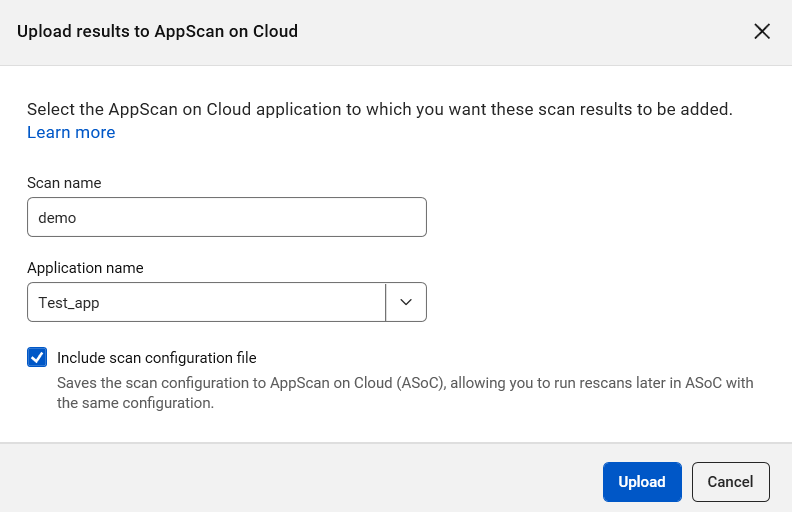
- Optionally rename the scan.
- From the Application name drop-down, select one of the existing applications in AppScan on Cloud.
- Select the Include scan configuration file checkbox to upload the scan configuration along with the results.
-
Click Upload.
In ASoC, these results are combined with the application's other results. The configuration is also included if you selected that option. You can run rescans as needed.