
Action-based login troubleshooting
Use these steps to troubleshoot action-based login.
About this task
Procedure
- In Login Management > Details > Actions, verify that the username (uid) and password (passw) are correct, and correct it manually if needed.
-
Click Replay recording to play the sequence in the player. This
may help you see where the sequence fails. In addition:
- Check on the browser playback that all login actions were played correctly and that the browser succeeded to login.
- Check there are no connection problems or that server responsiveness is not too slow.
- Check on browser playback if other actions are missing, or browser expired, or password expired.
- Record login again with an extra click after the login submit. The extra click should be on an element that exists only after the login, so the browser will reach a page with more information, such as "Welcome [username]" or "[userID]", that AppScan can use as the In-Session pattern.
-
Increase the “wait period” after the last action in the login sequence (this will
prevent the browser closing before all requests are sent):
- Click Configuration > Login management > Advanced options > Login playback > Edit playback.
- Select the last action in the list.
- Click Add wait period.A wait period of 3 seconds is added.
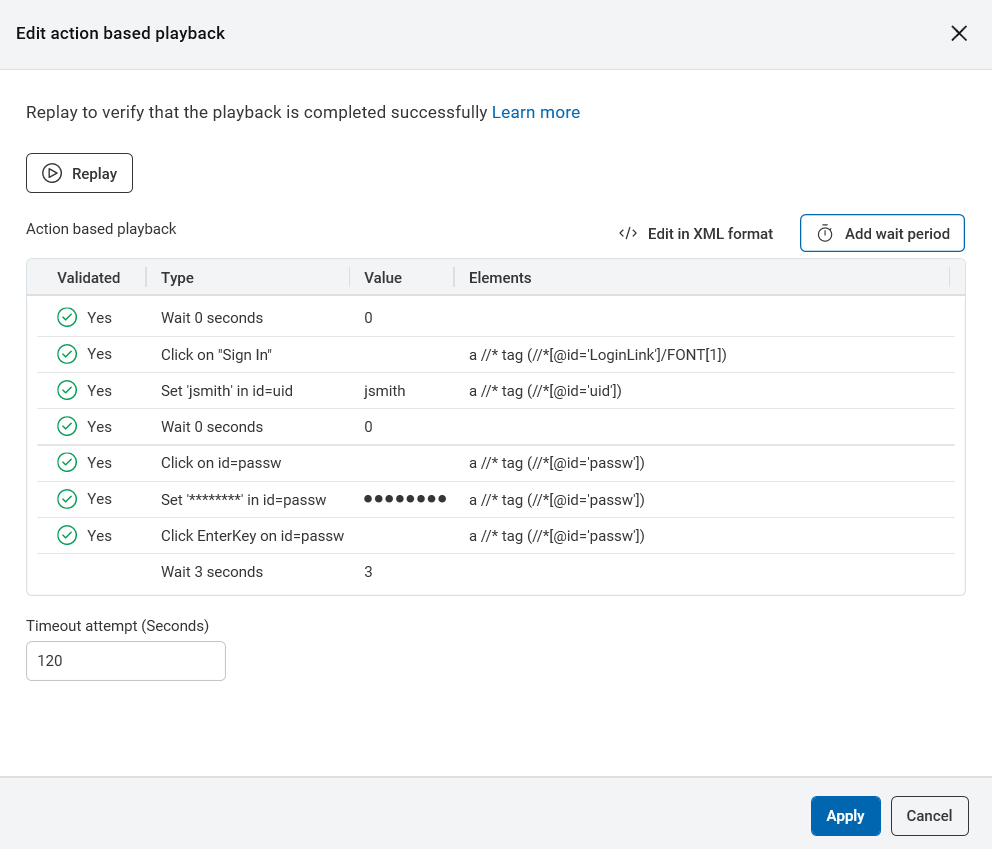
- Optionally increase the value (in seconds) of the wait period using
Edit option from the vertical three dot menu
 .
.
-
Increase the "wait period" before all actions in the login sequence (to allow the browser
to render slow action elements):
- Click Configuration > Login management > Advanced options > Login playback > Edit playback.
- For each wait period, click Edit option from the vertical three dot
menu and increase the value (in seconds) of the wait period.
-
Click Record and record the sequence again, but this time:
- Type the username and password in a text editor and copy-and-paste them into the web page.
- Instead of clicking the Submit button on your site, click Enter on your keyboard.