
Installing all required components on one computer
In this scenario, all components are installed on one computer. This type of deployment is best suited for demonstration or training deployments, not full production environments.
About this task
- Licensing information for AppScan Enterprise
- Configuring licensing in HCL AppScan Enterprise via MHS
- Installing HCL® AppScan® Enterprise Server
- Running the Configuration wizard to get the fingerprint key
- Generating and applying the license file
- Completing the Configuration wizard
- Running the Default Settings wizard
- Installing HCL Dynamic Analysis Scanner
- Running the Configuration wizard
- Verifying the installation of the Enterprise Console
- This scenario assumes that the SQL Server database is installed and configured so that key information is available during the configuration of the AppScan® Enterprise Server.
- If you are upgrading from a previous version of AppScan Enterprise, read Replacing Jazz Team Server with WebSphere Liberty - Frequently asked questions before you begin upgrading.
- To migrate Jazz Team Users users to this new authentication method, export a .csv file of users by using the cd <install-dir>\Appscan Enterpise\JazzTeamServer\server\ repotools-jts.bat -exportUsers toFile=C:\users.csv repositoryURL=https://<hostname>:9443/jts before you begin upgrading to v9.0.1. Then follow the steps in this topic: Configuring a basic user registry for the Liberty profile to import the users into Liberty.
Licensing information for AppScan® Enterprise
AppScan Enterprise 10.8.0 no longer supports FlexNet licensing (FNO). Instead, licensing must be configured through the My HCLSoftware (MHS) portal. With this change, AppScan Enterprise now manages licenses within the application, eliminating reliance on the Local License Server (LLS) and Cloud License Server (CLS). If upgrading from AppScan Enterprise 10.6.0 or earlier, decommission the Local License Server (LLS). Refer to the KB article KB0119306 for instructions on uninstalling LLS. To learn more about the MHS portal, refer to MHS help.
Configuring licensing in HCL® AppScan® Enterprise via MHS
This task covers the steps to configure licensing for HCL AppScan Enterprise via My HCLSoftware (MHS) portal, including creating a deployment and allocating features.
Before you begin
Procedure
-
Create a deployment in MHS:
- Navigate to .
- Click Create Deployment.
- Enter a deployment name and select AppScan Enterprise from the product list.
- Click Add Deployment.
-
Allocate features to the deployment:
Installing HCL® AppScan® Enterprise Server
Use this procedure to install the User Administration component and Enterprise Console for reporting and user administration tasks.
Before you begin
Procedure
Running the Configuration wizard to get the fingerprint key
After you install or upgrade the Server or Scanner, you must configure each installed component and run the Configuration wizard on all instances and all servers. AppScan Enterprise uses MHS for licensing. The licensing process requires a Fingerprint Key, which is generated when running the Configuration Wizard. If you need to generate this key before you run the wizard, you can use a standalone utility described in Generating a machine fingerprint for AppScan Enterprise.
Before you begin
- During configuration, you define the name and location of the SQL Server database to be used, and the service account name and password. The user who runs the configuration wizard must be able to create a database and grant rights.
- If you encounter an error "**WARNING** Unable to configure virtual directory "ase" for
local directory "C:\Program Files (x86)\HCL\AppScan Enterprise\WebApp".
Ensure IIS is configured properly and try again, consider disabling your antivirus software
while you are running the configuration wizard. If you do not want to disable the antivirus
software, you can exclude the AppScan Enterprise folder from the antivirus configuration, and
run the configuration wizard again.Important:Personal firewalls and Antivirus programs running on the same computer where AppScan Enterprise is running may block communication and result in configuration failure during installation and configuration. It also results in inaccurate findings and reduced performance while running the scans. For best results do not run firewalls or antivirus on the computer.
Procedure
- When the installation is complete, the Configuration wizard launches automatically. You can also start it by selecting Configuration Wizard from the Windows™ Start menu as an administrator.
- In the Welcome screen, click Next.
-
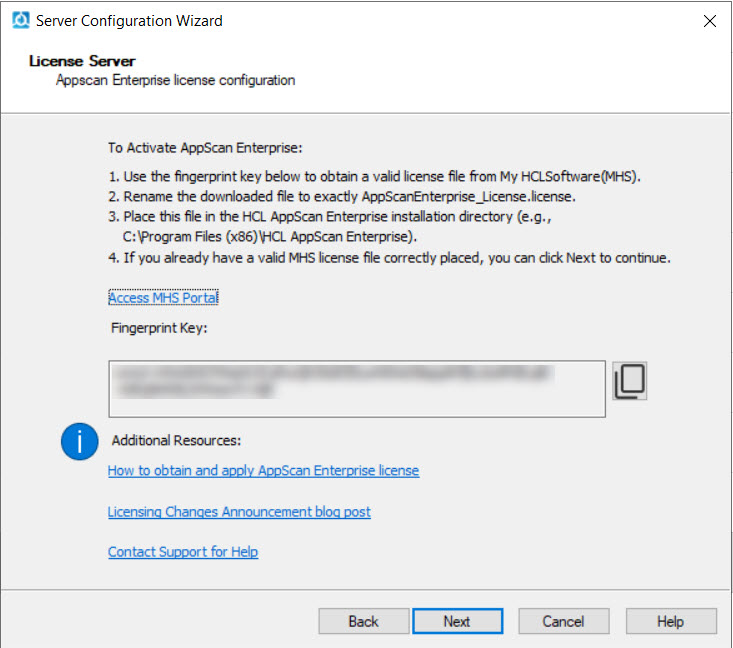
In the License Server window, copy the Fingerprint Key displayed on
the screen. This key is unique to your machine and is required to generate a valid
license.
Generating and applying the license file
This task covers the steps to generate and apply a license file for AppScan Enterprise, including generating, configuring, and placing the license file.
Before you begin
Procedure
Completing the Configuration wizard
After applying the license, follow the steps to complete the configuration of AppScan Enterprise. You must configure each installed component and run the Configuration wizard on all instances and all servers.
Before you begin
Procedure
-
In the License Server window, click
Next.
-
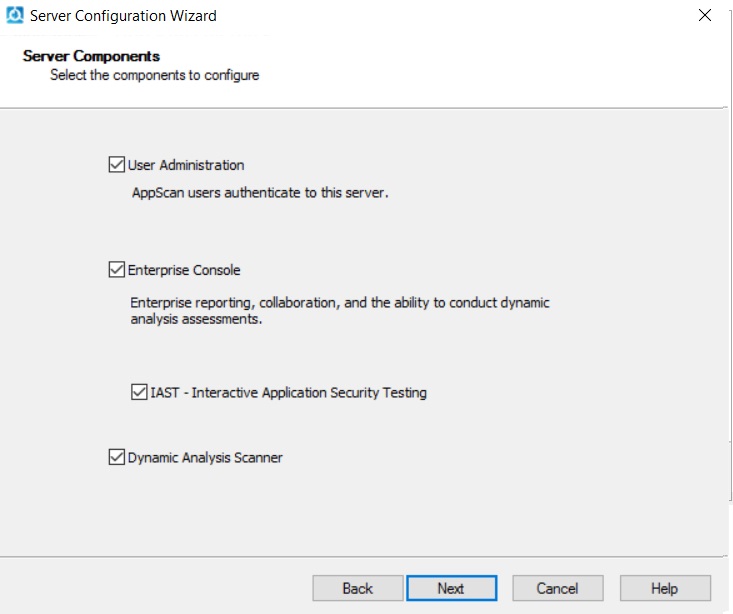
In the Server Components window, select the components that you want
to configure. The components available to you depend on your license. See Server Components. If you are installing the components on one machine,
select all the checkboxes, even if you have installed one of the components
previously.
-
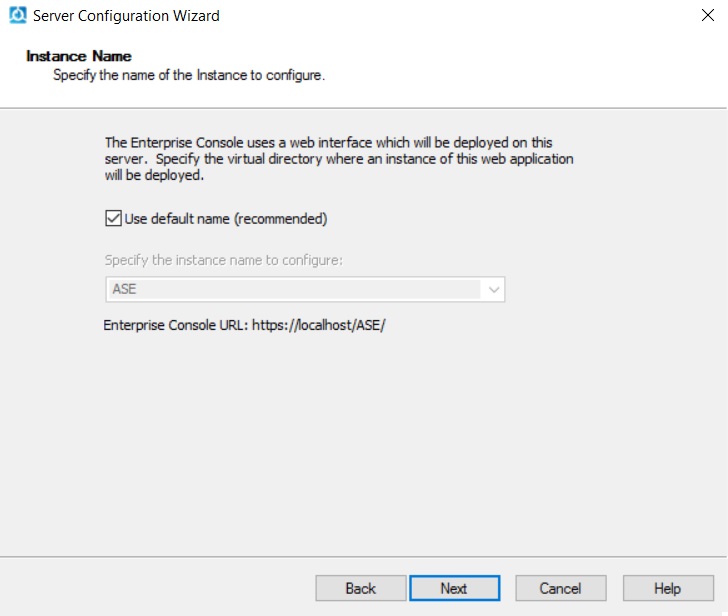
In the Instance Name window, specify the name of the instance you
want to configure. See Instance Name.
-
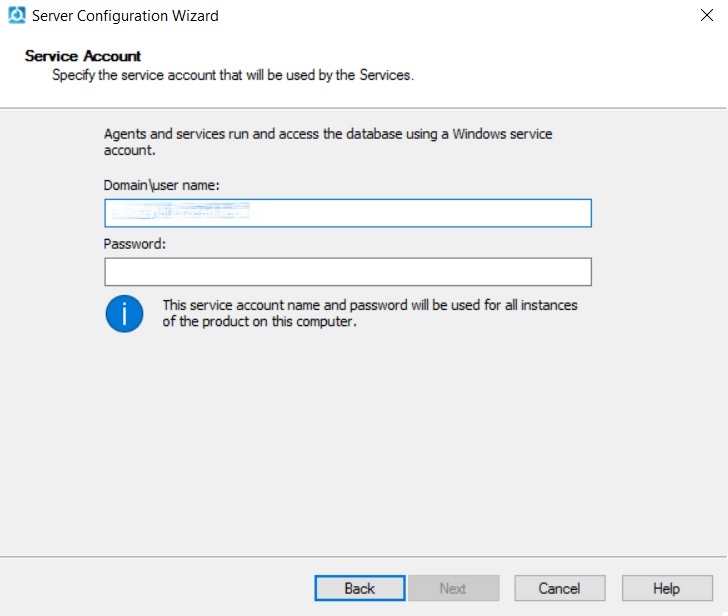
In the Service Account window, enter the Domain/Username
Service Account and password, and click Next. See Service Account.
-
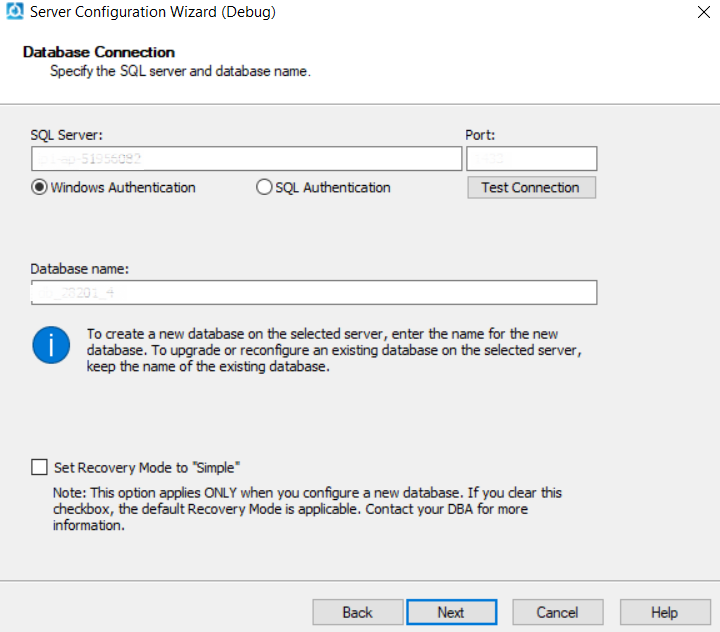
In the Database Connection window, enter the SQL Server name, port
number, select the authentication mode and the name of the database you are connecting to. If
you select SQL Authentication, enter the username and password before you click
Test Connection to verify that you can connect to the SQL Server. The
configuration wizard does not proceed until the connection is successful. When AppScan® Enterprise Server creates the database in SQL
Server, it automatically configures the collation for it.
Note:- AppScan Enterprise supports Windows Authentication and SQL authentication to connect to SQL Database. Refer to Microsoft's article on Authentication Mode and choose the authentication mode that fits your requirements. You can change from one authentication mode to another, but make sure to re-run the configuration wizard.
- The user must be assigned a sysadmin server role on the SQL server. The user must also have access to the database and must be granted a minimum of db_ddladmin, db_datawriter, and db_datareader rights or the db_owner rights.
- The syntax for the SQL Server name has changed with the introduction of Liberty support. ".\SQL_SERVER_NAME" no longer works. Use "HOSTNAME\SQL_SERVER_NAME" instead.
- If you are upgrading an existing database from v8.6 or earlier, enter the Database Master Key Password on the next screen to access it. Keep this password in a secure location.
- If your environment uses a named SQL Server instance for the AppScan Enterprise database, make sure that TCP/IP is enabled in the SQL Server configuration manager, and restart the SQL services for the SQL Server. Use the port number of the named SQL Server instance instead of the default port number (1433).
- If you use a raw IPv6 address for the SQL Server, you must enclose the address in
brackets (for example,
[2001:db8::1]).
-
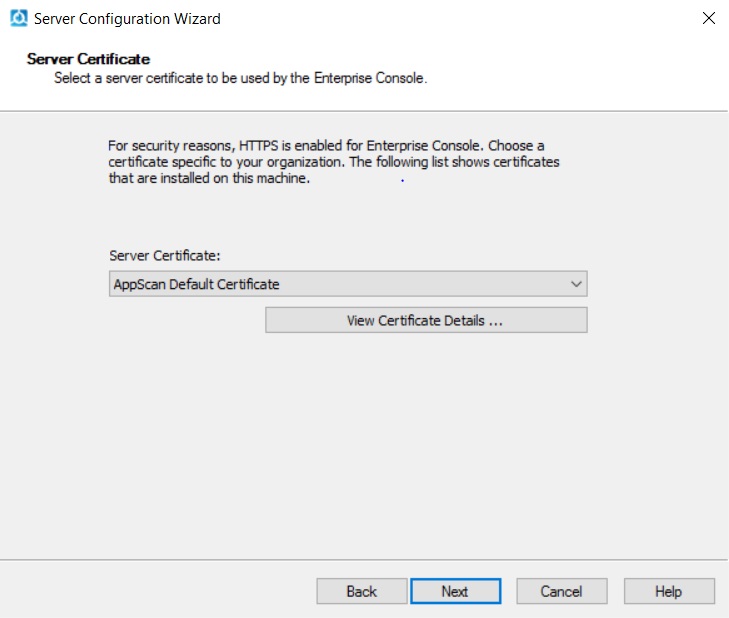
In the Server Certificate window, choose a certificate specific to
your organization. This step helps you deploy a secure AppScan® Enterprise in your environment. See Server Certificate.
-
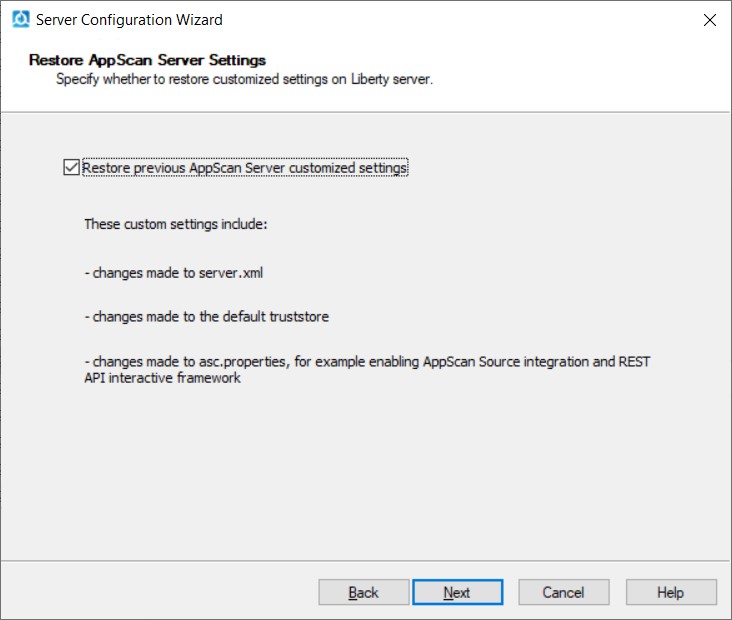
(Upgrade only). In the Restore AppScan Server Settings screen, you
can choose to restore the previous AppScan Server customized settings on the Liberty Server
(default). This screen appears once upon upgrade; if you run the configuration wizard later,
this screen won't appear. See Restore AppScan Server settings.
-
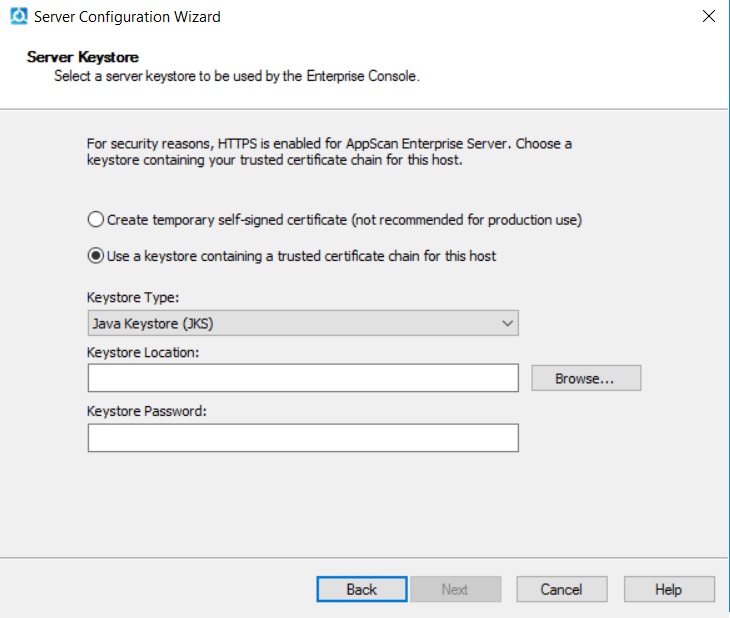
In the Server Keystore screen, select a server keystore to be used
by the Enterprise Console. If you exported a .pfx file, select Public key
cryptography standards #12 (PKCS #12). Browse to the location where you saved the
.pfx file, import it and enter the password you created when you exported the file. See Server Keystore.
-
In the Authentication Mechanism
window, select an Authentication Mechanism to use to log in to the
Enterprise Console. The default is to authenticate via Windows™. To use LDAP, see Authentication Mechanism.
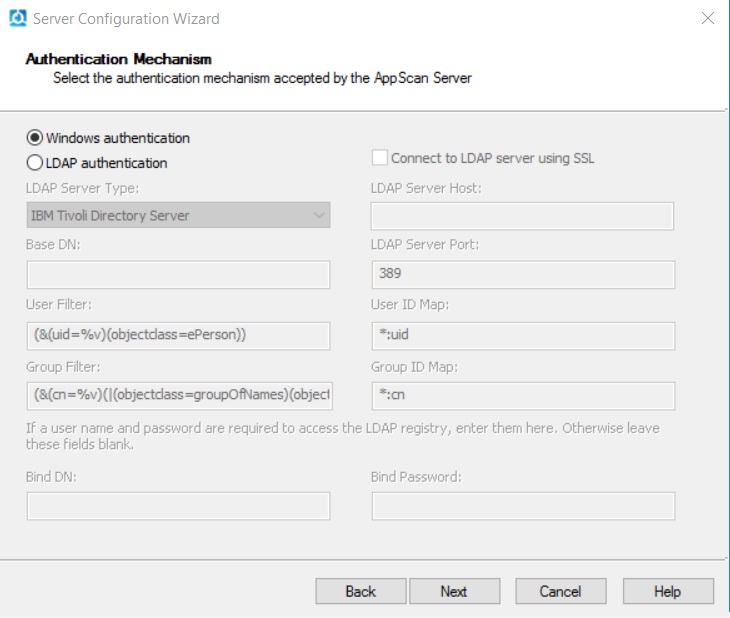
Note:If you need to authenticate with the Common Access Card (CAC), make sure you choose LDAP as your authentication mechanism. Once AppScan Enterprise is configured, follow the instructions in Authenticating with the Common Access Card (CAC) to authenticate with CAC. -
In the Server Configuration window,
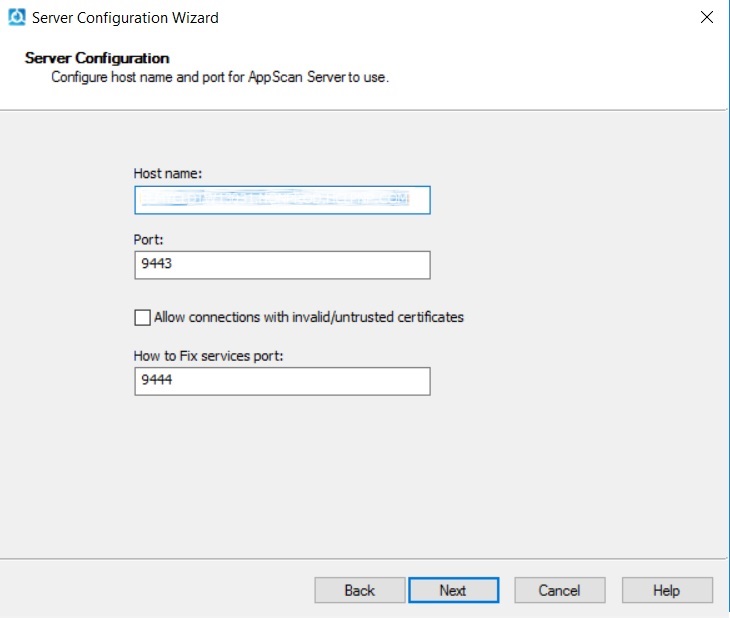
- Configure the hostname and port of the Liberty server for AppScan Server to use. If you are using Windows authentication, prefix the hostname with your domain name.
- While it is not a recommended practice, you can allow SSL connections with invalid or untrusted certificates during scanning. When the option is disabled, messages will appear in the scan log to indicate that the insecure server cannot be reached for scanning. This option also affects the Manual Explore functionality.
- Configure the How to Fix services port (installed with the Enterprise Console). This port runs over HTTP and is used by the ASRA server to provide How to Fix. The How to Fix appears on the About this Issue page for the application issues and provides fix recommendations. You can select a different port if 9444 is already used.
-
(Upgrade only) In the Database Encryption Changes window, click
Help to learn how to protect the SQL Server where the database is
located. If you decide not to enable TDE, select the check box so you can continue
configuration.
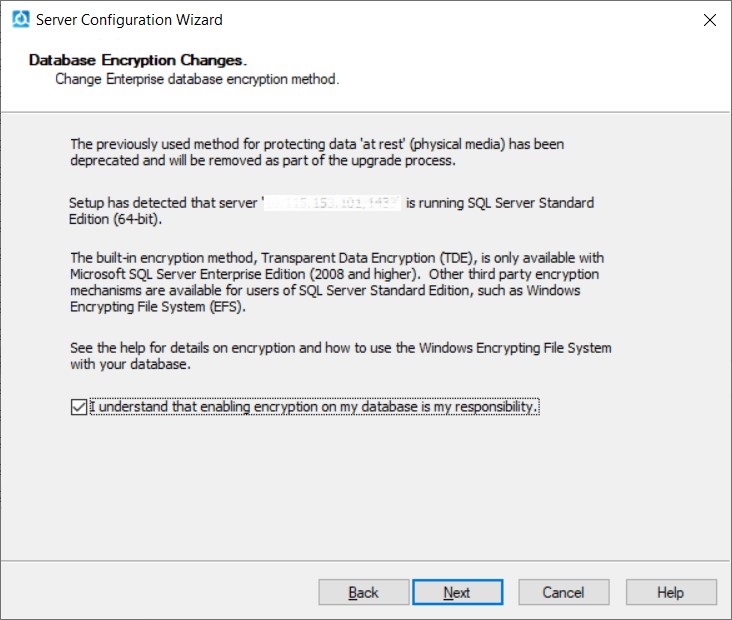
Note:AppScan® Enterprise uses transparent data encryption (TDE) technology that is available in SQL Server 2016 and later. TDE encrypts the data that is stored in the database or in backups on physical media. If you are using an older version of SQL Server, any data that is contained in that database is at risk of compromise by unauthorized access. -
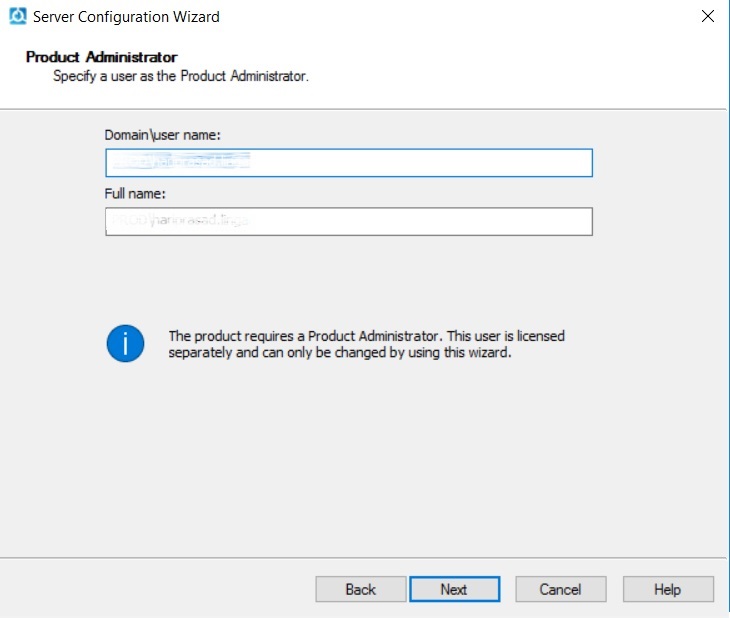
In the Product Administrator window, specify a user as a Product
Administrator. This user is licensed separately; if you want to reassign the Product
Administrator license, you must rerun the configuration wizard. See Product Administrator.
Running the Default Settings wizard
This wizard helps you install sample data in by providing defaults for a number of configurable options. You can create users, add security test policies, create scan templates, add pre-created dashboards, and configure defect tracking integration with Rational® Quality Manager or Rational® Team Concert.
About this task
Procedure
Installing HCL® Dynamic Analysis Scanner
Use this procedure to install the agents that are used for scanning and testing your website applications.
Before you begin
- Make sure you read the Required user account information during installation and configuration so that you know which user account to use during installation.
- Any technologies that you use on your website must also be installed with the Scanner. For example, if you use Flash on any web pages, you must have the correct version of Flash installed.
Procedure
Running the Configuration wizard
After you install or upgrade the Server or Scanner, you must configure each installed component and run the Configuration wizard on all instances and all servers.
Before you begin
- During configuration, you define the name and location of the SQL Server database to be used, and the service account name and password. The user who runs the configuration wizard must be able to create a database and grant rights.
- Running the wizard after you install the AppScan® Enterprise Server sets up the database on the SQL Server and does the initial setup of the component.
- Running the wizard after you install the Dynamic Analysis Scanner registers the Scanner with AppScan® Enterprise Server.
- Ensure that the license file (AppScanEnterprise_License) has been placed in the AppScan installation directory (e.g., C:\Program Files (x86)\HCL\AppScan Enterprise). Refer to Generating and applying the license file.
Procedure
-
In the License Server window, click
Next.
-
In the Server Components window, select the components that you want
to configure. The components available to you depend on your license. See Server Components. If you are installing the components on one machine,
select all the checkboxes, even if you have installed one of the components
previously.
-
In the Instance Name window, specify the name of the instance you
want to configure. See Instance Name.
-
In the Service Account window, enter the Domain/Username
Service Account and password, and click Next. See Service Account.
-
In the Database Connection window, enter the SQL Server name, port
number, select the authentication mode and the name of the database you are connecting to. If
you select SQL Authentication, enter the username and password before you click
Test Connection to verify that you can connect to the SQL Server. The
configuration wizard does not proceed until the connection is successful. When AppScan® Enterprise Server creates the database in SQL
Server, it automatically configures the collation for it.
Note:- AppScan Enterprise supports Windows Authentication and SQL authentication to connect to SQL Database. Refer to Microsoft's article on Authentication Mode and choose the authentication mode that fits your requirements. You can change from one authentication mode to another, but make sure to re-run the configuration wizard.
- The user must be assigned a sysadmin server role on the SQL server. The user must also have access to the database and must be granted a minimum of db_ddladmin, db_datawriter, and db_datareader rights or the db_owner rights.
- If you are upgrading an existing database from v8.6 or earlier, enter the Database Master Key Password on the next screen to access it. Keep this password in a secure location.
- If your environment uses a named SQL Server instance for the AppScan Enterprise database, make sure that TCP/IP is enabled in the SQL Server configuration manager, and restart the SQL services for the SQL Server. Use the port number of the named SQL Server instance instead of the default port number (1433).
-
(upgrade only) In the Database Encryption Changes window, click
Help to learn how to protect the SQL Server where the database is
located. If you decide not to enable TDE, select the check box so you can continue
configuration.
Note:AppScan® Enterprise uses transparent data encryption (TDE) technology that is available in SQL Server 2016 and later. TDE encrypts the data that is stored in the database or in backups on physical media. If you are using an older version of SQL Server, any data that is contained in that database is at risk of compromise by unauthorized access.
Verifying the installation of the Enterprise Console
After the installation process is complete, you can verify the installation of the Enterprise Console.