
Configuring user authentication
Authenticate users for AppScan 360° using either single sign-on (SSO) or LDAP authentication.
- Single sign-on (SSO) using OpenID Connect (OIDC) through Keycloak, Okta,
PingFederate, or Microsoft EntraID.
Open ID Connect is an authentication layer on top of OAuth 2.0, allowing clients to verify the identity of the end-user based on authentication performed by an Authorization Server, as well as to obtain basic profile information about the end-user in an interoperable and REST-like manner.
- Microsoft Active Directory or Domino (LDAP) via port 389/636/TCP
Active Directory authenticates and authorizes all users and computers in a network, assigning and enforcing security policies for network access.
Domino LDAP provides authentication and authorization services using the Domino directory, enabling centralized identity management and allowing applications to query and validate user credentials.
- Only one authentication method can be active at a time. If SSO is enabled, LDAP cannot be used simultaneously.
- If authentication is configured during installation (using the configuration file), those settings take precedence over the user interface settings and the user interface settings for authentication appear in read-only mode.
- For self-signed certificates, they must be provided during installation if you plan to configure SSO through the user interface later.
- Once an LDAP or SSO user is promoted to Administrator, the default Admin account created during installation is disabled.
Configuring single sign-on (SSO) authentication
AppScan 360° supports single sign-on (SSO) through OpenID Connect (OIDC). This allows enterprises to integrate AppScan 360° with identity providers (IdPs) such as Okta, Keycloak, or PingFederate, thus allowing users to log in with corporate credentials.
Registering with identity providers
To set up Okta for AppScan 360°:
- Register AppScan 360° as an OIDC application on organization's Okta or EntraID SSO Services.
- Configure redirect URIs. The URI’s should be in following formats:
- Login URI--
https://{as360ApplicationURL}/api/v4/signin-oidc - Logout URI--
https://{as360ApplicationURL}
- Login URI--
- Receive the client ID and secret for use in setup in AppScan 360°.
See Additional information for Entra ID and Okta mandatory, custom, and optional claims.
- Create a Realm with confidential client.
- Validate redirect URIs. The URI’s should be in following
formats:
- Login URI--
https://{as360ApplicationURL}/api/v4/signin-oidc - Logout URI--
https://{as360ApplicationURL}
- Login URI--
- Validate post logout redirect URIs, web origins, and enable OIDC
standard flows. Note: Users can use Keycloak for SSO that includes integration with LDAP.Please note down the following details once registration is completed-Authorization Endpoint, Client ID, Client Secret for use in AppScan 360°.
- Register AppScan 360° as an OIDC client in PingFederate.
- Configure redirect URIs. The URIs should be in the following formats:
- Login URI —
https://{as360ApplicationURL}/api/v4/signin-oidc - Logout URI —
https://{as360ApplicationURL}
- Login URI —
- Receive the Client ID and Client Secret for use when configuring authentication in AppScan 360°.
- Ensure the OpenID discovery endpoint is accessible:
https://{PingFederateURL}/.well-known/openid-configurationImportant: Contract Fulfilment must includepreferred_usernameoremail.
Configuring single sign-on in AppScan 360°
- Log in to AppScan 360° as an administrator.
- Go to .
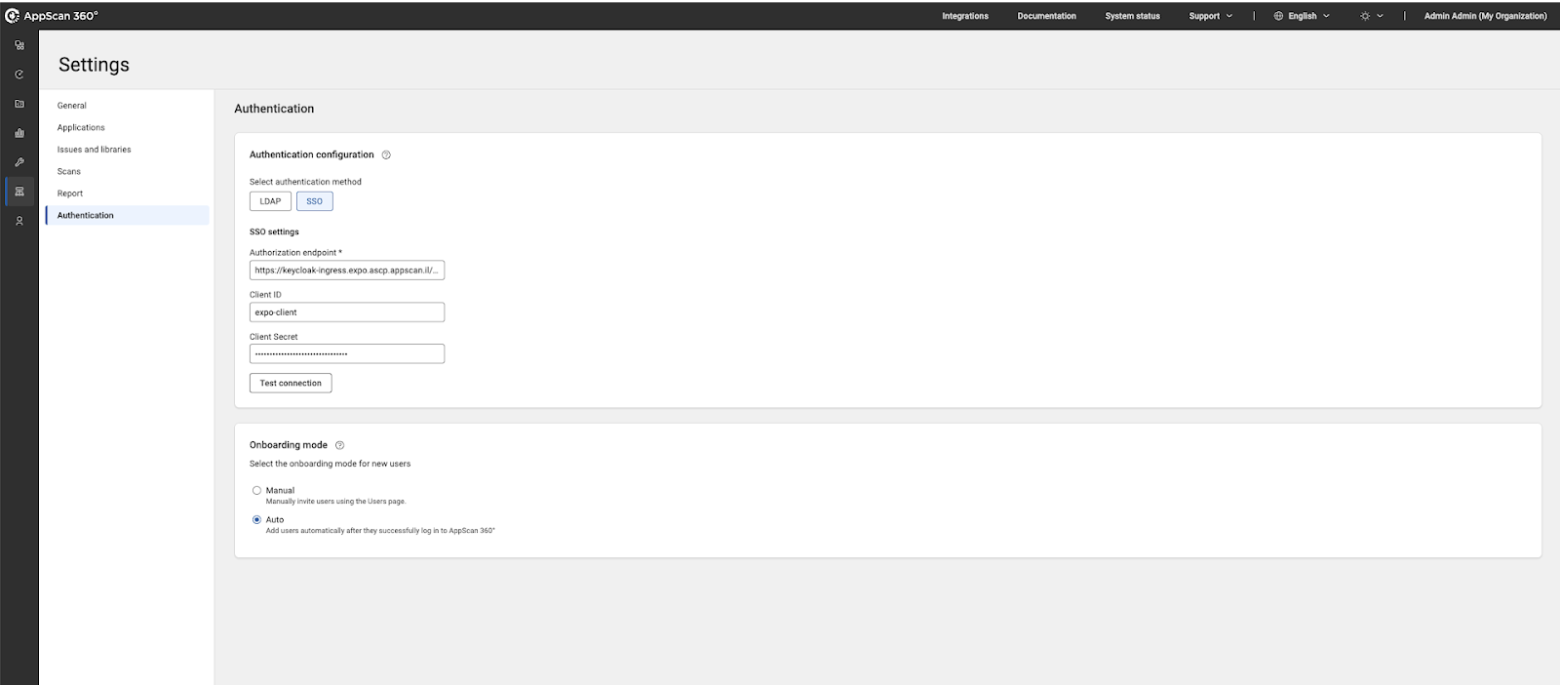
- Select SSO as the authentication method.
- Specify identity provider details as follows:
Field Description Authorization endpoint The OIDC authorization/discovery endpoint URL of your identity provider. Client ID Unique identifier assigned to AppScan 360° when registered as a client application in your identity provider. Client secret Secret key issued by the identity provider for secure communication with AppScan 360°. - Select onboarding mode:
- Manual – Users must be invited by an Administrator using
Access Management → Users.
When a user's email is added during manual onboarding, the current validation from AppScan 360° is not present to check whether it is a valid email ID.
- Auto – Any valid identity provider user who logs in is
automatically added to AppScan 360°.
Choose Auto only if all identity provider users are able to access AppScan 360°.
- Manual – Users must be invited by an Administrator using
Access Management → Users.
- Click Test connection to validate the setup.
- Click Save before exiting the screen.
User login workflow
- From the AppScan 360° login page, user click Login
with SSO.
AppScan 360° redirects to identity provider login.
- At the identity provider login, user enters appropriate organization
credentials.
Upon successful login, user is redirected back to AppScan 360°.
Configuring LDAP authentication
AppScan 360° supports authentication through LDAP (Lightweight Directory Access Protocol). You can integrate with either Active Directory or Domino LDAP by configuring the appropriate provider type. This allows users to log in with their enterprise directory credentials.
Configuring LDAP in AppScan 360°
- Log in to AppScan 360° as an administrator.
- Go to .
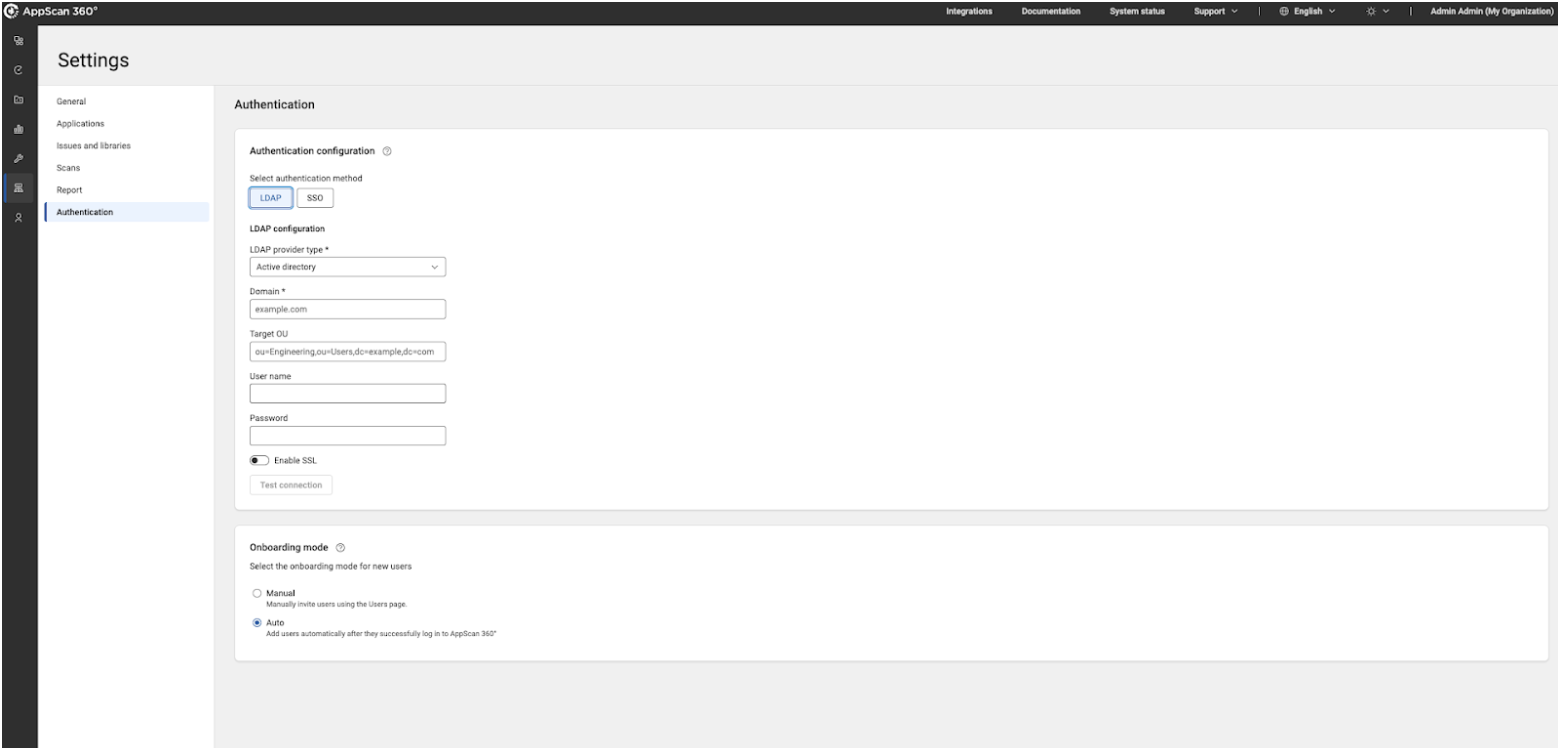
- Select LDAP as the authentication method.
- From the LDAP provider type list, choose either Active Directory or Domino LDAP.
- Specify details as follows:
Field Description Domain Domain name (for Active Directory) or directory root domain Target OU Organizational Unit or Base DN path used to search for users Username/password Service account credentials used for LDAP binding Enable SSL Enable or disable secure LDAP (LDAPS) - Select onboarding mode:
- Manual – Users must be invited by an Administrator using
Access Management → Users.
When a user's email is added during manual onboarding, the current validation from AppScan 360° is not present to check whether it is a valid email ID.
- Auto – Any valid identity provider user who logs in is
automatically added to AppScan 360°.
Choose Auto only if all identity provider users are able to access AppScan 360°.
- Manual – Users must be invited by an Administrator using
Access Management → Users.
- Click Test connection to validate the setup.
- Click Save before exiting the screen.
Additional information
- Mandatory claims: In the OIDC protocol and Microsoft Entra ID, mandatory claims are hardcoded into the token by default to comply with the global OpenID standard. Because they are mandatory, they are not listed as checkboxes in the user interface; they are included automatically in every token Entra ID issues.
- Optional claims:
emailpreferred_username
Set optional claims under
- Mandatory claims claims required for user authentication:
-
iss: Issuer identifier of the Okta Authorization Server. -
sub: Unique identifier for the authenticated user. -
aud: Audience (Client ID of the application). -
exp: Token expiration time. -
iat: Token issued time. -
auth_time(if requested): Time when the user was authenticated. -
nonce(for ID Token validation when used): Prevents replay attacks.
-
- Common user claims typically included based on scope:
emailemail_verifiedpreferred_usernamegiven_namefamily_namenamelocalezoneinfoUpdated_at
- Optional claims can be configured in Okta if required by the
application:
- Groups (
groups) - Employee ID
- Department Manager
- Any other custom profile attributes defined in Okta.
- Groups (
- Standard OpenID Connect (OIDC) scopes:
Scope Purpose openidMandatory. Enables OpenID Connect authentication and returns an ID token. profileProvides basic user profile information ( name,username,locale, and so on).emailProvides the user's email address and email verification status. groups(optional)Returns group membership if configured in Okta. offline_access(optional)Allows issuance of refresh tokens for long-lived sessions.