Using the AppScan Central Platform
To use the AppScan Central Platform, you
must first:
- Activate AppScan 360° with a license key.
- Login to AppScan Central Platform.
- Onboard users.
- Install and connect to AppScan 360° Static Analysis
Activating AppScan 360°
To run scans, you must activate AppScan 360° with a license key.
To activate a subscription:
- From the AppScan 360° console, navigate to .
- Click Add subscription.
- In the Add subscription dialog
box, paste the license key into the field.
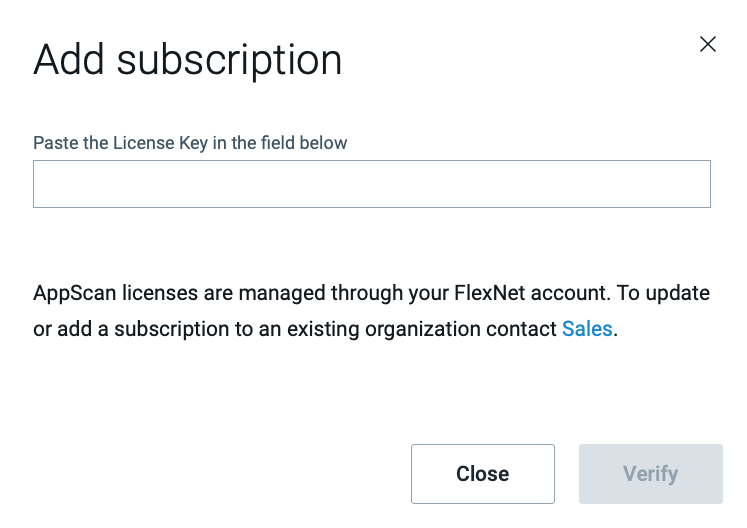
- Click Verify.
Logging in to AppScan Central Platform
To log in for the first time:
- Either navigate to the ASCP service URL as specified during installation, or configure DNS entry for AppScan 360° machine.
- Enter the default Admin account credentials:
Username Admin Password Admin12! - Add users from your organization.Users are added as regular users. You can promote any user to Administrator.Note: Once you promote at least one LDAP user to Admin, the default Admin account (that was created during the installation) is disabled.
Adding users
You can configure AppScan 360° to on-board new
users automatically, or to require them to be invited by an
administrator through the user interface.
-
Define your method for on-boarding new users:
- AutoOnboard: Any user with access to the server can log in to AppScan 360°.
- GroupsAccess: Any user in an authorized group (defined below) can log in to AppScan 360°.
- ManualOnboard: Users must be invited using the Add Users button on the page.
Logs
ASCP saves logs in the shared (file)
storage assigned to the ASCP
service under /storagemount/logs.