
Installation of HCL AION / Docker Deployment
Docker Deployment (Using Harbor Configuration)
Follow these steps to deploy HCL AION via Docker using Harbor configuration:
- Verify the config.properties file is correctly configured with your Harbor credentials and desired settings.
-
Run the script: ./start_aion.sh script in a bash terminal.
- Provide required passwords for pgadmin, postgres, and Harbor client secret when prompted.
- Once services are up, verify container status using: docker ps.
- Access the HCL AION UI via http://:<frontend_port> and backend at http://:<backend_port>/aionbe.
Installation of HCL AION (Using CLI)
Follow these steps to install HCL AION using CLI:
- Navigate to HCL AION Build Directory: Open Git Bash and navigate to the HCL AION build directory.
- List the HCL AION commands by typing aion inside the aion_build folder.
- Build HCL AION deployment by executing the aion build command.
- Start to build the HCL AION server with the following command: aion build-aion-base.
- Bring the HCL AION server up by executing the command: aion start-aion-base.
Kubernetes Deployment
HCL AION supports Harbor-based deployments on Kubernetes clusters (AWS, Azure, GCP, or On-prem). Ensure all PersistentVolume YAML files have updated NFS/EFS/Azure File details before executing deployment.
Steps for K8s deployment:
- Update NFS/EFS/Azure File paths in pv.yaml, pv-postgres.yaml, and redis-pv.yaml.
- Run the deployment script: ./k8s-aion.sh.
- Provide alphanumeric passwords for pgadmin and postgres when prompted.
- After all services are running, update ingress IP or domain details in the deployment YAMLs.
- Apply the updated configurations using:
-
Bash :
helm upgrade aion-v2.0.2 . -n <namespace> --debug
(Optional) Delete all pods to refresh services:
-
Bash :
kubectl delete po --all -n <namespace>
-
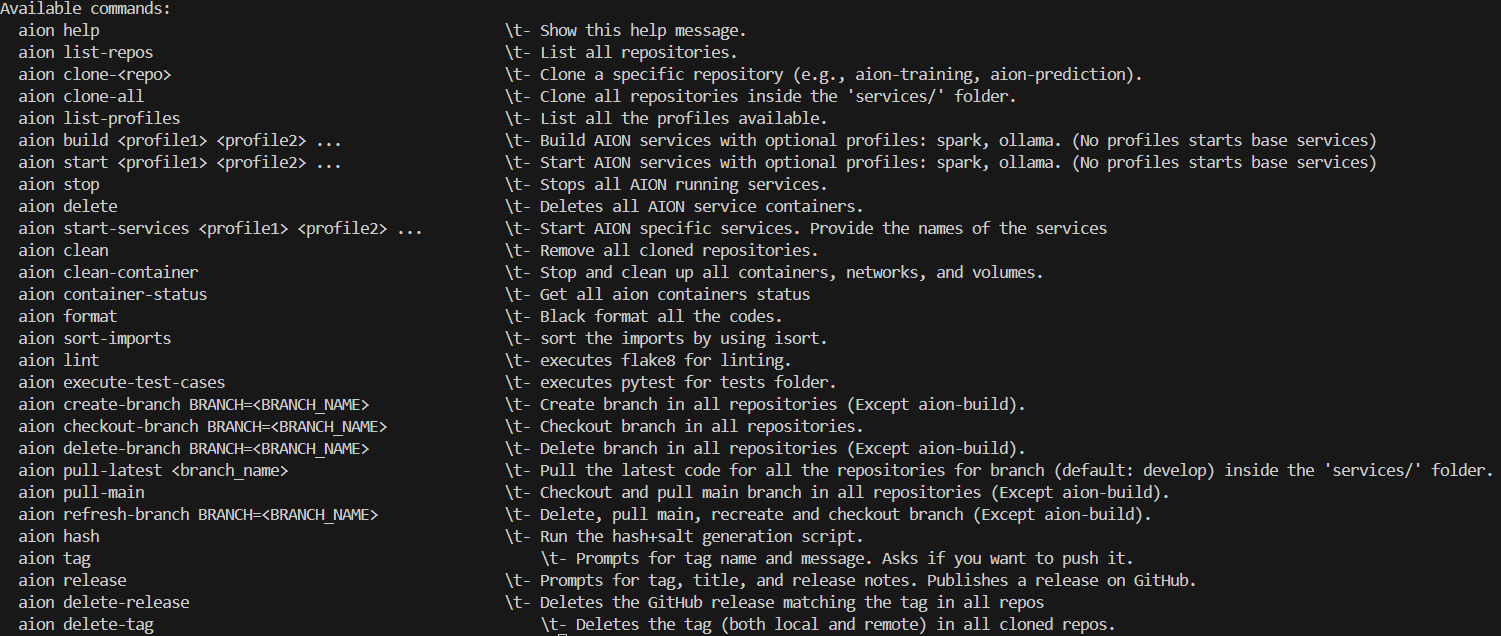
Build HCL AION deployment by executing ‘aion build’ command
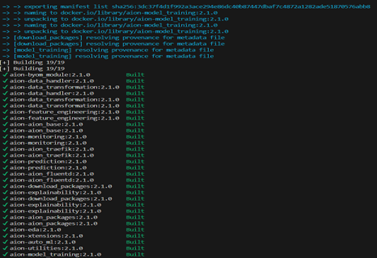
HCL AION starts to build after executing the aion build command
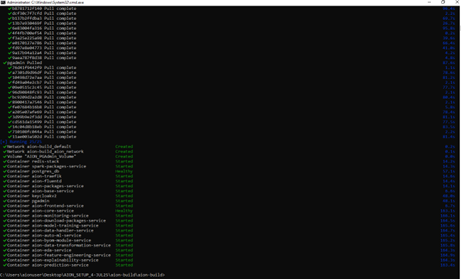
Bring the aion server up by executing hcl aion start command