Cognitive Search
Cognitive search applies Artificial Intelligence (AI)/Machine Learning ( ML) on user’s search term to contextual document search. IntelliService leverages trained bi-directional, transformer-based ML model along with unsupervised learning to improve the context specific information. The built-in low/no code connector framework provides the ability to quickly connect to many data sources and store knowledge articles such as product FAQs, service bulletins, troubleshooting guides, and user care manuals into a centralized data repository for automated indexing and content processing. The sources can be CRM, ticketing system, SharePoint site, knowledge base, web pages or shared folders.
Configure Source
Before you perform search, make sure to configure the document source. You can configure the data source through one of the following ways:
- Uploading documents
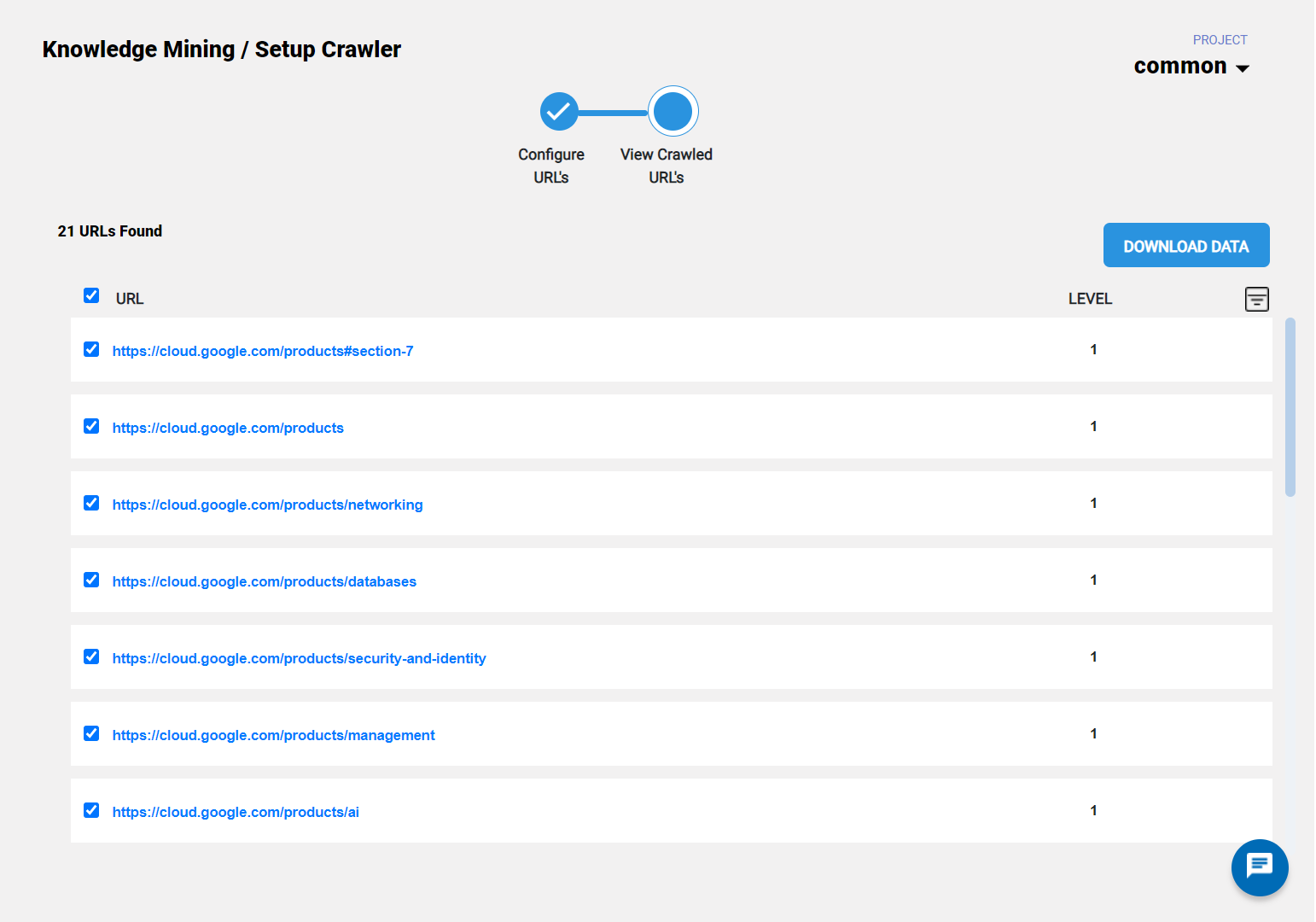
- Web-crawling
Upload Documents
IntelliService allows direct upload of the unstructured documents like PDF, word and text files, from your local folder or from the SharePoint site. In the project, click ADD > Documents, selectother documents and upload the required documents either by dragging and dropping the files or by browsing the content and upload them. On successful upload of document, the documents are ready for search.
Within a search service, the Synonyms and Acronyms are resources that
associate equivalent terms without the user having to actually provide the
term. In the Project page, on the Synonyms and Acronyms tab, click Add
Synonym/Acronym, and enter the word and its corresponding
Synonym/Acronym. 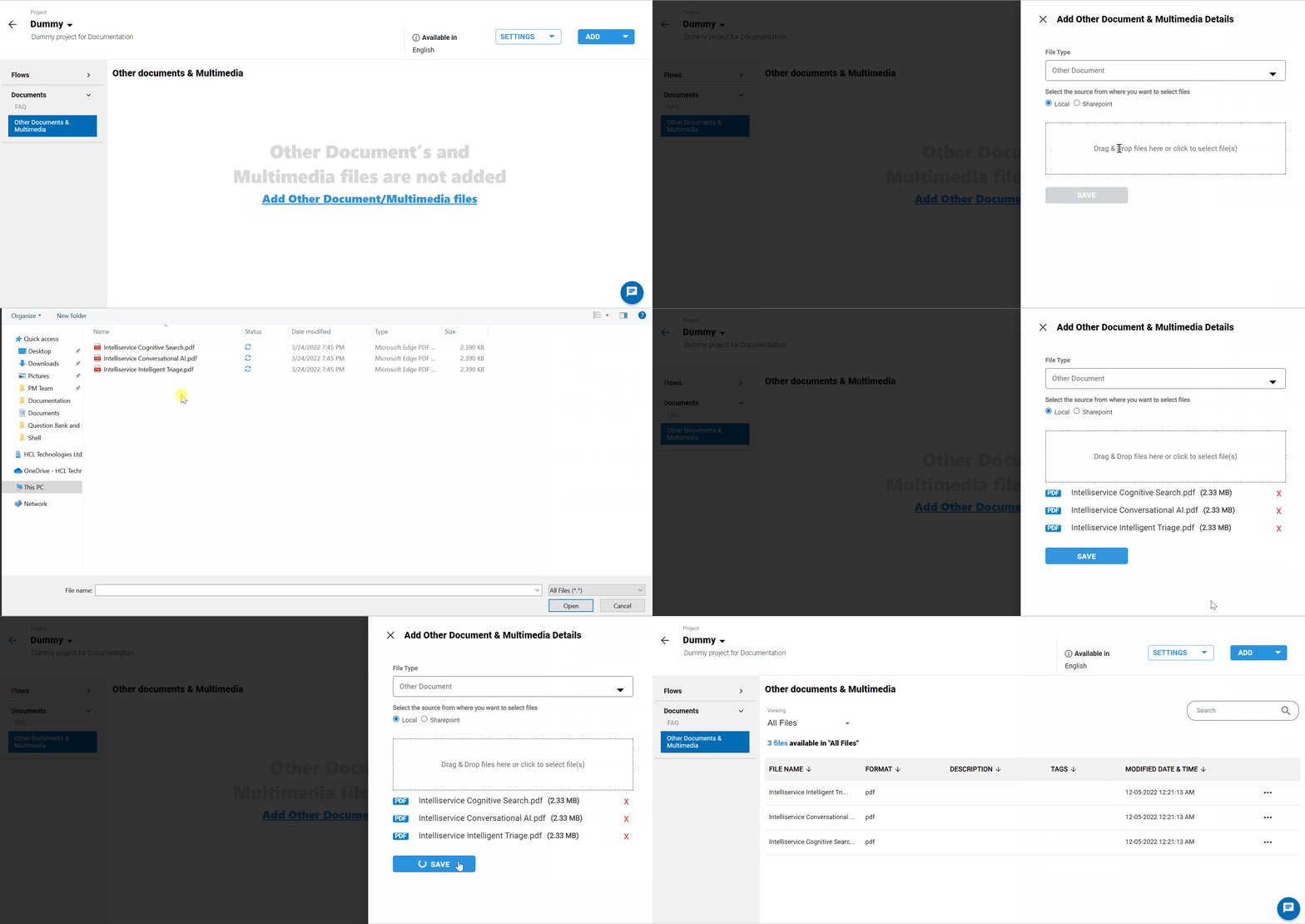
Web-crawler
Search Documents
In the cognitive search page, you can enter the queries to be searched in the
uploaded unstructed documents and the crawled website, and the responses will be
listed based on the relevancy of the context being searched along with the
hyperlink to the source data.