
Creating and populating the database
Before you install the Dynamic Workload Console for the first time, ensure you have a supported database installed. You can choose to use any of the supported relational database management systems (RDBMS).
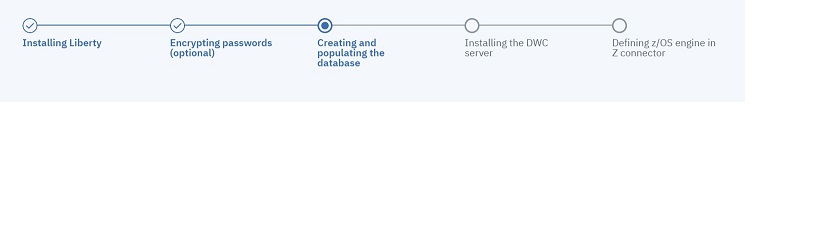
Create and populate the database tables for the Dynamic Workload Console by following
the procedure appropriate for your RDBMS:
- Creating and populating the database for DB2 for the Dynamic Workload Console
- Creating and populating the database for DB2 for z/OS for the Dynamic Workload Console
- Creating the database for Oracle for the Dynamic Workload Console
- Creating and populating the database for MSSQL for the Dynamic Workload Console
- Creating and populating the database for MSSQL cloud-based databases for the Dynamic Workload Console
- Creating and populating the database for PostgreSQL for the Dynamic Workload Console
Note: If
you use Db2 for z/OS with the Dynamic Workload Console
version 10.2.4 or later, transfer the drivers in binary mode
from the directory where you installed Db2 for z/OS to a
directory of your choice. When you run the
configuredb or dwcinst
script, set the directory you chose in the
dbdriverspath parameter.
Next, install the Dynamic Workload Console servers, as described in Dynamic Workload Console installation - dwcinst script.