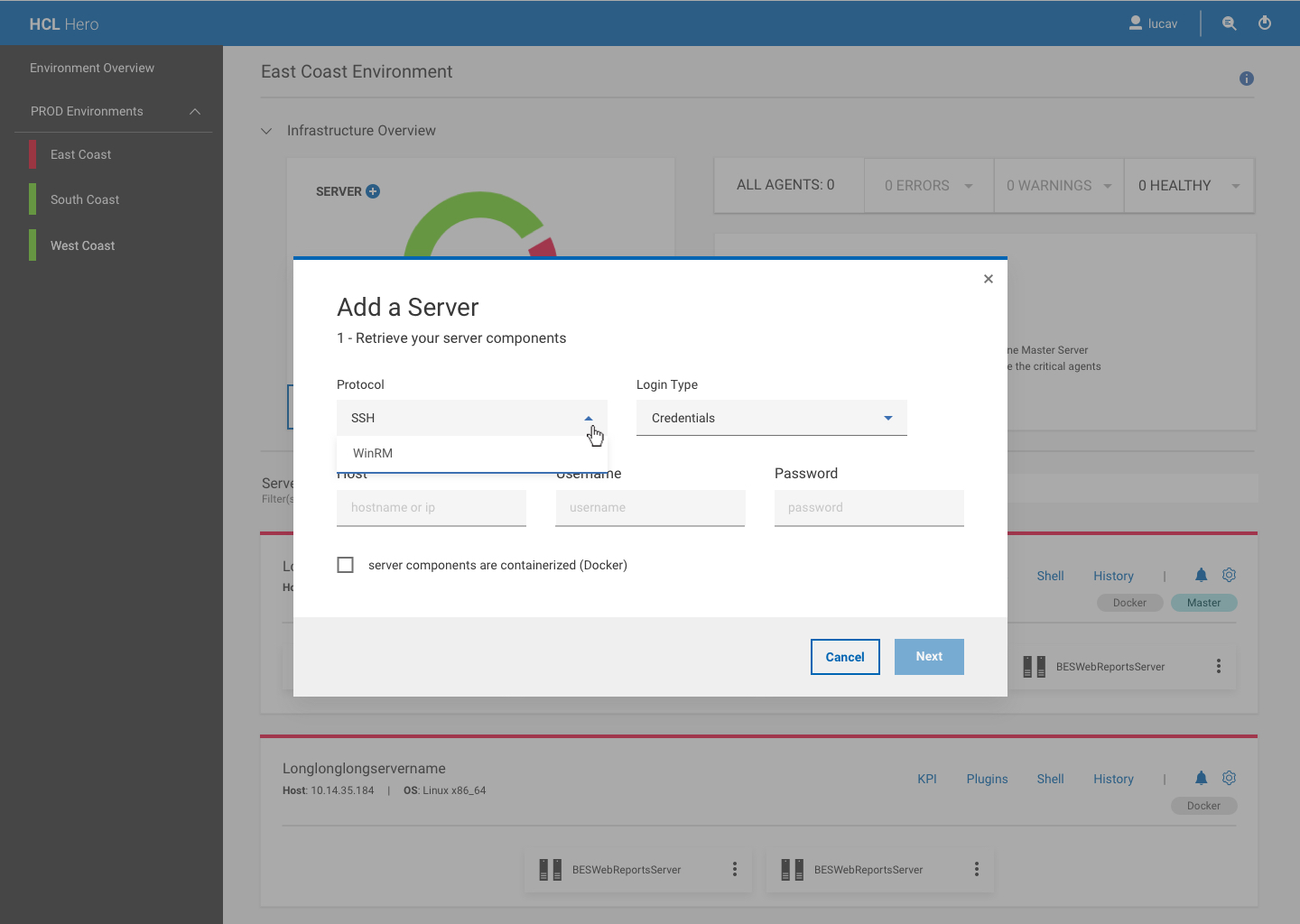
To add a server to your environment and retrieve the server components, you can login to the remote machine in two different ways:
Login with credentials, through SSH or WinRM protocol
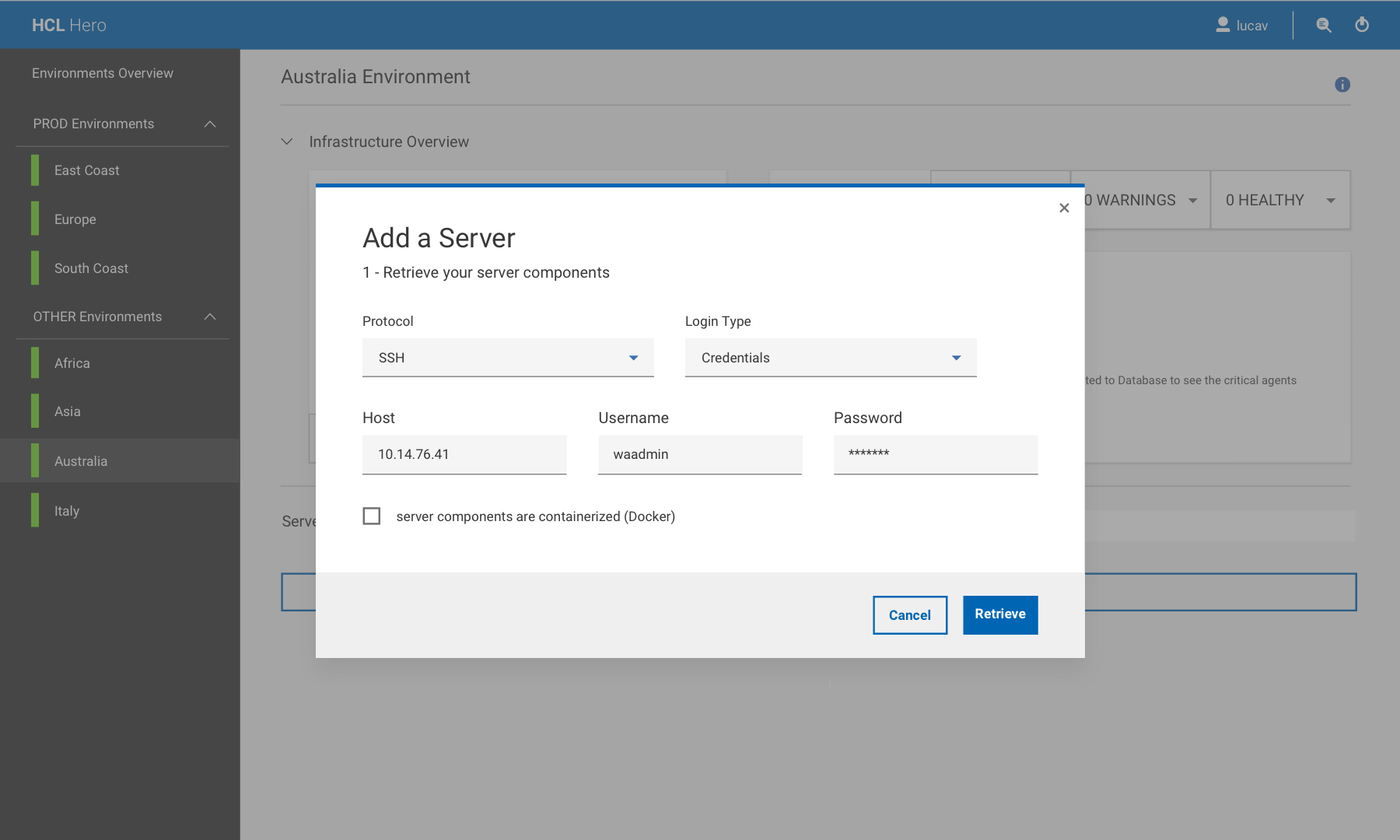
In this case, enter the server hostname or ip address, the username and password of the owner of the product instance installed on the server.
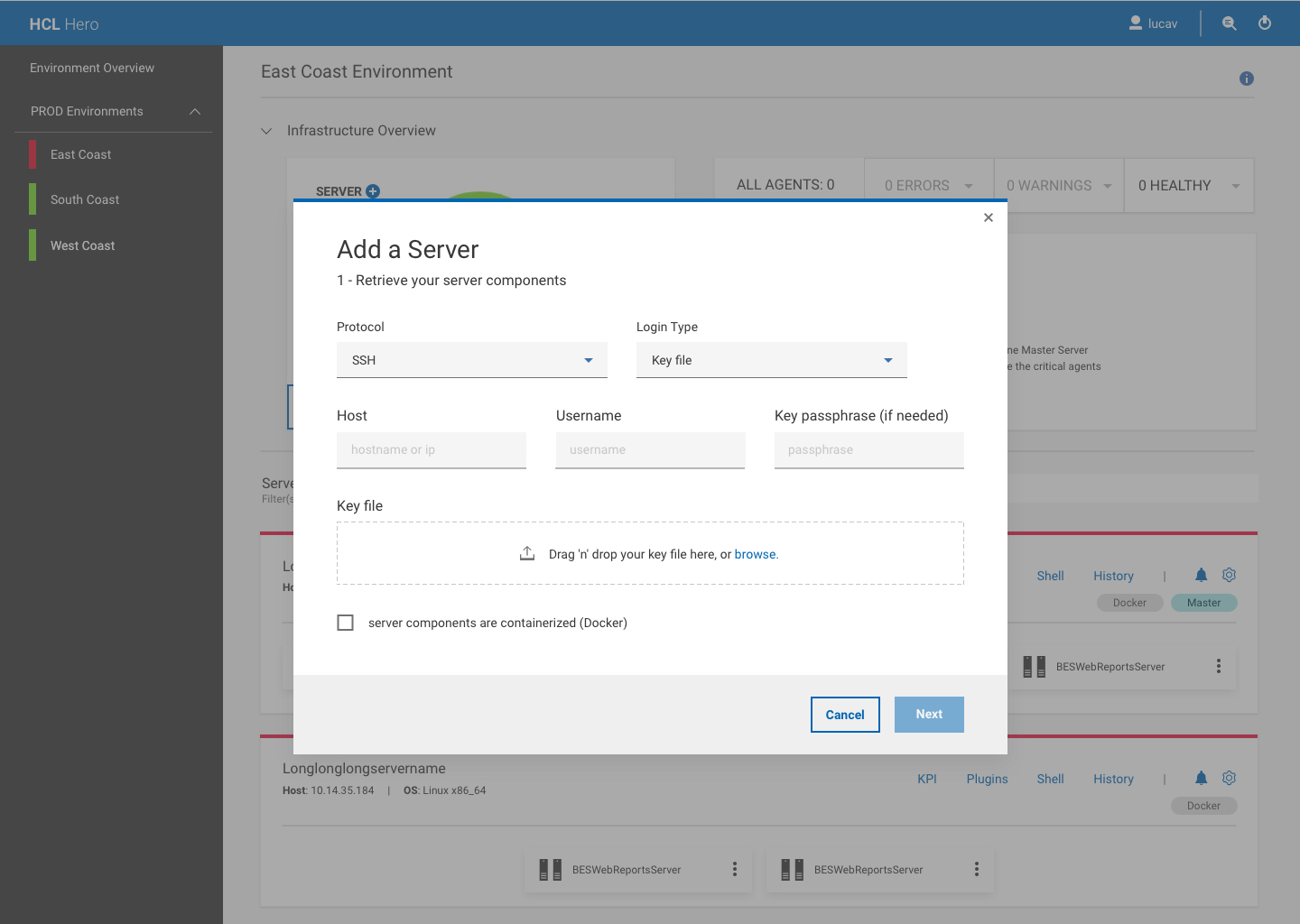
Login with SSH Key
In this case, enter the server hostname or ip address, the username of the owner of the product instance installed on the server and, optionally, a key passphrase. The passphrase is needed if your private key is passphrase protected. In the dotted area, drag and drop your SSH key file or click browse to search the file system. Once you have inserted your SSH key file, you can delete and/or replace it, if needed. The SSH key file can be of any supported format and must contain only the key string.
Your private key is temporarily saved by HERO and used only to add the server. After that, your certificate is deleted and replaced by a HERO certificate.
If the server
that you want to add contains containerized components, you must check
the related box in the Add Server panel, and provide the container
name for each component to be retrieved. 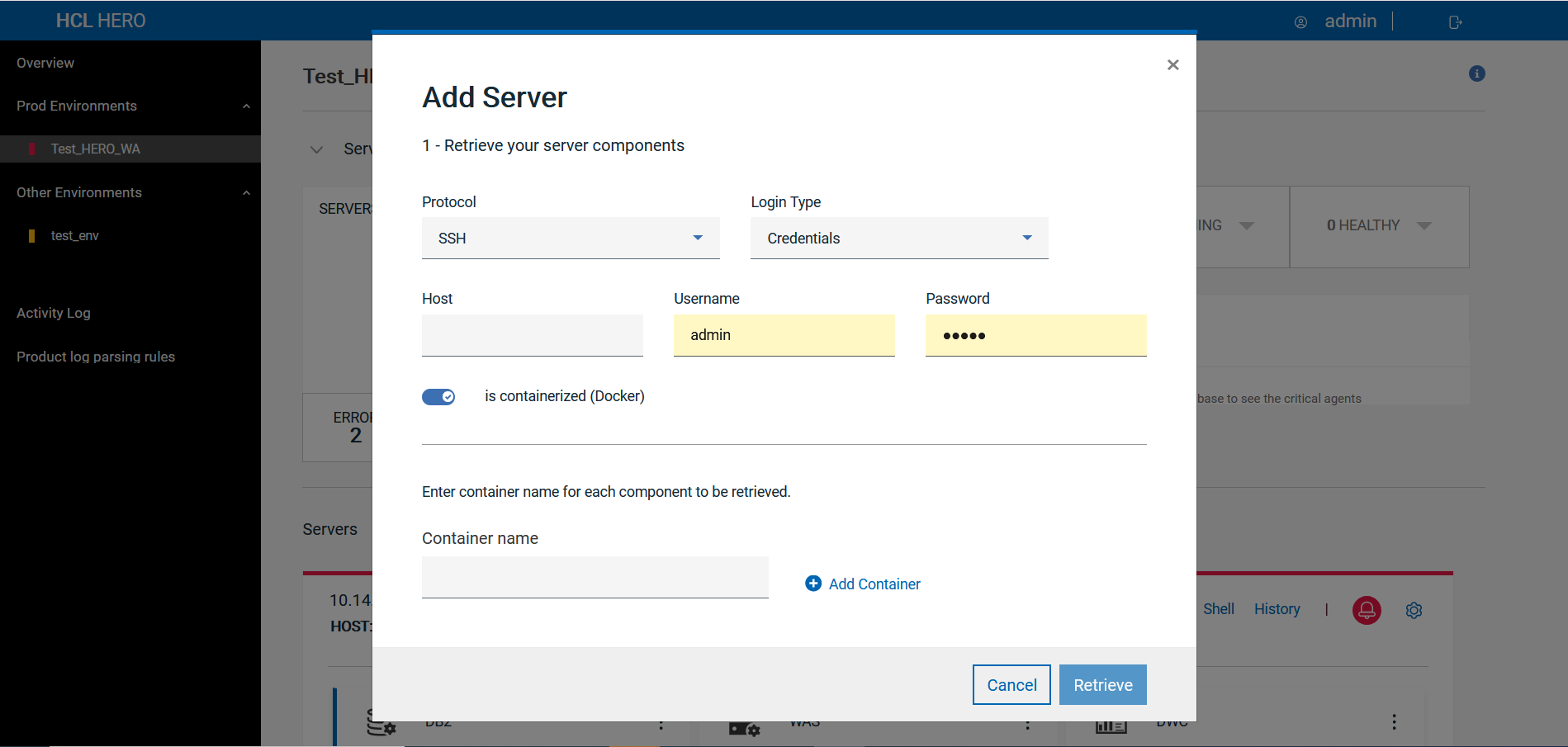
After you have successfully logged in to your server, click Retrieve.
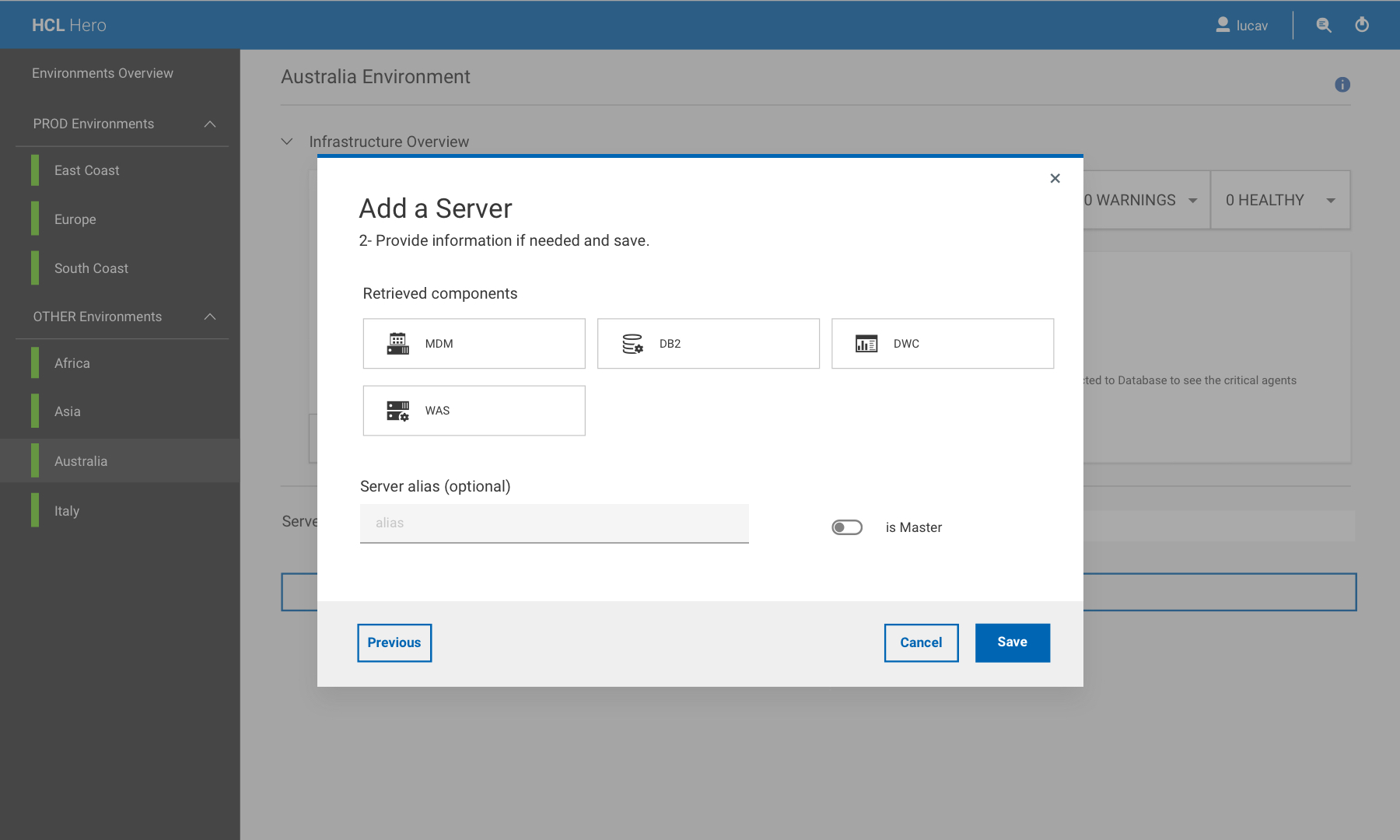
HERO will automatically discover the Workload Automation components deployed on the server.
Click Save to add the server to your environment.
After you have added a server to your environment, you might want to refresh the server information. Run the following steps:
From the server drop-down menu, select Refresh Server.
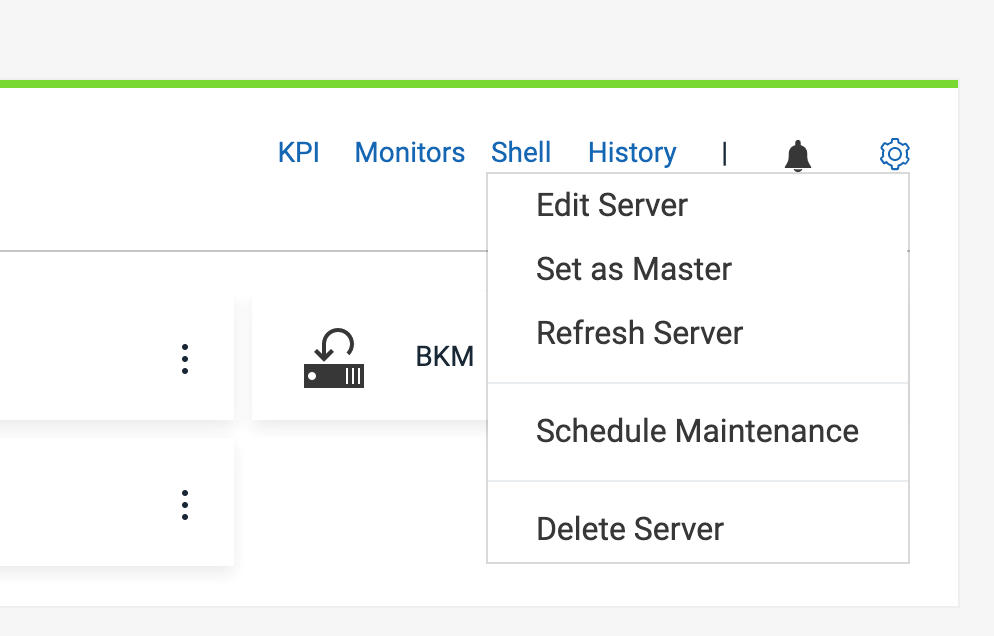
The retrieve process is run again over the existing server connection.
When the retrieve process has been completed, the Save Server panel is shown with updated information from the server.
You can edit information, such as: server alias, "is Master" flag, and database information, just like during the usual retrieve process.
Save the server with the updated information in your environment.