Managing User Credentials
The Credential Manager component is accessible from Clara Dashboard. It helps you map your Clara credentials with the credentials of the following product environments:
Workload Automation
Workload Automation for Z
Dynamic Workload Console
HERO
As you start chatting with Clara, you must add the credentials of the product environments managed by Clara. Valid credentials are needed to invoke the REST APIs of the target product environment, thus enabling Clara to run actions on your behalf.
If you ask Clara to run actions on your product environments but your credentials have not been added yet, or are invalid, Clara alerts you and suggests to open the Credential Manager user interface to add or modify user credentials.
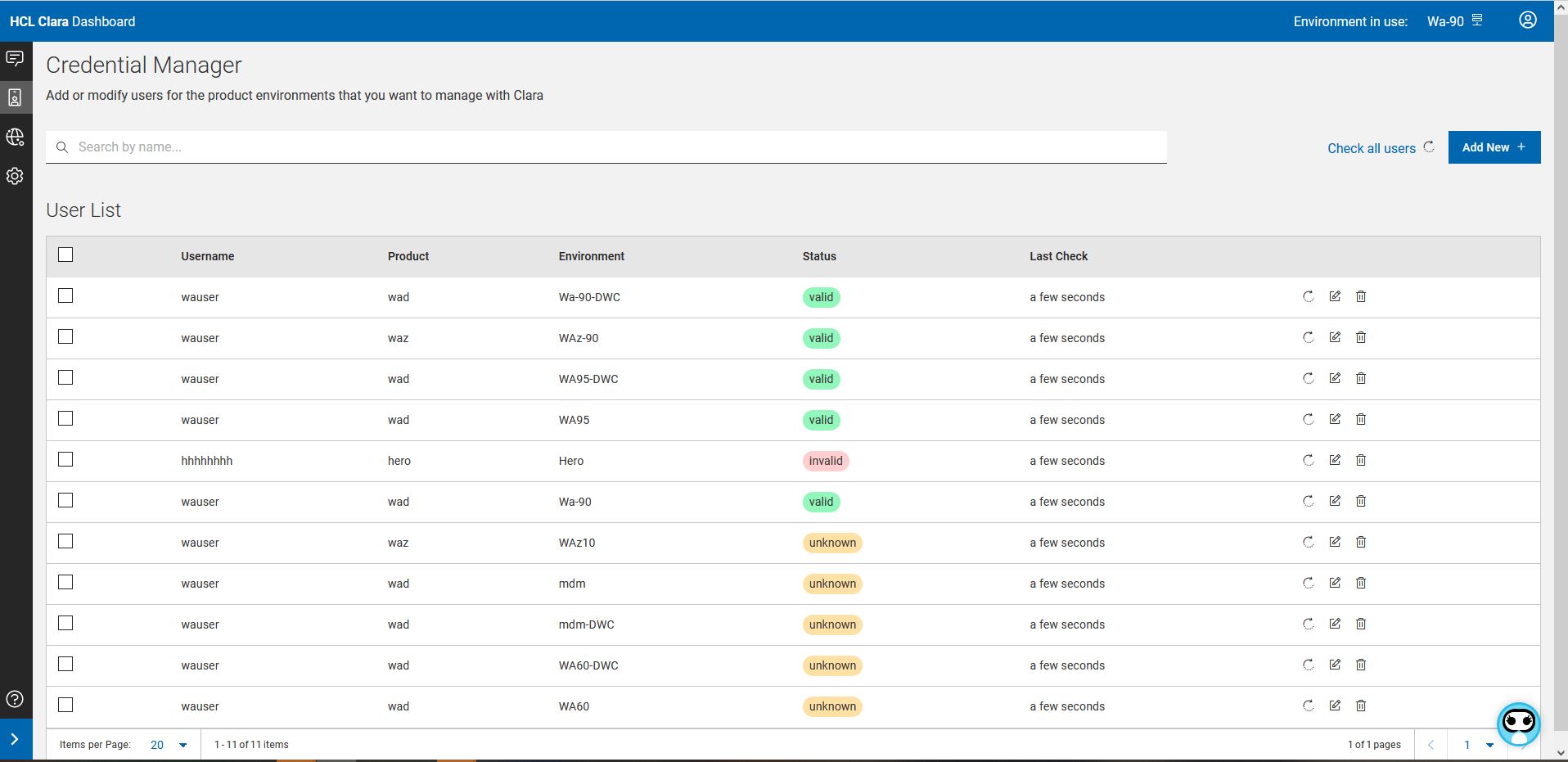
In the User Credential Manager main page, you can find the following information:
Username - the username you use to access Clara.
Product - the product you want to manage with Clara. It can be: WAd | WAz | DWC | HERO.
Environment - The name of the product environment (for example, PROD1) as defined in Clara dashboard > Settings > Environments.
Status - For each product environment, the status of your user credentials. It can be one of the following:
Unknown - Clara has not tried to log in to your product environment yet, or she tried but was not able to connect.
Valid - Clara logged in to your product environment successfully.
Invalid - Clara was not able to log in to you product environment.
Last check - The number of days since the last update of the user credentials for your product environment.
Actions you can run on each user are:
Edit user - to modify a user.
Check credentials - to check if the user credentials are valid.
Delete user - to delete the user credentials.
If the status of some users is Unknown, click the button Check all users to validate all user credentials and update their status.
To add a user, click the button Add new. For details, see Adding a user.
Adding a User
You can add a user for the product environments that you want to manage with Clara. Each Clara user can only add a user, with his set of credentials, for each product environment.
To add a new user, run the following steps:
From the User Credential Manager main page, click the button Add new.
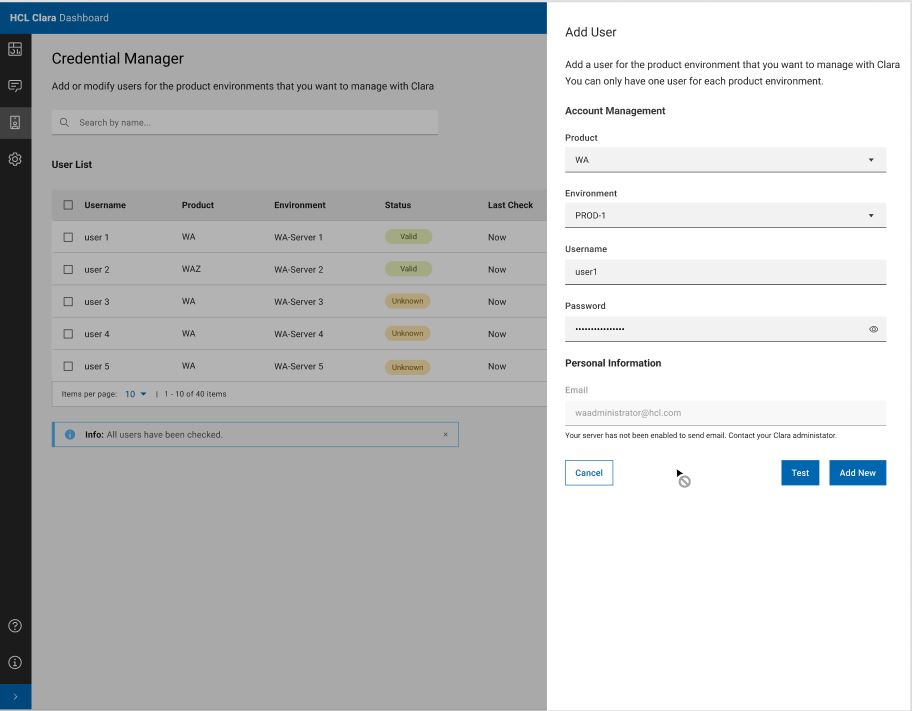
The Add User side panel opens:
Select a value for Product and Environment.
Provide Username and Password for the environment.
Provide your e-mail address to receive notification e-mails from Clara.
Click Test to check user credentials.
If user credentials are valid, click Add new.
If it is not possible to check the credentials because, for example, the connection with the target environment is down, you can save the new user with an unknown status for credentials and verify them later on.
You can save the user even if the credentials are invalid, and modify them later on.
Checking credentials
Besides checking all user credentials at one time by clicking the Check all users button, you can check credentials for a single user.
Run the following steps:
From the User Credential Manager main page, select the Check credentials action for the user whose credentials you want to verify:
Verify if the status of your user credentials.
If you need to modify your user credentials, select the Edit user action.
Editing a user
To edit a user, run the following steps:
From the User Credential Manager main page, select the Edit user action for the user you want to modify:
The Edit User side panel opens:
Modify Username, Password, and e-mail information.
Click Test to check the user credentials.
If the user credentials are valid, click Add new.
You can save the user even if credentials are invalid or their status is unknown, and modify the credentials or check their status later on.
Deleting a user
To delete a user, run the following steps:
From the User Credential Manager main page, click the Delete user action for the user you want to remove.
In the confirmation panel, click the Delete button to permanently remove the user from the system.