Customizing Clara settings
After Clara installation, from Clara Dashboard > Settings page you can customize the following settings:
Select the corresponding icon on the Settings left hand panel.
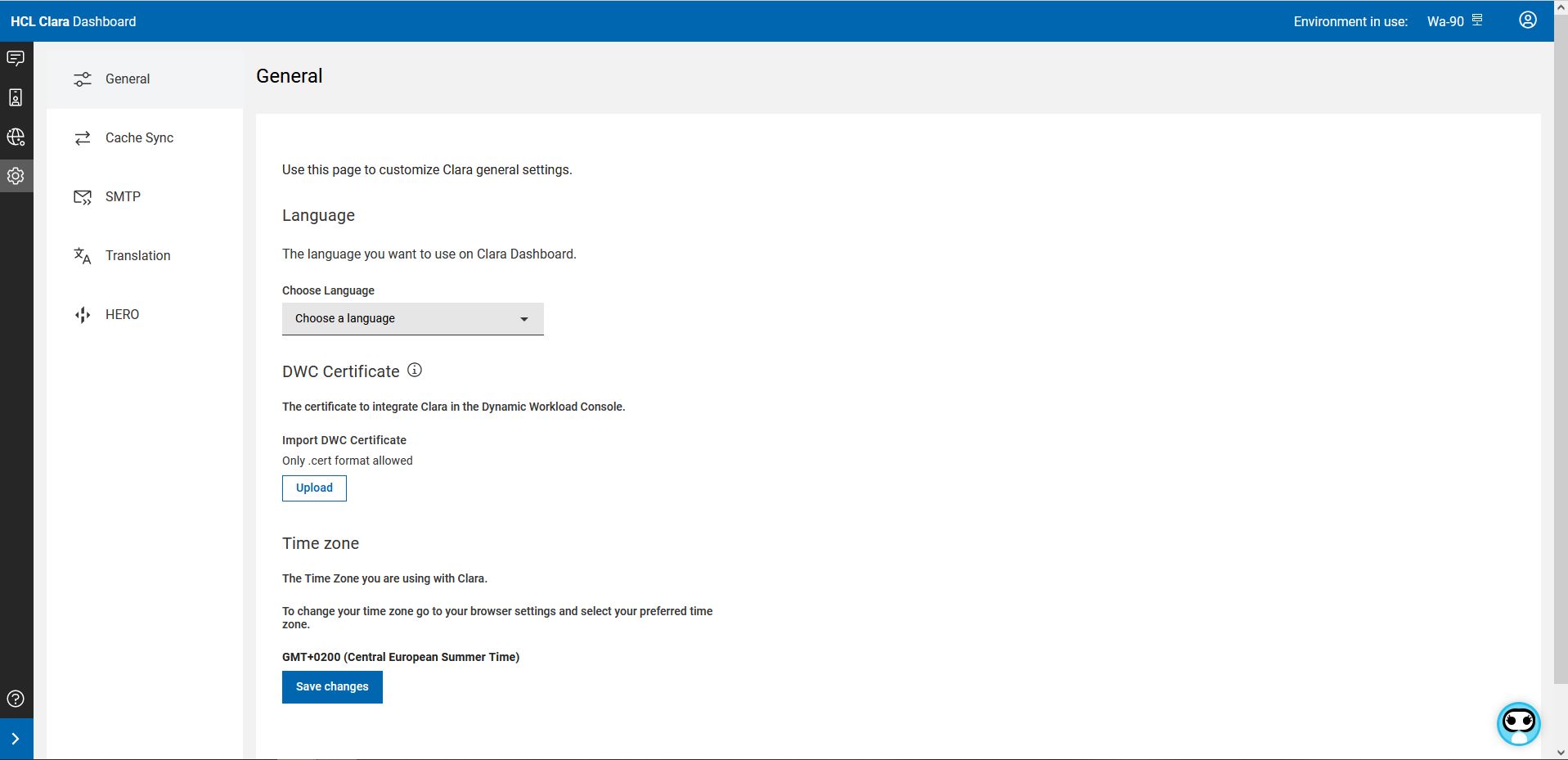
General
Use this page to customize the following Clara general settings.
Property |
Description |
Notes |
Language |
The language you want to use on Clara Dashboard. English, Spanish, German, Portuguese, and Italian are supported. |
This language might be different from the language you use on Clara UI. |
DWC Certificate |
The certificate to integrate Clara in the Dynamic Workload Console. Click Upload to import a .cert file containing the certificate. |
In Clara, this certificate is set to the default certificate of the Dynamic Workload Console. If a custom certificate is used instead, you must modify this parameter accordingly. |
Time Zone |
The Time Zone you are using with Clara. |
To change the time zone go to your browser settings and select your preferred time zone. |
Note:
For the steps to run on the Dynamic Workload Console, see the following topics in the Workload Automation documentation:
Integrating Clara in the Dynamic Workload Console
Integrating Clara after an environment update
Cache Synchronization
To reduce the response time, Clara V2 uses a dedicated cache to exchange information with Workload Automation. Use this page to customize Clara synchronization with the communication cache.
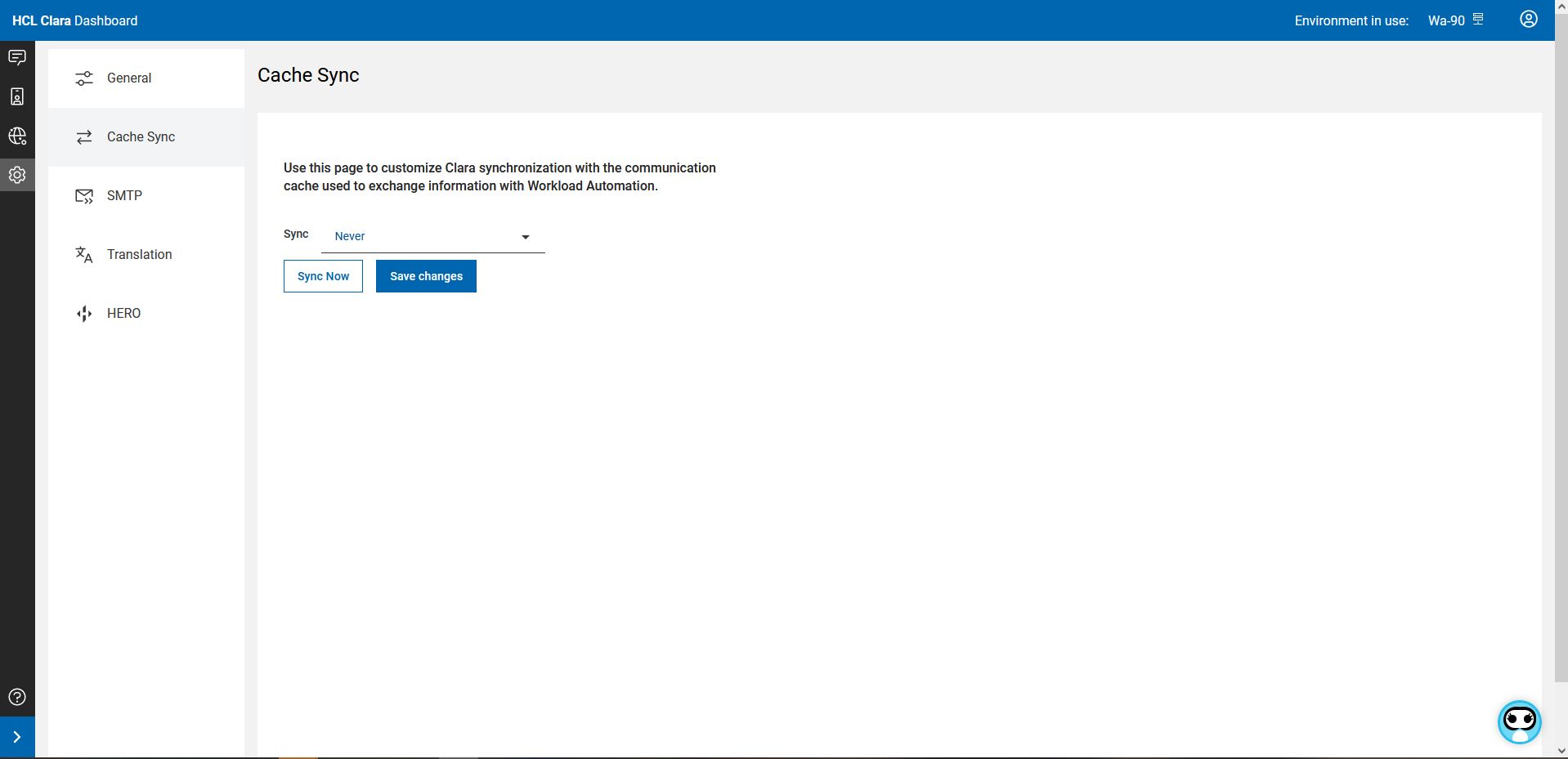
You can specify how often you want to synchronize Clara with the communication cache. Select one of the following values:
Never
Now
Hourly, every x hours
Every day at hh:mm
Every week, on day, at hh:mm
While a synchronization is in progress, you can stop it. Any progress will be lost. You can restart the synchronization later on.
SMTP
Use this page to customize the SMTP Server that will be used by Clara to send email notifications.
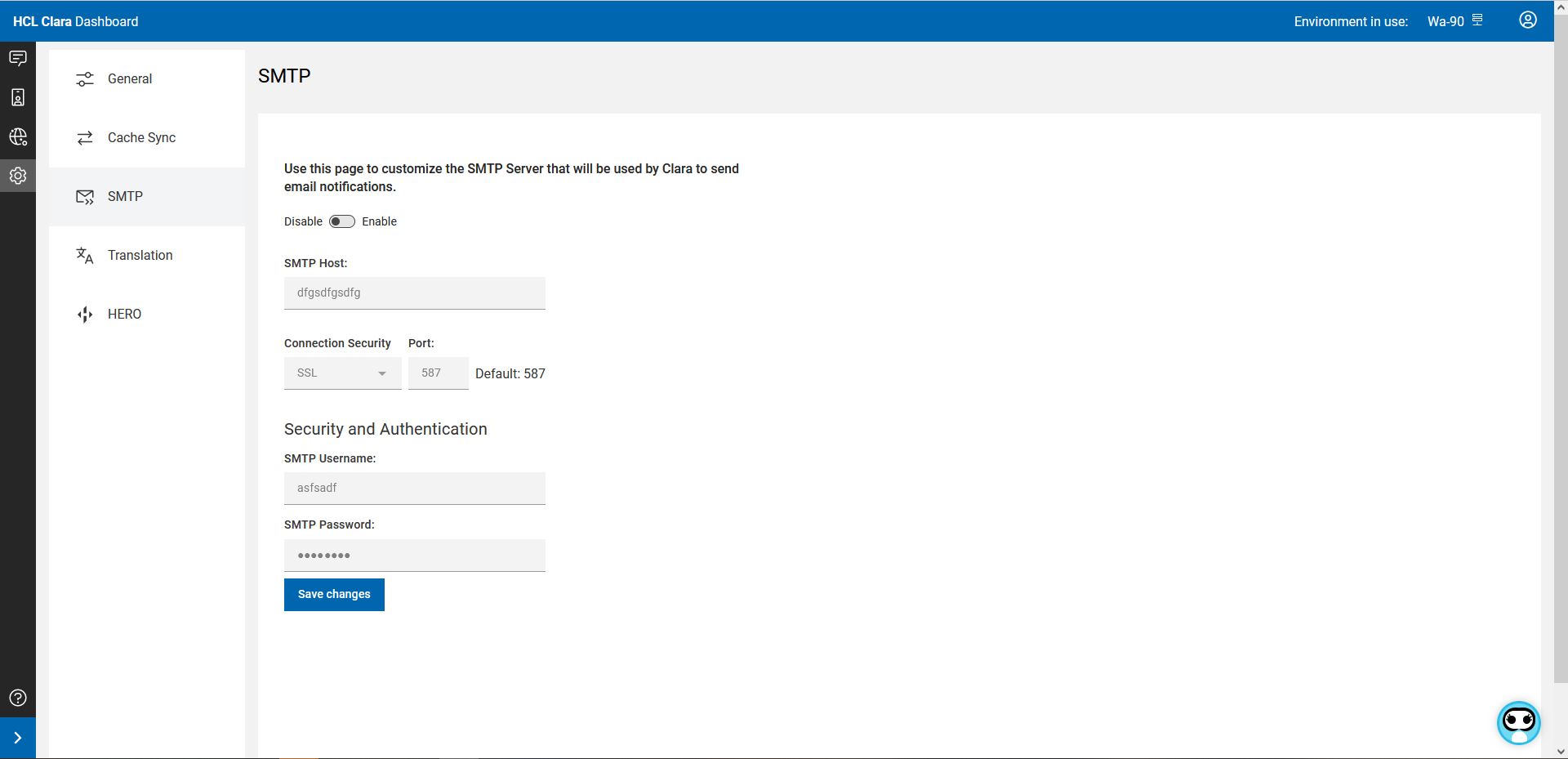
You can enable/disable this functionality. If you choose to enable it, you must specify the following properties:
Property |
Description |
Notes |
SMTP Host |
The fully qualified hostname of the SMTP Server. |
Example: smtp.gmail.com. |
Connection Security |
The authentication type defined for the SMTP Server. Can be TLS or SSL. |
Default:TLS. |
Port |
The Port of the SMTP Server. |
Default: 997. |
SMTP Username |
The username sending email to the recipient specified in the Clara Credential Manager. |
Example: username@gmail.com. |
SMTP Password |
The password associated to the username. |
|
Translation
Use this page to enable or disable the availability of multiple languages in Clara.
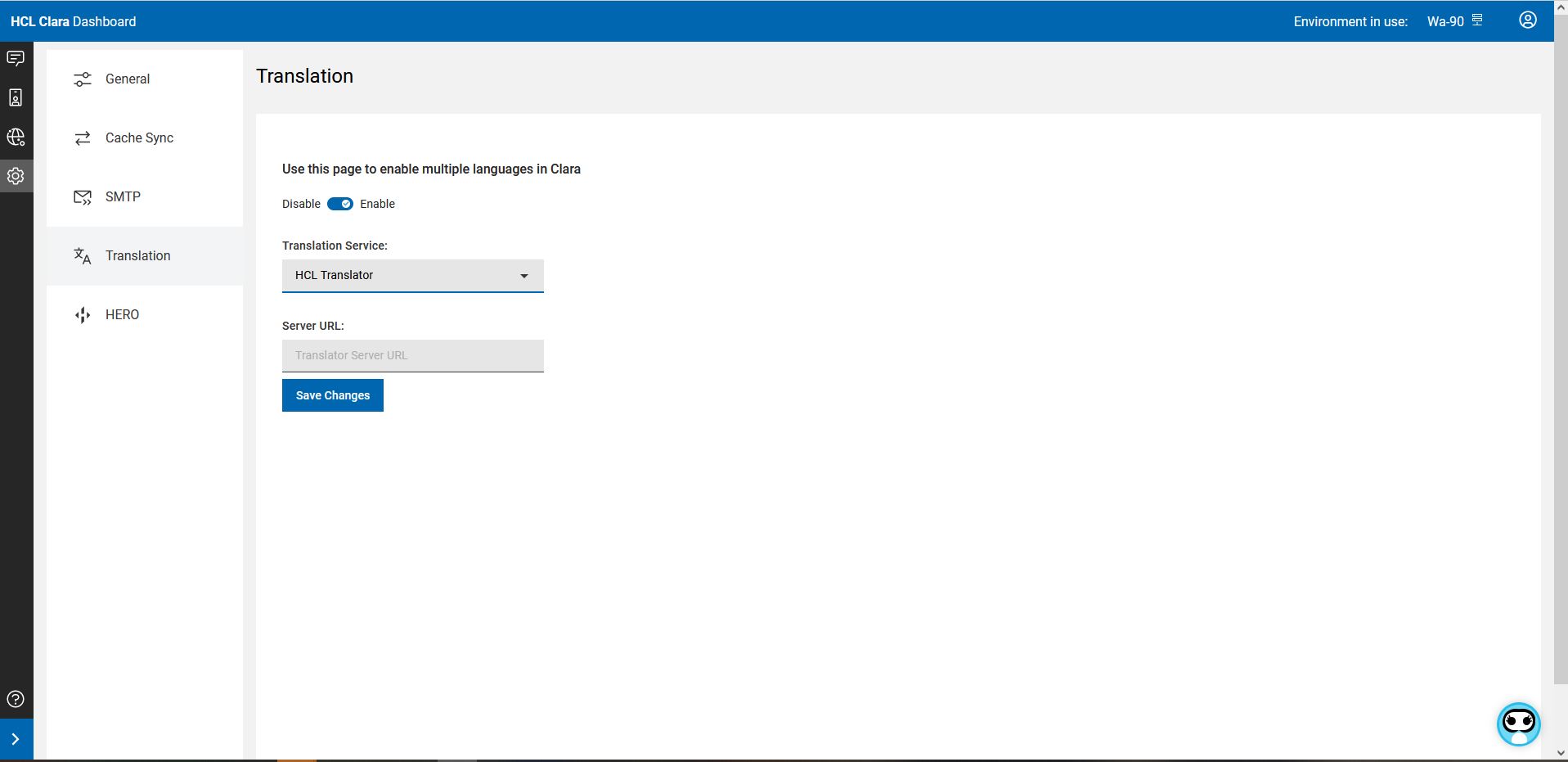
Clara V2 provides multilanguage enablement through any the following Translation Services:
HCL Translator (default)
Google
Azure
Note: Multilanguage enablement in Clara is obtained through machine translation. Therefore, it could sometimes produce inaccurate results.
If you are using HCL Translator and you find that the translation is not accurate, you can submit your feedback through the HCL Software portal by providing the original sentence and the correct translation.
In this way, the HCL Translator development team can use your input to re-train the language model and improve the translation quality.
HCL Translator is an API based service. It is based on Machine Learning models that have been trained and fine-tuned to understand context-specific terms or phrases used in the Workload Automation domain, thus greatly improving the user experience. It supports bidirectional automatic translation from English to French, German, Italian, Portuguese, and Spanish. For details, see: Installing and Configuring HCL Translator.
After Clara installation, you can enable/disable the support of multiple languages. If you choose to enable them, you must specify the following properties:
Property |
Description |
Notes |
Translation Service |
Can be: "Google", "Azure", or "HCL Translator". |
Default: HCL Translator. |
For Google: |
||
Server URL |
The URL of the translation service provided by Google. |
|
Languages |
The languages you want to use with Clara. |
|
Authentication file |
The file that stores the Google translation service account key. |
Must be a json file. For details, see: https://cloud.google.com/translate/docs/setup. |
For Azure: |
||
Server URL |
The URL of the translation service. |
|
Subscription Key |
The subscription key of the Azure translation service. |
For details, see: https://docs.microsoft.com/en-us/azure/cognitive-services/translator/quickstart-translator. |
Region |
The region where the Azure Server is located. |
Default: "switzerland nord". |
Languages |
The languages you want to use with Clara. |
|
For HCL Translator: |
||
Server URL |
The URL of HCL Translator provided by SoFy after the HCL Translator installation. |
|
HERO integration
Only for WAd type environments, use this page to configure Clara integration with HERO.
Clara can monitor and get information about your Workload Automation servers through HERO (HEalthcheck & Runbook Optimizer). Clara can monitor one environment at a time. For details, see: Clara monitors your servers through HERO.
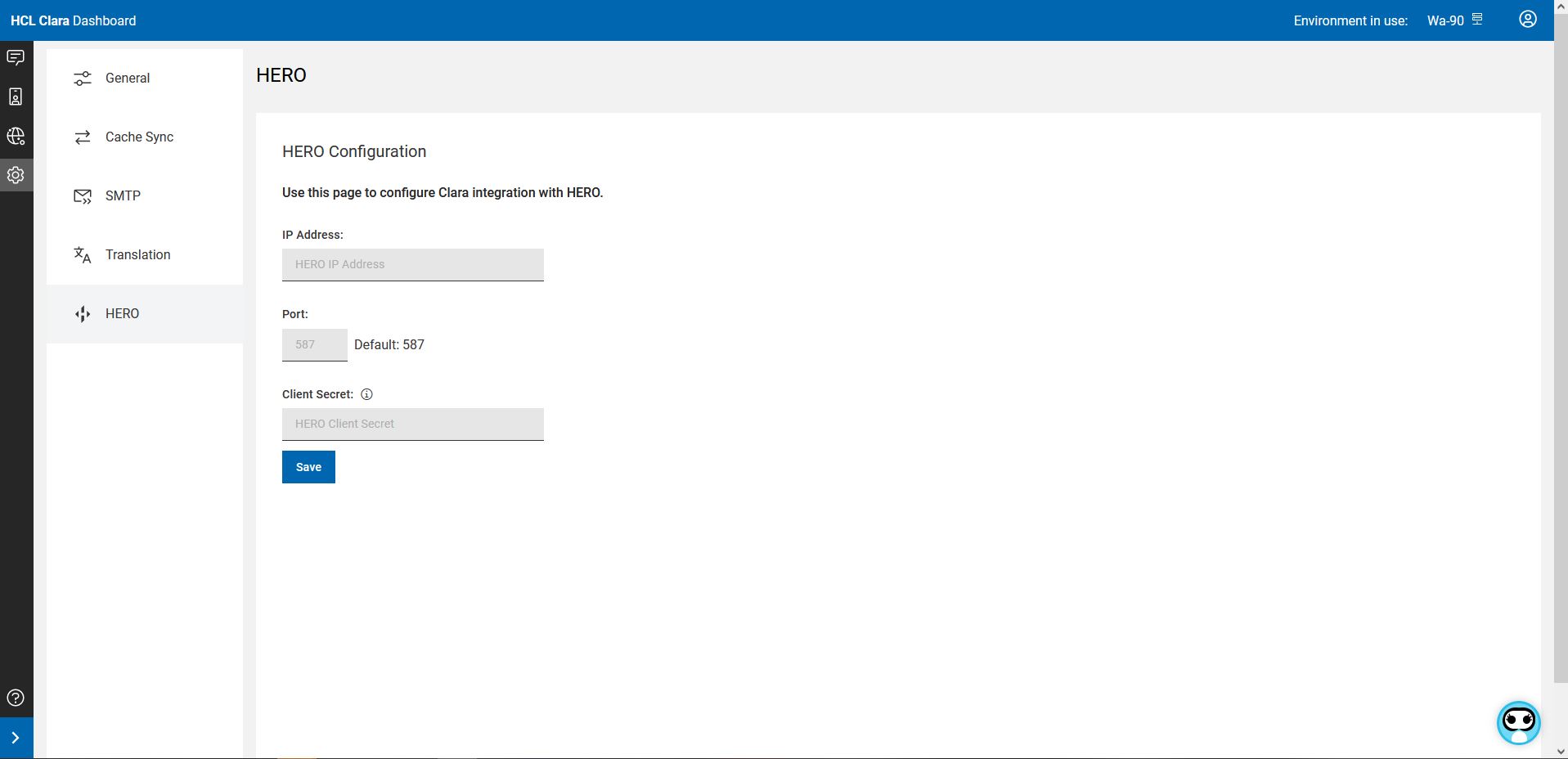
Specify the following properties for the environment that you want to monitor:
Property |
Description |
Notes |
IP Address |
HERO server IP address. |
|
Port |
HERO server Port. |
Default: 587. |
Client Secret |
The HERO Client Secret to open a HERO session from Clara. |
For details about HERO Client Secret, see the topic: "Configuring security" in HERO documentation. |
The credentials to access HERO must be defined in the Dashboard > Credential Manager.
Click the Add New button and select HERO in the Product drop-down list.