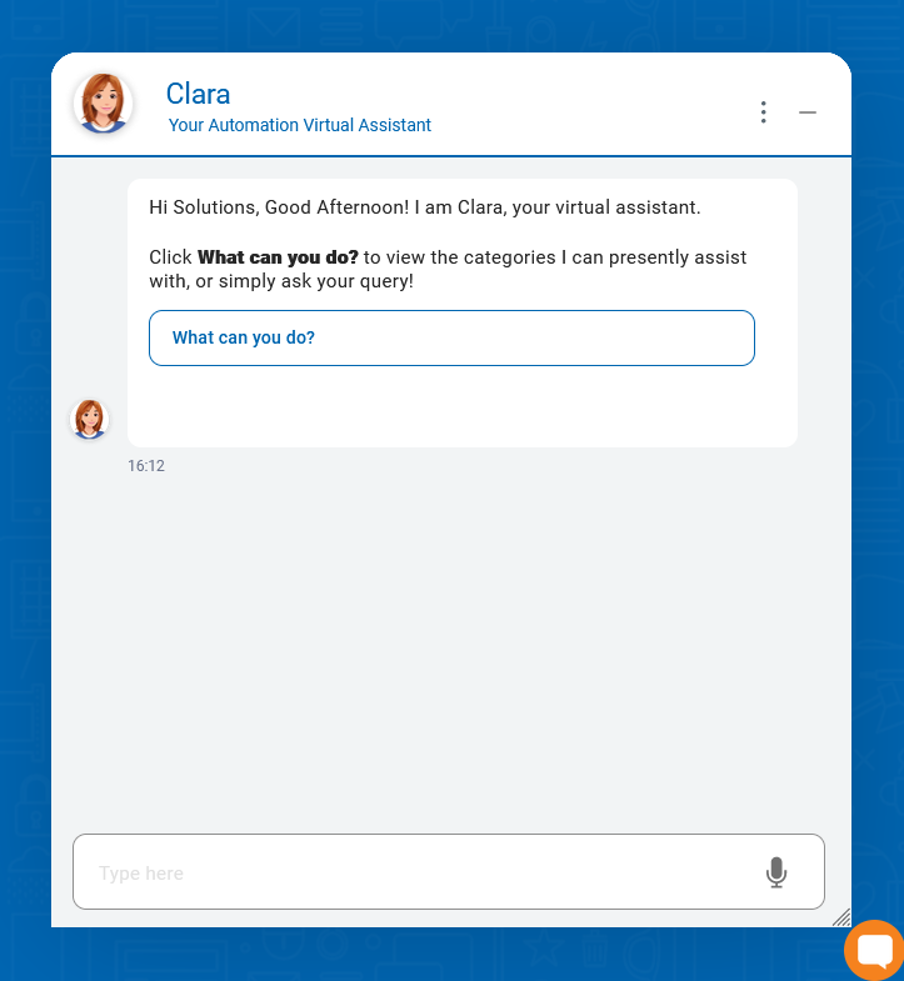
You can contact Clara by using one of the following options:
Clara web interface, available at the following link https://<IP:PORT>/Clara/
Clara integrated in the Dynamic Workload Console of Workload Automation. For details about configuration instructions, see Installing and configuring Clara from V1.0.0.6 with Docker.
Messaging tools such as Slack and Sametime. For details about configuration instructions, see Installing and configuring Clara from V1.0.0.6 with Docker.
If you enable Clara language support, the first time you enter the chat interface Clara asks you to select a conversation language from the language set defined during the configuration steps (see Configuring language support).
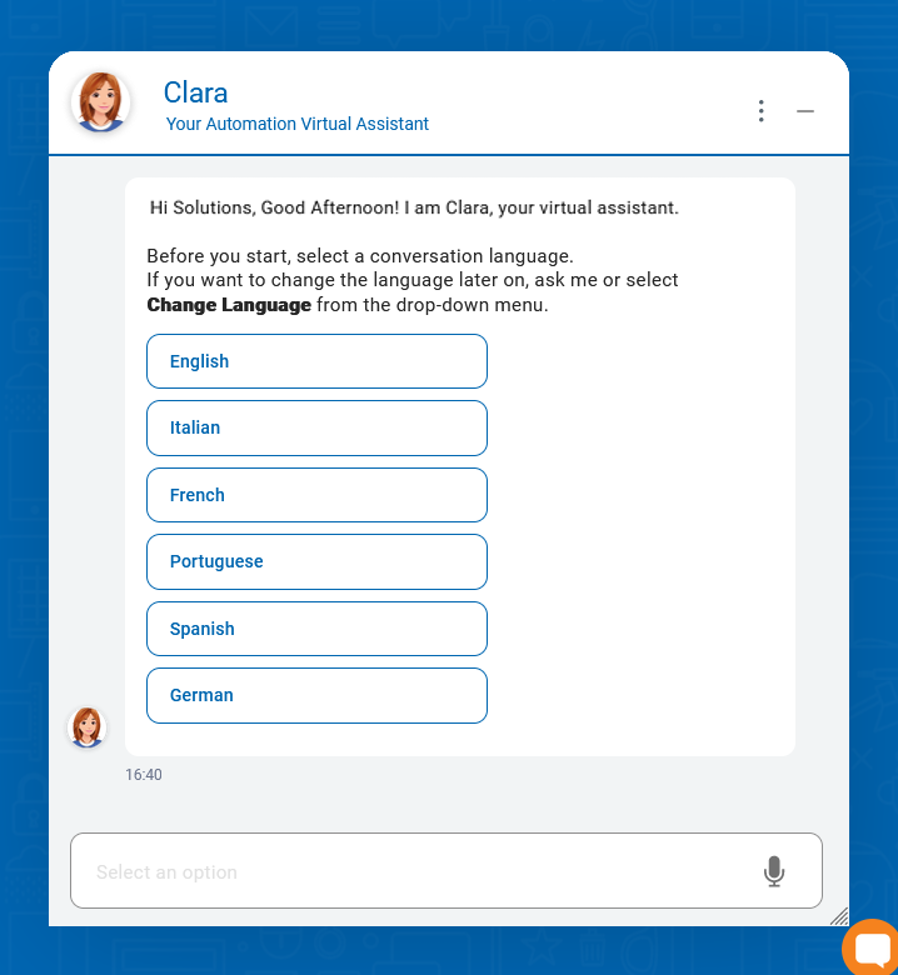
You can change the conversation language later on, by selecting Change Language in the drop-down menu of Clara chat window.
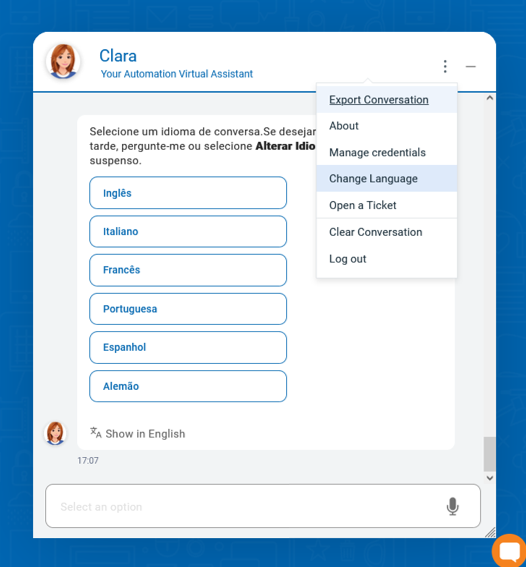
If you are using a language other than English, you can view the English version of a message at any time, by clicking Show in English in the message box.
To start a conversation with Clara, you can:
Ask Clara "What can you do?" to view the categories Clara can assist with. For an overview of the categories, see Running actions on your behalf.
Simply ask your free question (for example, what is a job? what is a job stream?). For details, see Clara replies to your questions.
Ask Clara to help you in problem determination (for example, find out why a job does not start). For details, see Clara helps in problem determination.
By clicking the menu icon on the upper right corner of Clara chat window, you can find the following options:
Export Conversation - to export the current conversation with Clara
About - to get information about Clara version, release, and terms of license agreement.
Manage credentials - to map your Clara credentials with Workload Automation credentials
Change Language - to select a different conversation language.
Open a Ticket - to get the link to the Service Platform of your choice
Clear Conversation - to reset the current conversation with Clara
Logout - to log out from Clara
When chatting with Clara, by hovering over Clara's messages, options are available to Copy or Share via email the content of the message.
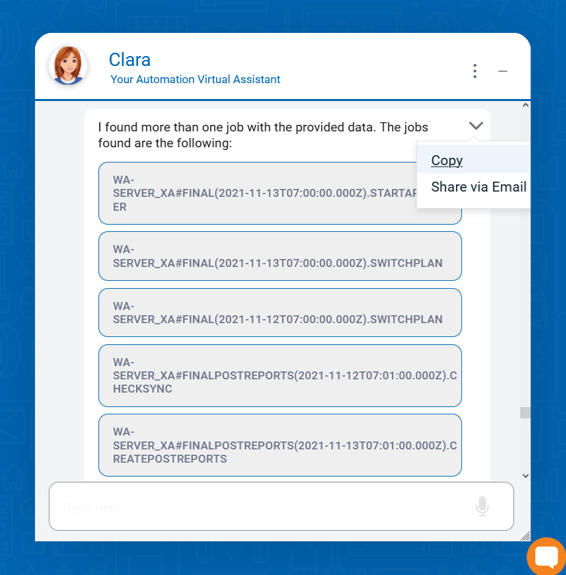
By selecting Copy, you can copy the message to clipboard, and paste it later on.
By selecting Share via email, the message text is copied into a new e-mail in your default e-mail program.