How do I run Mail as a standalone app?
You can install and run HCL Domino Workspace Mail as a standalone browser app that is based on progressive web app (PWA) technology.
As a PWA, Mail runs in its own window rather than as a tab in your browser. You start and stop it as you do other installed browser apps.
Mail as a standalone browser app is currently supported for the following browsers.
- Chrome on Microsoft™ Windows™, Mac OS, and Android
- Microsoft™ Edge (80+) on Microsoft™ Windows™
- Apple Safari on iOS
To install Mail as a standalone app:
-
Log in to Mail through the server browser URL, for example:
https://baldwin-design.com/verse. -
Install the Mail app.
The browser may indicate that there is an app to be installed. For example, on Chrome running on Windows, a + icon is shown in the browser bar, which you can click to install the Mail app:
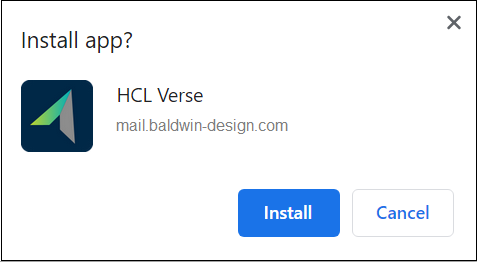
On some browsers the prompt to install Mail is shown automatically
On mobile devices, you are given instructions about how to add the Mail app to your home screen.
Mail immediately starts in its own window. Stop, start, or uninstall Mail just as you do other installed browser apps.
Parent topic: User Documentation