Manage S/MIME credentials and certificates on HCL Domino Workspace Mail iOS
This section talks about how to manage your S/MIME credentials and certificates that are necessary for reading and sending S/MIME signed or encrypted messages with HCL Domino Workspace Mail iOS.
| **How do I...** | **Action** |
| Add S/MIME credentials to HCL Domino Workspace Mail for iOS? | There are multiple ways to add S/MIME credentials to HCL Domino Workspace Mail iOS to enable S/MIME signing and encryption capabilities. 1. **Importing from the File Picker** 1. Go to **Settings** > **Account** > **S/MIME Credentials.** 2. Click on the \(+\) button on the top-right to open the Certificate File Picker. 3. Select the desired **PKCS\#12 \(PFX\)** file that you wish to import. 4. When prompted, enter the password to the PFX file. 5. The contents of the S/MIME credential will be displayed. 6. Click Import. 7. Enter a unique, user-friendly name to associate with the S/MIME credential. This is the name that will display on the S/MIME credential after it gets imported. 8. Click OK to proceed. 9. A prompt displays to confirm if the import completed successfully. Otherwise, an error message is displayed. 2. **Importing from an email attachment on Mail iOS** The steps for importing S/MIME credentials from an email attachment are the same as the File Picker, except the S/MIME credential file \(PKCS\#12 certificate\) is sent as an email attachment. Tapping on the attached PFX file invokes the import process. Follow the prompts to import the S/MIME credential successfully. 3. **Importing from the Apple File System \(Files app\) or 3****rd****party Email app** Alternatively, if the S/MIME credential is stored in the iOS File system or received via a 3rd party Email app as an attachment, do the following: 1. Long press on the S/MIME credential file. 2. Click "Share" to open the file sharing options 3. Clcik on the Mail iOS app icon from the Share options. 4. The HCL Domino Workspace Mail for iOS app launches with the certificate import prompt. 5. Follow the prompts to import the S/MIME credential successfully. |
| Add S/MIME certificates to HCL Domino Workspace Mail iOS? | S/MIME certificates are necessary for sending encrypted S/MIME messages to your intended recipients. There are multiple ways on how you can add them to Mail iOS: 1. **Importing S/MIME certificates from the Mail iOS certificate file picker.** 1. Go to **Settings** > **Account** > **Collected S/MIME Certificates.** 2. Click on the \(+\) button on the top-right to open the Certificate File Picker. 3. Select the desired certificate file that you wish to import. 4. The contents of the S/MIME certificate displays. 5. Click Import. 6. Enter a unique, user-friendly name to associate with the S/MIME credential. This is the name that will display on the S/MIME credential after it gets imported. 7. Click **Import**. 8. A prompt displays to confirm if the import completed successfully. Otherwise, an error message is displayed. 2. **__Importing S/MIME certificates from email attachments on Mail iOS.__** The steps for importing S/MIME certificates are the same as above. The only difference is you open the certificate by tapping from an email attachment on Mail iOS to invoke the import process. Follow the prompts to successfully import the S/MIME certificate. 3. **Importing S/MIME certificates from Apple File System \(Files app\) or 3****rd****party Email app** Alternatively, if the S/MIME credential is stored in the iOS File system or received via a 3rd party Email app as an attachment, do the following: 1. Long press on the S/MIME credential file. 2. Click "Share" to open the file sharing options 3. Clcik on the Mail iOS app icon from the Share options. 4. The HCL Domino Workspace Mail for iOS app launches with the certificate import prompt. 5. Follow the prompts to import the S/MIME certificate successfully. |
| Import S/MIME root certificates to HCL Domino Workspace Mail iOS? | Due to Apple security restrictions, 3rd party applications are not allowed to access the Apple Root Certificate Trust Store which is important for verifying the S/MIME signature of an S/MIME message. This means that you should import the CA Certificate that your organization uses for S/MIME signing or encryption. S/MIME CA Certificates can be imported into HCL Domino Workspace Mail iOS’ secure keychain by following the steps below: 1. Go to Mail iOS **Settings** > **Account** > **Message Encryption** 2. Tap S/MIME CA Certificates. 3. Tap \(+\) button to open the Certificate File Picker. 4. The Certificate File Picker opens. Locate the S/MIME CA Certificate you wish to import and tap to select it. 5. The Import Certificate dialog displays the certificate details. Tap Import on the upper right to continue. 6. You can name the S/MIME CA Certificate for easier identification. The default name is the certificate’s Subject. Tap OK. 7. A warning dialog will be displayed to inform the user to only import CA Certs that the organization trusts as this may result in unwanted trust verification of received S/MIME messages. Tap Proceed to continue \(or Cancel to abort\). 8. A confirmation message is displayed when the import is successful, otherwise an error message is shown. Tap OK to dismiss. Alternatively, you can also import the S/MIME CA Certs from an email attachment on HCL Domino Workspace Mail iOS, via the **Share** > **Open In** options from a 3rd Party email attachment or from the Files app. |
| Remove imported S/MIME credentials from HCL Domino Workspace Mail iOS? | There are two ways to remove imported S/MIME credentials from HCL Domino Workspace Mail iOS. 1. The first option is by doing a swipe-left action on the credential from the S/MIME Credentials window and tapping on the Delete option. 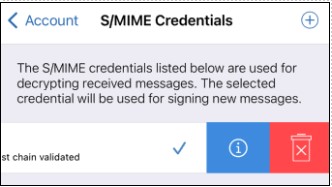 2. The second option is by tapping the **Remove Certificates** option from **Settings** > **Account** > **Application Cleanup**. .jpg) **Note:** This action removes all S/MIME credentials and Root Certificates present in the secure keychain of HCL Domino Workspace Mail iOS. Doing so also disables S/MIME and reset the "Default Encryption Type" to "Notes encryption". **Note:** Uninstalling and reinstalling HCL Domino Workspace Mail iOS from scratch also clears the secure keychain and any S/MIME credentials and Root certificates present. Additionally, all collected S/MIME certificates saved in the encrypted database of HCL Domino Workspace Mail iOS are wiped out. |
Parent topic:Working with S/MIME messages on HCL Domino Workspace Mail iOS
Related information
Configuring Message Encryption on an iOS device
Reading S/MIME Messages on an iOS Device
Sending S/MIME Signed messages on an iOS device