Configuring Message Encryption on an iOS device
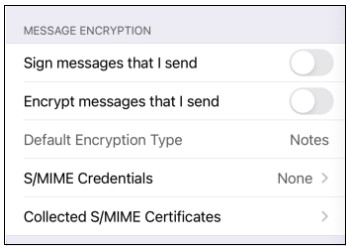
Configuration options for Message Encryption (Notes-based and S/MIME) are available in Settings > Account under the Message Encryption section.
| **How do I...** | **Action** |
| Default to signing and/or encryption on new messages and replies? | 1. Check "Sign messages that I send" and "Encrypt messages that I send" as desired. |
| Choose between using Notes and S/MIME encryption? | 1. Select “Default Encryption Type” and choose the preferred encryption type. **Note:** The Default value is Notes encryption. **Note:** This setting is only enabled once at least one S/MIME credential has been added for use with HCL Domino Workspace Mail for iOS. **Note:** This setting is changed to S/MIME automatically when an S/MIME credential is added. You are allowed to switch to Notes encryption as preferred. **Note:** It is not possible to switch between Notes and S/MIME encryption on a per-message basis. |
| Manage the S/MIME Credentials? | 1. Select “Choose S/MIME Credential”. 2. Select the particular credential from the list for sending signed S/MIME messages. 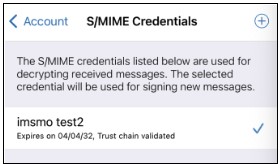 3. Go back by tapping **< Account**and click **Save** on the top right to save your selection. For more information see [Manage S/MIME credentials and certificates on HCL Domino Workspace Mail iOS](manage_smime_credentials_and_certificates_iOS.md) |
Parent topic:Working with S/MIME messages on HCL Domino Workspace Mail iOS
Related information
Reading S/MIME Messages on an iOS Device
Sending S/MIME Signed messages on an iOS device
Sending S/MIME Encrypted messages on an iOS device
Manage S/MIME credentials and certificates on HCL Domino Workspace Mail iOS