Adding JavaScript
You can further customize your form's behavior by adding custom JavaScript. Forms provides a JavaScript API with objects and functions that you can use to modify the form programmatically. JavaScript is triggered in the browser by an event, and many events are available for this purpose. For more information about the available events, see Running Custom JavaScript - Events.
Form item events
Every item within a Forms form has a set of events that can be used to apply custom JavaScript. You can access the events by clicking the form item and then clicking the Events tab in the properties pane.
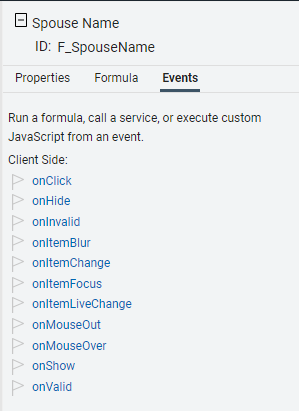
Events Page
You can also use the Events page by clicking the </> icon in the left vertical navigation bar.
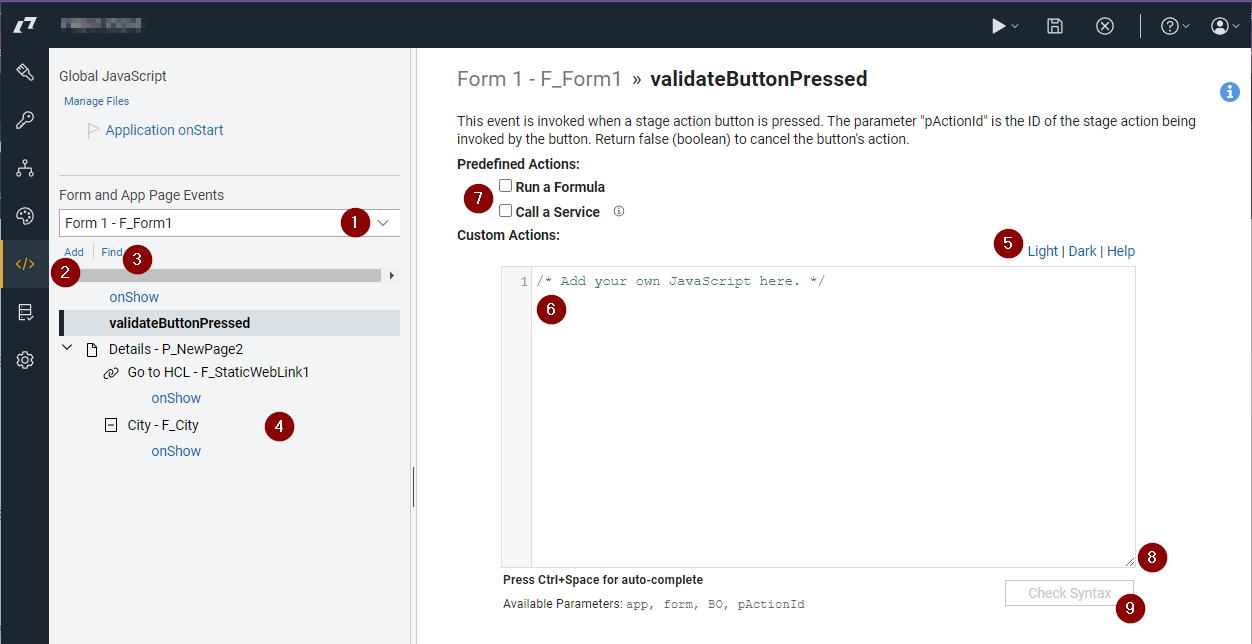
- Filters the JavaScript based on the selected form or appPage.
- Click Add to add an event to the view pane so that JavaScript can be added.
- Click Find to filter the content shown in the view pane by code that contains the specified text.
- The view pane displays events that contain JavaScript or predefined actions, grouped by page.
- Changes the color scheme of the page.
- The code editor provides code coloring, line numbers, and indentation. Press
Ctrl+Spaceto access the two auto-complete menus. The first menu displays the forms and their fields, and the second displays common JavaScript functions or code templates. - Applies a predefined action to the event.
- Provides a drag handle to change the size of the code editor window.
- Click Check Syntax to validate the code you write. The form will not save properly if the JavaScript code is invalid.
Debugging
If you want to investigate or debug code, you can add debugger; to any line of code to create a breakpoint. If you view the page with the browser developer tools enabled, the code stops executing at that point, allowing you to step through the code one line at a time.
Once the breakpoint is triggered, you can step through the code one line at a time and step into or out of functions. This is a useful tool for identifying issues in a function you write. You can also add expressions or variables to the Watch Expressions section to view the values of code statements as you progress through your function.
Note
Be sure to remove any breakpoints (debugger;) from your code before publishing your application for final consumption.
Parent topic: Adding dynamic behavior