Managing sync folders
A folder sync connection links one folder on your computer to one folder in your account. The setup wizard creates the first one for you. This page covers changing it and adding more.
Everything here is in Settings, reached from the tray menu. Each connected account has its own section listing its folder sync connections, the space in use, and the current status.
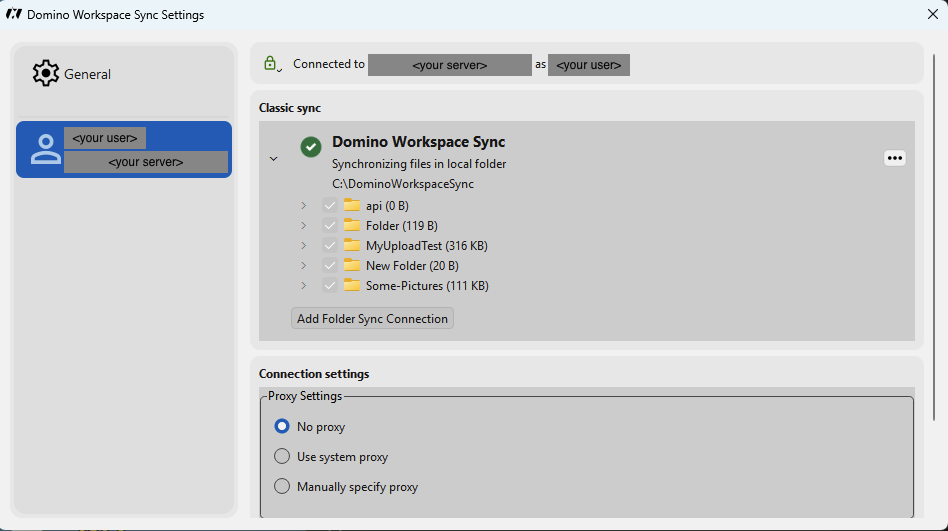
The folder menu
Select a folder sync connection and open its ⋯ menu:
| Entry | What it does |
|---|---|
| Open folder | Opens the local folder in your file manager |
| Edit Ignored Files | Opens the ignore rules — see Excluding files from sync |
| Create new folder | Creates a folder on the server from within the client |
| Choose what to sync | Pick which subfolders are kept on this computer |
| Force sync now | Starts a synchronisation immediately instead of waiting |
| Pause sync | Suspends this folder only; other folders keep running |
| Remove folder sync connection | Stops synchronising this folder |
Entries appear only when they apply. If your server offers end-to-end encryption, an Encrypt entry is shown for empty folders as well.
Choose what to sync
Selective sync decides which parts of your account exist on this computer. It is the right tool when your account holds shared department folders that you do not need locally.
- Open the folder's ⋯ menu and choose Choose what to sync.
- Tick the subfolders to keep on this computer; untick the rest. Synchronize all and Synchronize none set every box at once.
- Click Apply.
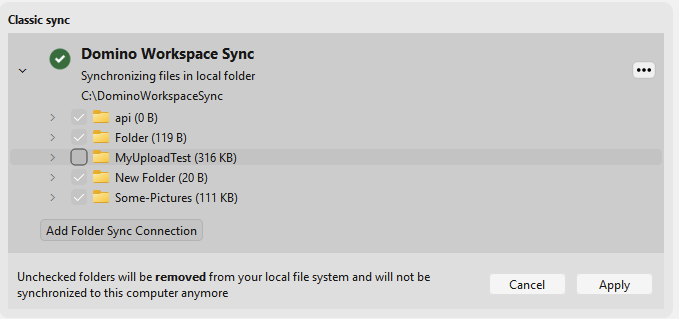
Unticking removes local copies. Folders you untick are deleted from your computer. They stay on the server and remain available in the web interface, but any change you have not yet uploaded is lost. Let synchronisation finish before changing the selection.
Newly created server folders are synchronised by default. If the new folder is larger than the limit set in General settings, the client asks first instead of downloading it.
Add another folder sync connection
You can synchronise a second location — for example a project folder on a different disk.
- In Settings, under the account, click Add Folder Sync Connection.
- Choose the local folder. It must be empty, or contain only files you are happy to merge with the server folder.
- Choose the folder on the server, or Choose this to sync the entire account. You can create a new server folder here with Create Remote Folder.
- Click Add Sync Connection.
Restrictions the client enforces:
- Sync folders may not be nested inside each other.
- The same server folder may not be connected twice on one computer.
- The local folder must be on a permanently attached disk with a normal file system. Network shares and removable media are not supported.
Remove a folder sync connection
Remove folder sync connection stops synchronising. The client asks for confirmation and tells you what happens to your files:
- Files on the server are untouched.
- Files on your computer stay where they are, but are no longer updated.
Removing a folder does not sign you out. To disconnect the account entirely, use the account's own menu and choose to remove the account.
Force sync now
The client watches the sync folder for local changes and is notified by the server about remote ones, so synchronisation normally starts within seconds.
To start one immediately, use the Sync now button next to the status line in the main window, or Force sync now in an individual folder's ⋯ menu. Both trigger a full comparison rather than waiting for the next scheduled run. It is worth doing after a period offline, or when you suspect something was missed. On a large account this takes a while, since every file is checked.
If the client keeps missing changes made on the server, the fallback polling interval may be too long — see Settings reference.
Sync status of a folder
Under Classic sync on the account page, each folder sync connection shows an icon for its state, the account name, the sync mode — Synchronizing files in local folder — and the local path beneath it.
The icon carries the state: a green tick when everything is synced, a spinner while transferring, a warning when something needs attention, and a pause symbol when the folder is paused.
While a sync is running, progress replaces the path: the file being transferred, how much is left, and an estimated time. Queued folders show About to start syncing or Waiting for n other folders, because folders sync one at a time.
If files could not be synced, expand the folder to see which and why — Troubleshooting covers the common causes. Paused folders resume from the ⋯ menu or the tray menu.
Moving the sync folder to another location
There is no in-place move. To relocate the folder:
- Pause synchronisation and wait for any transfer to finish.
- Remove the folder sync connection.
- Move the folder to its new location with your file manager.
- Add a new folder sync connection pointing at the moved folder and the same server folder.
The client compares both sides and, finding the same content, records it as already synchronised rather than re-uploading everything.