Installing on Windows
Before you begin
- You need local administrator rights on the computer.
- Obtain the Windows installer from your IT department. It is an
.exefile named likeDominoWorkspaceSync-<version>-setup.exe, sometimes delivered inside a.ziparchive — extract it first. - Close File Explorer windows if you can. The installer adds an Explorer extension, and open windows may need to be restarted afterwards.
Install the client
- Double-click the installer. If Windows shows a User Account Control prompt, confirm it.
- Accept the licence terms when prompted.
- Choose the installation folder, or keep the default (
C:\Program Files\DominoWorkspaceSync). - Click Install and wait for the progress bar to finish.
- Click Finish.
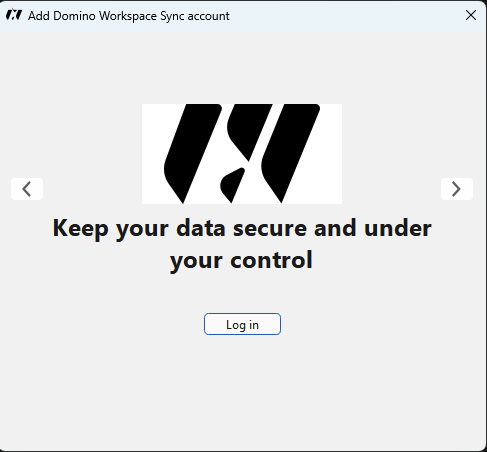
The Explorer integration is installed as part of the client — there is nothing extra to select. It provides the right-click menu described in Everyday use.
If the Microsoft Visual C++ runtime is missing from the computer, the installer installs it as part of the process. This can add a minute or two on a clean machine.
Silent installation
Administrators deploying the client to many machines can run the installer without user interaction:
DominoWorkspaceSync-<version>-setup.exe /S
To install to a different location, add /D= last on the command line, with no quotation marks:
DominoWorkspaceSync-<version>-setup.exe /S /D=D:\Apps\DominoWorkspaceSync
First launch
The installer offers to start the client when it finishes. If you skipped that, open Domino Workspace Sync from the Start menu.
The client places an icon in the notification area of the taskbar. Windows hides new notification icons by default; to keep it visible, open Taskbar settings → Other system tray icons and switch on Domino Workspace Sync. Having the icon visible makes it much easier to see sync status at a glance.
Continue with Getting started to connect your account.
Starting automatically
By default the client starts when you sign in to Windows. You can change this later in Settings → General → Launch on System Startup.
After installing
Two Windows-specific conveniences are worth knowing about:
- Navigation pane entry. Your sync folder can appear in the left-hand navigation pane of File Explorer, alongside This PC and Network. This is controlled by Settings → General → Show sync folders in Explorer's navigation pane. Changes take effect the next time you sign in to Windows.
Uninstalling
See Uninstalling.