Installing on macOS
Before you begin
- macOS 13 (Ventura) or later is required.
- You need an administrator password to complete the installation.
- Obtain the installer package from your IT department. It is a
.pkgfile, typically namedDominoWorkspaceSync.pkg.
The package is signed and notarised by HCL, so macOS installs it without the warnings that appear for unidentified developers.
Install the client
- Double-click the
.pkgfile. The macOS Installer opens with a welcome screen. - Click Continue, and Continue again through the licence screen, accepting the terms.
- Review the disk space the installation will use and click Install.
- Authenticate with your macOS account password or Touch ID.
- Wait for the installation to complete, then click Close.
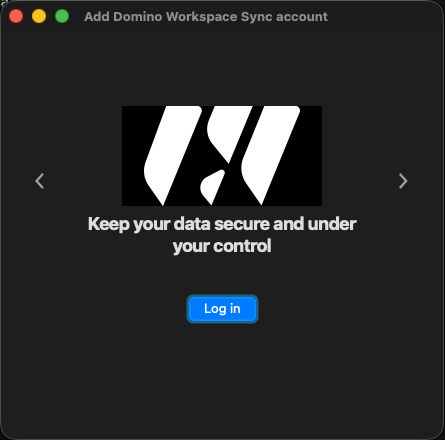
You now have Domino Workspace Sync in your /Applications folder.
First launch
- Open Domino Workspace Sync from Applications, Launchpad or Spotlight.
- The client adds an icon to the menu bar at the top right of the screen. All status information and settings are reached from there — the client has no Dock icon of its own while it runs in the background.
Continue with Getting started to connect your account.
Finder right-click menu
There is no Domino Workspace Sync submenu in Finder's right-click menu on macOS. Sharing, links, activity and offline availability are all reached from the client window instead — see Everyday use.
macOS may still list Domino Workspace Sync under System Settings → General → Login Items & Extensions. Switching that entry on does not add a Finder menu.
Granting access to your sync folder
macOS asks applications to request permission before reading folders such as Desktop, Documents and Downloads, or any location on an external disk. If you put your sync folder in one of those places, macOS shows a permission prompt the first time the client reads it — approve it, otherwise synchronisation cannot start.
You can review these approvals later in System Settings → Privacy & Security → Files and Folders.
Starting automatically
By default the client starts when you log in. To change this, use Settings → General → Launch on System Startup, or remove the entry under System Settings → General → Login Items & Extensions → Open at Login.
Menu bar icon appearance
On macOS the menu bar icon is drawn in monochrome so that it follows the light and dark appearance of the menu bar, matching Apple's design guidance. If you prefer the coloured icon, switch off Settings → General → Use Monochrome Icons.
Uninstalling
See Uninstalling.