Domino Workspace Sync desktop client
Domino Workspace Sync keeps a folder on your computer in step with the files stored in your Domino Workspace account. Files you save on your computer are uploaded automatically; changes made from the web interface, a mobile device or another of your computers arrive without you having to download anything by hand.
The client runs quietly in the background. Once it is set up, you work with your files in Windows File Explorer, macOS Finder or your Linux file manager exactly as you would with any other folder.
What the client does
- Two-way synchronisation. Additions, edits, renames and deletions travel in both directions between your computer and the server.
- Selective sync. Choose which folders from your account are kept on this computer, so a laptop with a small disk does not have to hold everything.
- Multiple accounts. Connect more than one account and keep them in separate local folders.
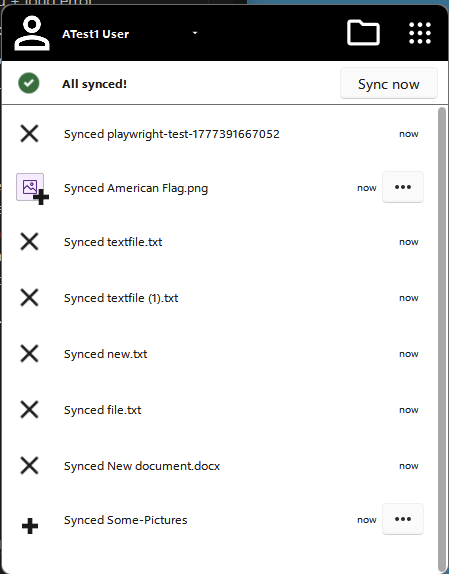
- Status at a glance. The client window shows what is syncing right now, what finished recently, and anything that needs your attention.
- File manager integration (Windows). A Domino Workspace Sync submenu in the File Explorer right-click menu puts sharing, links, activity and offline availability where your files are. macOS and Linux do not have this menu — everything it offers is in the client window.
- Activity. See what the client has synchronised recently — its own record of every file it transferred.
Sharing, server-side activity history and file locking are Nextcloud server features that Domino Workspace does not enable, so the client never shows them. This guide describes only what the client does on its own.
What the client is not
- It is not a backup tool. Deleting a file on your computer deletes it on the server too (it goes to the server's trash, where retention is controlled by your administrator).
- It does not update itself. New versions are distributed by your IT department; there is no "check for updates" button in this build.
Documentation map
Install
Set up and use
Reference
Before you start
You need three things from whoever administers Domino Workspace at your organisation:
| You need | Example |
|---|---|
| The installer for your operating system | DominoWorkspaceSync.pkg, a Windows .exe, or a Linux AppImage |
| Your server address | https://workspace.example.com |
| Your sign-in credentials | The same user name and password you use for the web interface |
Sign-in happens in your web browser, so if your organisation uses single sign-on or multi-factor authentication, that works exactly as it does on the web.
Getting help
If something is not behaving as described here, start with Troubleshooting. It explains how to read the sync status, where the log files are, and how to produce a diagnostic archive that your support contact can use.