Getting started: connect your account
This page takes you from a freshly installed client to a folder that synchronises with your Domino Workspace account.
You need your server address (for example https://workspace.example.com) and the credentials you use for the web interface.
Step 1 — Start the client
Open Domino Workspace Sync:
- Windows — from the Start menu.
- macOS — from Applications or Launchpad.
- Linux — from your application menu, or run the AppImage.
On the first run the setup window opens by itself. If you are adding a second account instead, click the tray or menu bar icon, open the account menu and choose Add account.
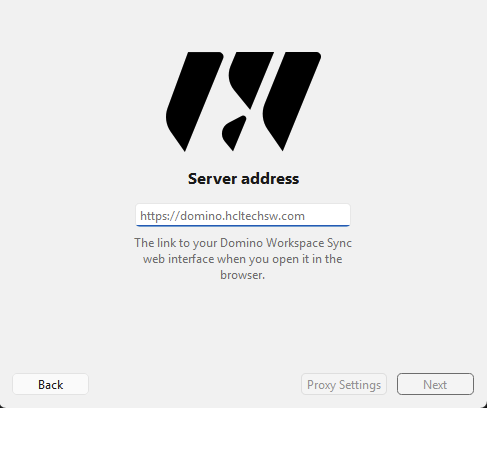
Step 2 — Enter the server address
Type the address of your Domino Workspace server and click Next.
If your organisation requires a proxy to reach the server, set it up before continuing with the Proxy Settings button on this page. The same options are available later under Connection settings on the account page.
- Include
https://. If you leave it out, the client assumes a secure connection. - If your organisation hosts the workspace under a path — for example
https://intranet.example.com/workspace— enter the full address including that path.
If the address is wrong or unreachable, the client says so on this page rather than moving on. Check for typos and confirm with your administrator that you are using the external address, not an internal-only host name.
Certificate warnings
If your server uses a certificate that your computer does not trust, the client warns you and shows the certificate details. Do not accept it unless your administrator has told you to expect this — an unexpected warning can mean the connection is being intercepted.
Step 3 — Sign in through your browser
The client opens your default web browser to complete the sign-in. This is deliberate: it means single sign-on, multi-factor authentication and any other policy your organisation applies work exactly as they do on the web, and your password is never typed into the desktop client.
- In the browser, confirm that you want to grant access, then sign in.
- When the browser confirms the authorisation, switch back to the client.
- The client detects the completed sign-in and moves on by itself.

If the browser does not open, copy the link shown in the client window and paste it into a browser manually. If nothing happens after you complete the sign-in, see Troubleshooting.
The client stores an access token — not your password — in the system keychain (Windows Credential Manager, macOS Keychain, or your Linux keyring).
Step 4 — Choose what to synchronise
The next page decides how much of your account lands on this computer and where.
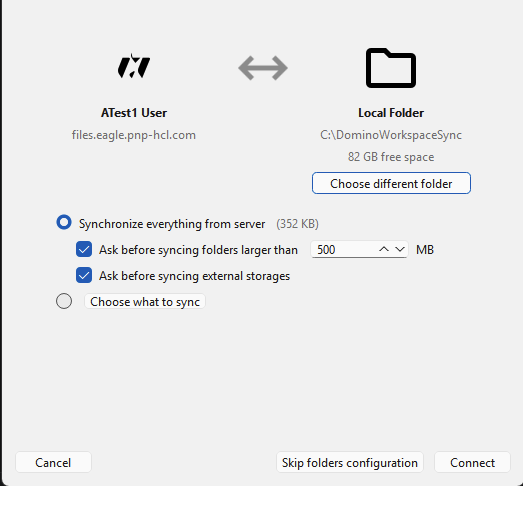
Synchronize everything from server : Keeps a full copy of your account in the local folder. Simplest option; make sure you have the disk space, which the page shows next to the folder you picked.
Choose what to sync : Opens a tree of your account's top-level folders so you can tick only the ones you want on this computer. Everything else stays on the server and remains available through the web interface. You can change the selection at any time later — see Managing sync folders.
Ask before syncing folders larger than : Prompts you before a newly appearing folder above the given size is downloaded, so a large folder appearing in your account cannot fill your disk without warning.
Ask before syncing external storages : Prompts before storage that your administrator has attached to your account from another system is synchronised.
Where the files are stored
The client proposes a folder named DominoWorkspaceSync in your home directory:
| Platform | Default local folder |
|---|---|
| Windows | C:\Users\<you>\DominoWorkspaceSync |
| macOS | /Users/<you>/DominoWorkspaceSync |
| Linux | /home/<you>/DominoWorkspaceSync |
Click Choose different folder to pick another location. Two rules apply:
- The folder must be on a disk with a normal file system that is always available. Network drives and removable media are not suitable.
If the folder you choose already contains files, the client asks what to do:
- Keep local data — existing files are merged with the server's contents and uploaded. This is what you want if you are moving files into sync for the first time.
- Erase local folder and start a clean sync — the local contents are removed and replaced with what is on the server. Only choose this if you are certain the local files are not needed.
Step 5 — Let the first sync finish
Click Connect. The client starts downloading, and the main window shows progress.
The first synchronisation is the slowest one — it has to transfer everything you selected. Afterwards only changes are transferred, which is normally quick.
You can carry on working while it runs. When it finishes, the tray icon shows a plain, unbadged state and the window reports that everything is up to date.
Step 6 — Check that it works
- Open your local sync folder and create a text file in it.
- Open the client from the tray icon. The file appears in the activity list once it has been uploaded.
- Open the web interface and confirm the file is there.
If that round trip works, the client is set up correctly. Read Everyday use next.
Adding another account
You can connect several accounts, each with its own local folder. Open Settings, then use Add account and repeat the steps above. Each account gets its own tab in the settings window, and the tray menu lets you switch between them.