Excluding files from sync
Not everything in a sync folder should be uploaded. Editor backups, temporary files and build output produce constant churn without any value on the server. The client skips a list of such files automatically, and you can add your own rules.
Files that are always skipped
The client ships with a list of patterns that are never synchronised, covering the temporary files that operating systems and common applications leave behind:
- editor and office backups such as
*~,~$*and.~lock.* - partial downloads:
*.part,*.filepart,*.crdownload - macOS metadata:
.DS_Store,._*,.Spotlight-V100,.Trashes - Windows metadata:
Thumbs.db,System Volume Information - Linux desktop metadata such as
.directory, and.Trash-* - files ending in
.dominoworkspacesync, an internal format that belongs only on your computer
You cannot edit this system list, and you do not need to: it is deliberately limited to files that no one wants on a server.
Adding your own rules
- Open Settings → General.
- Click Edit Ignored Files.
- Click Add, type a pattern, and confirm.
- Click OK.
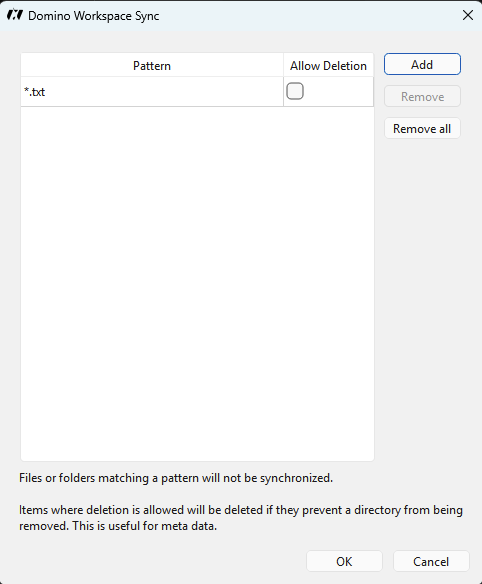
Entries provided by the system are shown greyed out and cannot be changed or removed. Your own entries can be edited and deleted freely.
Rules take effect at the next synchronisation. A file that was already uploaded before you added the rule stays on the server — the rule stops future synchronisation, it does not clean up retroactively.
Pattern syntax
Patterns match file and folder names, not full paths:
| Pattern | Matches |
|---|---|
*.log | Every file ending in .log, in any folder |
node_modules | Any file or folder with that exact name |
draft-* | Anything whose name starts with draft- |
report?.docx | report1.docx, reportA.docx — ? is one character |
* matches any number of characters and ? matches exactly one. Matching is case-insensitive on Windows and macOS, matching how those systems treat file names.
Excluding a folder excludes everything inside it.
Removing files that match
The editor has a column for allowing matching files to be deleted. Tick it only for files that are genuinely disposable — it lets the client remove local files matching that pattern when it needs to clear a folder, for example when you untick that folder in selective sync. Leave it clear for anything you might want to keep.
Hidden files
Sync hidden files in the Ignored Files Editor controls whether names beginning with a dot (.gitignore, .env, and so on) are synchronised. It is off by default.
Turn it on if you keep configuration files in your sync folder. Be aware that hidden files often contain credentials or machine-specific settings, so consider whether they belong on a company server at all.
Names your server cannot store
Some names cannot be synchronised no matter what you do, and the client reports them as errors rather than silently dropping them:
- Characters that Windows forbids:
\ / : ? * " < > | - Names ending in a space or a period
- Windows reserved device names such as
CON,PRN,AUX,NUL,COM1,LPT1 - Very long paths. Windows historically limits a full path to 260 characters; the client handles longer paths where Windows allows, but deep folder trees combined with long names are still the most common cause of this error
- Two files in the same folder whose names differ only in capitalisation. macOS and Windows treat
Report.docxandreport.docxas the same file, so one of them cannot be created locally
Rename the offending file to fix it. The client shows the exact reason next to the file in its window.
Where the rules are stored
Your rules go in a file called sync-exclude.lst in the client's configuration folder:
| Platform | Location |
|---|---|
| Windows | %APPDATA%\Domino Workspace Sync\ |
| macOS | ~/Library/Preferences/Domino Workspace Sync/ |
| Linux | ~/.config/Domino Workspace Sync/ |
Editing it by hand is possible but the editor in the client is safer. If an administrator has deployed a system-wide exclude list, its entries appear as the non-editable system entries described above.