Everyday use
Once your account is connected, most of your work with Domino Workspace Sync happens without you thinking about it: you save files in the sync folder and they appear on the server. This page explains the parts of the interface you will meet along the way.
The tray icon
The client lives in the notification area (Windows), the menu bar (macOS) or the system tray (Linux). It shows the Domino Workspace Sync mark, and stays there whatever the client is doing — the icon itself is not a status indicator.
To see what is happening, hover over the icon. The tooltip reports the current state: that everything is synchronised, what is transferring right now, that sync is paused, or that an account is disconnected and needs you to sign in again.
For anything more than the tooltip gives you, open the client window.

The tray menu on Windows and Linux
Right-click the icon:
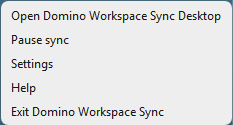
- Open Domino Workspace Sync Desktop — the main window. Replaced by Add account when no account is set up yet.
- Pause sync / Resume sync — suspends transfers for all folders. Useful on a metered connection or during a video call.
- Settings — the settings window.
- Help — opens this documentation in your browser.
- Exit Domino Workspace Sync — quits the client entirely. Nothing synchronises while it is closed.
The equivalent on macOS
The menu bar icon has no right-click menu. Click it to open the main window, then click your account name in the header for the same actions:
- Add account
- Pause sync for all / Resume sync for all
- Settings
- Exit
There is no Help entry here. To open this documentation on macOS, use Settings → General → Usage Documentation.
The main window
Click the tray icon to open the main window.
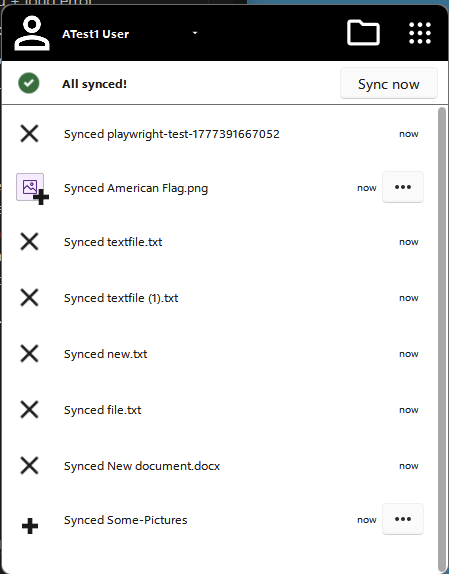
Across the top:
- Your account name, with a menu arrow beside it. This opens the account switcher, which also holds Add account, Pause sync for all, Settings and Exit.
- A folder button, which opens your local sync folder.
- A grid button, which opens the apps your server provides, in your browser.
Below the header is the status line — All synced! when there is nothing left to do — with a Sync now button beside it that starts a synchronisation immediately instead of waiting for the next one.
The rest of the window is the activity list: one row per file the client has synchronised, newest first, showing how long ago it happened. This is the client's own record of what it did, so it is there regardless of what your server offers.
The activity list is the fastest way to answer "did that file actually upload?" and "what changed while I was away?".
Checking sync status
The client window is the place to check sync status, and it works the same way on every platform. Open it from the tray icon and you see each folder's current state, what is transferring right now, and any file that needs your attention.
Your files themselves are ordinary files in an ordinary folder. Open them, edit them and save them however you normally would — the client notices the change and uploads it.
Domino Workspace Sync does not draw status badges on individual file and folder icons. Use the client window to see what is up to date and what is not.
File manager integration
In File Explorer on Windows, right-clicking a file or folder inside the sync folder gives you a Domino Workspace Sync submenu.
On Windows 11 you have to click "Show more options" first. The short menu that appears on a right-click does not include it. Choosing Show more options — or pressing Shift+F10 instead of right-clicking — opens the full menu, where Domino Workspace Sync sits about two thirds of the way down.
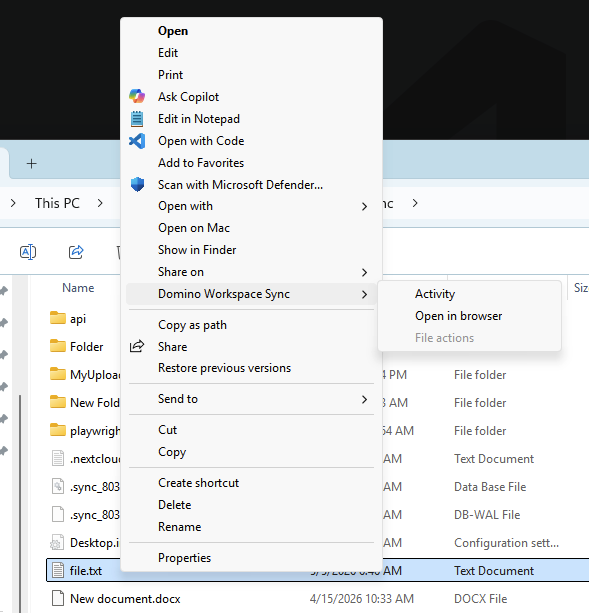
The submenu offers:
- Activity — opens the client at the history for that item.
- Open in browser — opens the item in the web interface.
- File actions — always greyed out. It is a hook for extra server-provided actions, and Domino Workspace does not offer any.
On macOS there is no Domino Workspace Sync submenu in Finder's right-click menu. Everything the Windows submenu offers is reachable from the client window — see Checking sync status.
On Linux the AppImage has no file manager integration; see Installing on Linux.
Extras on Windows
Your sync folder can be pinned to the Explorer navigation pane; see Installing on Windows.
Pausing and resuming
Pausing stops transfers but keeps the client running and watching for changes. When you resume, everything that changed in the meantime is synchronised.
- All accounts at once: Pause sync in the tray menu.
- A single folder: open Settings, find the folder, open its ⋯ menu and choose Pause sync.
Pausing is the right tool for a slow hotel connection. If you want to keep syncing but use less bandwidth, set a transfer limit instead — see Settings reference.
Working with files
A few behaviours are worth knowing:
Deleting. A file you delete locally is deleted on the server at the next sync, and lands in the server's trash. Recover it from the web interface's trash within the retention period your administrator has set.
Renaming and moving. Renames and moves inside the sync folder are detected as such, so the file is not re-uploaded — even for very large files. Moving a file out of the sync folder is a deletion as far as the server is concerned.
Files that are open. Some applications hold a lock on a file while it is open. The client waits and retries rather than uploading half-written data, so a file may sit in the "waiting" state until you close it.
Two people editing at once. If a file changed both locally and on the server between syncs, the client keeps both versions: yours is renamed to include (conflicted copy <date>) and the server's version takes the original name. Nothing is lost — compare them and delete the one you do not need. See Troubleshooting.
Very large files. Uploads are split into chunks and resume where they left off, so an interrupted transfer does not start from zero.