Changing your background before a meeting
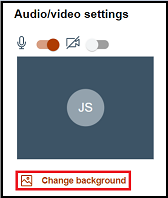
You can find the Change background feature from the meeting preview window.
-
From the meeting preview window, select Change background.
-
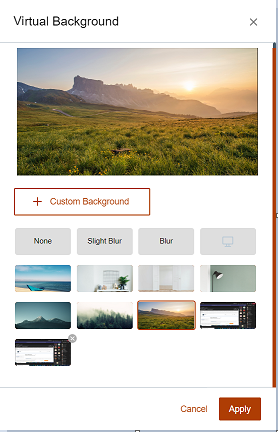
Select any of the following:
-
- Custom Background—Upload an image from your desktop or mobile device to use as your background. There is no limit to how many background images you can upload.
Note: This option is available to aunthenticated users only. Currently, Domino Workspace supports any of these image types:
- BMP
- CUR
- DDS
- GIF
- ICNS
- ICO
- JPEG
- KTX
- PNG
- PNM (PAM, PBM, PFM, PGM, PPM)
- PSD
- SVG
- TIFF
- WebP
- None—Remove any added filter and revert settings to default (shows your physical background).
- Slight Blur—Slightly blur your surroundings and show only your face and body during the meeting.
- Blur—Completely blur your surroundings and show only your face and body during the meeting.
- Default image—Select a default image as your background.
- Select Apply.
-
Parent topic:Changing your background