Using the PWA client
You can install a PWA client to put a Domino Workspace Chat and Meetings Web Chat client shortcut on your desktop. The shortcut allows you to access chat features from the installed app.
At the top of the Domino Workspace Chat and Meetings Login window is an icon to install the PWA client. As long as the PWA is not installed, this icon is present. There is also an install PWA install prompt in the Domino Workspace Chat and Meetings Web Chat window. The PWA install process creates a shortcut to your Domino Workspace Chat and Meetings Web Chat client.
When the PWA is not installed and one of the following conditions is met, the PWA install prompt is displayed.
- The Web Chat client is active, the install prompt is displayed every 6 hours
- There is a new version of PWA available
- All the time on the Web Chat log-in page
You can have multiple Domino Workspace Chat and Meetings PWAs installed for each Domino Workspace Chat and Meetings installation that you are using. The PWA is based on the Domino Workspace Chat and Meetings host name.
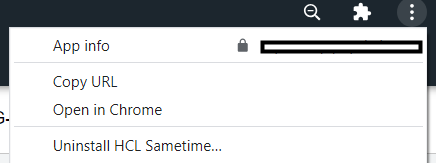
To remove the PWA, click the menu icon ( ) at the top right of the Web Chat window and select Uninstall HCL Domino Workspace Chat and Meetings.
-
Click the PWA install icon (
 ).
). -
Click Install to continue.
After the install process completes, the Domino Workspace Chat and Meetings logo icon is on your desktop. Click the icon to access your Domino Workspace Chat and Meetings Web Chat client. If you are not currently logged in, enter your credentials.
Parent topic:Domino Workspace Chat and Meetings Web Chat Client Guide