Form Selection
The feature allows multiple forms to be used when working with a record.
The Form Selection feature allows an administrator to create multiple forms for any record type. You can set your own preferred default form for submitting or viewing a record and can switch to another form when working with a record.
For more details about how to work with forms or modify records, see the topics Working with Forms and Using List View or Tabbed View to modify a record.
This topic uses examples and screen captures from a schema with multiple forms. The schema provides a Defect record type with four forms, Advanced, Basic , Special and Triage. The Basic form is set as the default for submitting a new Defect, and the Advanced form is set as the default when viewing or modifying a Defect (also known as the record form). Labels associated with mandatory fields and the tabs on which they appear are indicated by red text.
If the feature is enabled by administrator, when you view a record, you will see the Forms drop down list with the Advanced, Basic , Special and Triage options for the forms.
The Forms menu shows the forms available for the current record type that the schema provides.
You can select a form from the Forms drop-down list to view or modify a record:
- View a record.
- Click the Forms drop-down list.
- Select the required form from the list.
If you want to change the Forms default selection, click Forms and select Change default form. The Set default record form dialog appears. The settings show the default or your previous settings. Advanced is the form selected in the below diagram.

The top of the dialog has a Record Type field. It will initially match the type of the record that was being viewed when the dialog was opened.
The bottom of the dialog box has Save and Cancel buttons. These buttons save or abandon all changes made to the record type while the dialog box is open.
The changes made in this dialog will affect your current form if no form has been selected. If you have set the default view to another form, the record view page will switch to this form once the dialog is saved.
The Use the system default forms check box will be selected if the selected forms are the same as system default. Selecting a different form will automatically clear this check box. To restore your defaults to match the system, select the check box.
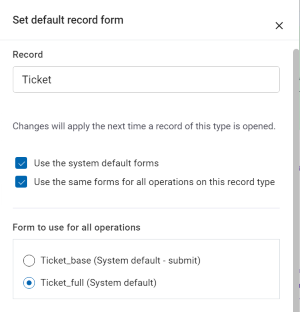
The Use the same form for all operations on this record type check box will initially be selected only when the same form is the default for both submit and viewing. When selected, the dialog box will have one list of forms. You can choose a different form to use for both submit and viewing records. If you prefer to use one form for submit and another for viewing, clear the check box to reveal separate lists and select the forms you want for those different situations. You can easily go back to using the same form for both situations by selecting the check box.

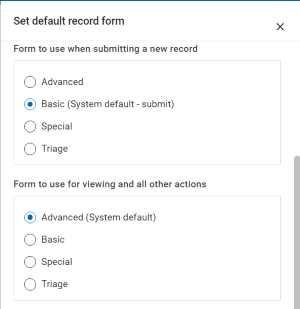
If you want the Advanced form to be the default for submitting a new record, you can select Advanced in the Form to use when submitting a new record. In the Form to use for viewing all other actions section, you can choose the same form or a different form.
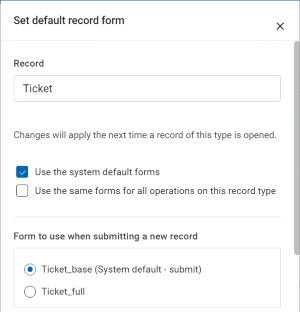
In the next example, the Ticket record type has two forms, one for submit named Ticket_base and one for all other operations named Ticket_full. When first opened, the Select default record form dialog will show two lists. Each list shows the two forms, and identifies one as the system default.
If you select the Use the same form for all operations on this record type check box, the dialog changes to show only one list. The form that was selected as the default for viewing will be selected as the default for all operations.