Load cost price list
In this lesson, you create a cost price list that is called My Company Cost Price List in the . Then, you must upload the sample cost price data to the cost price list.
This sample cost price for a product is in US dollar currency, and is set to 10% - 90% of its offer price.
About this task
Procedure
- Click Catalog Filter and Pricing ().
- Select your store from the store list.
-
Create a price list:
-
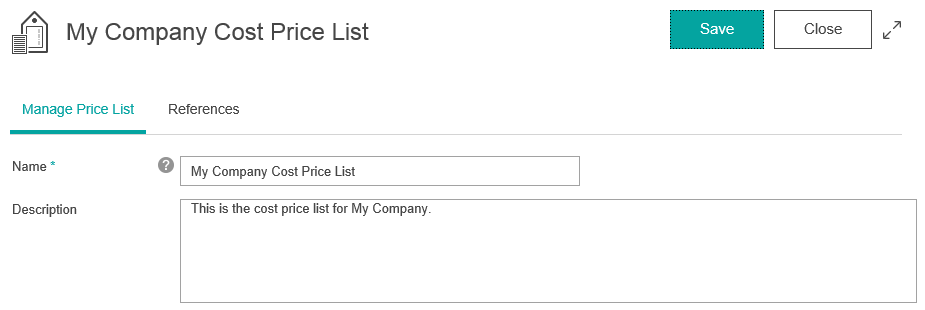
In Description text area, enter a meaningful description, such as
This is the cost price list for My Company.
-
In Description text area, enter a meaningful description, such as
This is the cost price list for My Company.
-
Upload the price list:
-
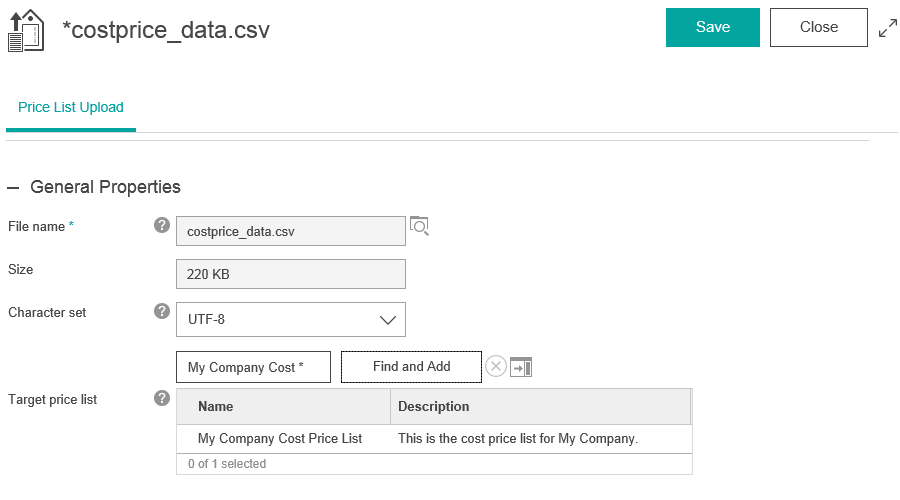
In target price list, specify My Company Cost Price
List
-
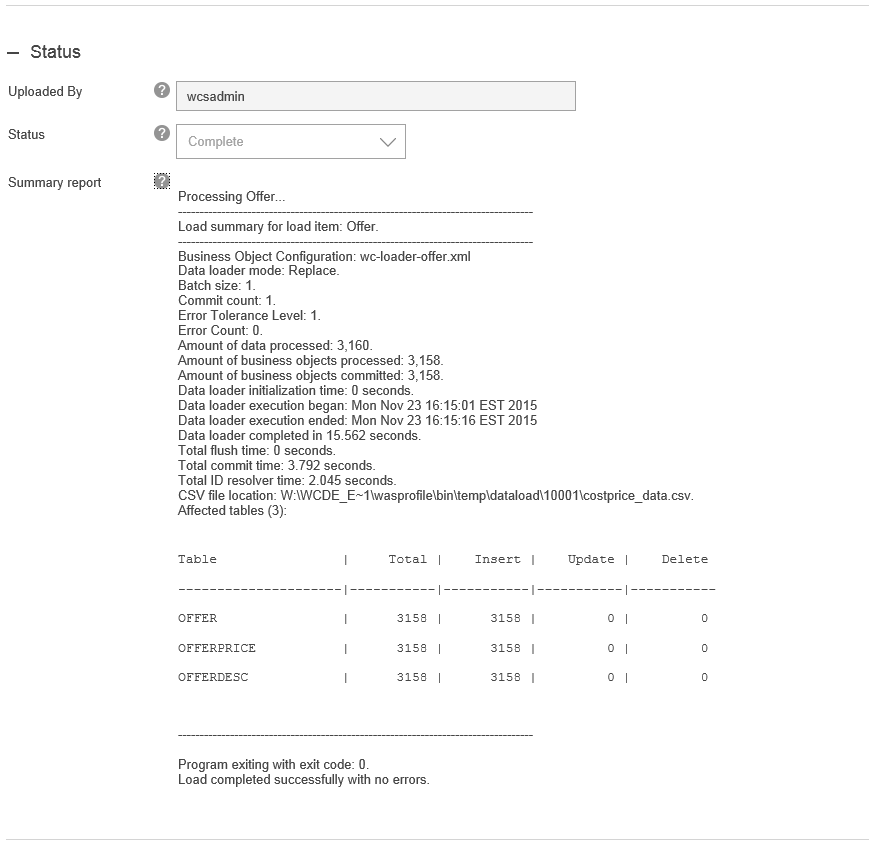
Click Save. Wait until the summary report
displays. In the summary report, ensure that the upload completed
successfully.
-
In target price list, specify My Company Cost Price
List
-
Check that your My Company Cost Price List price list is
populated:
-
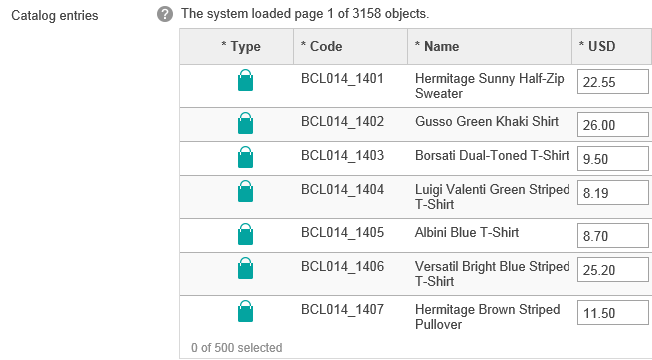
Ensure that your data populates similarly to the following screen
capture. If no catalog entries populate immediately, click the
Reload icon .
-
Ensure that your data populates similarly to the following screen
capture. If no catalog entries populate immediately, click the
Reload icon .