Administering catalogs
You can administer catalog features such as the attribute dictionary and categories. Use the in the to manage catalogs, categories, catalog entries, merchandising associations, product attributes, and attachments in your store. The lets business users create, and manage online catalogs. Catalogs provide a way of organizing the products that you want to sell. You define catalog data in groups of categories and products. Catalog data contains descriptions and pricing information for products and services.
About this task
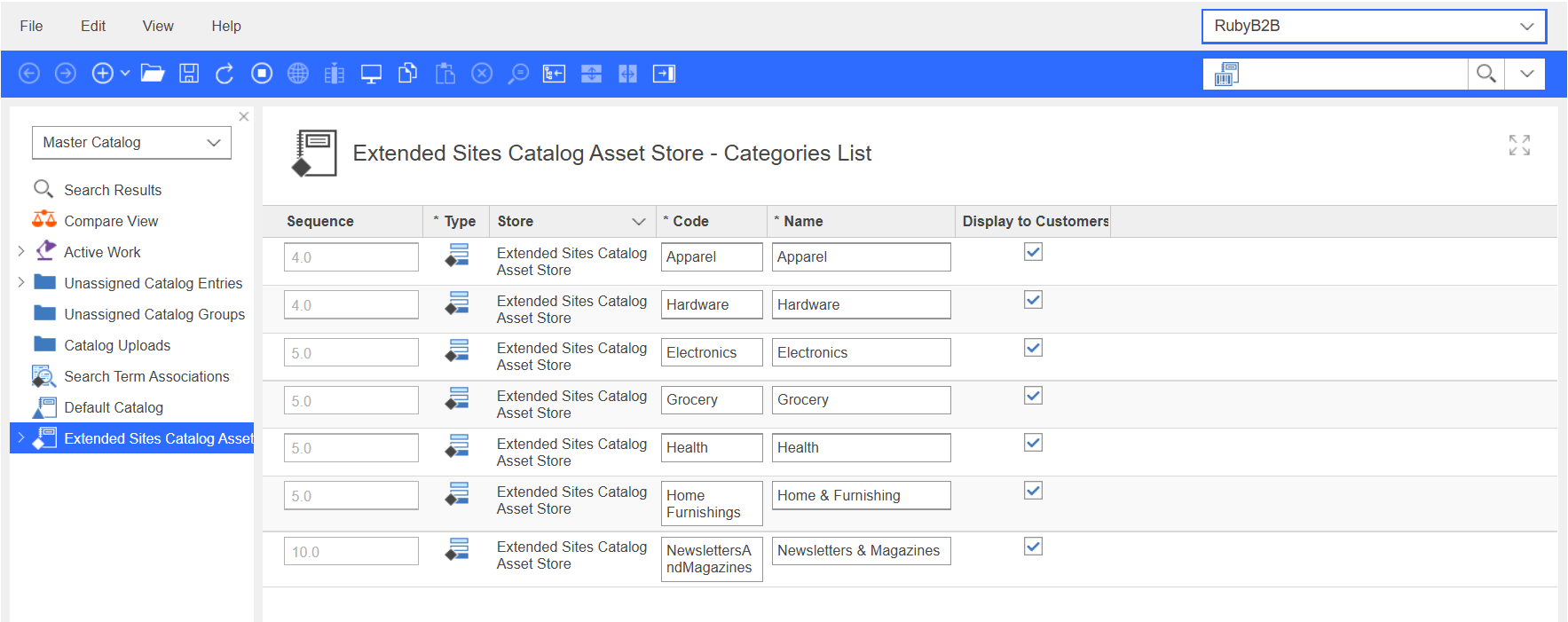
The following screen capture provides a quick look at the Catalogs tool. This Categories List view shows all the categories that are created in the Ruby B2BE Site store in Commerce Lab:
What to do next
Here is a summary of tasks you can perform to create and manage catalogs for your site:
| Tasks | Details | For more information |
|---|---|---|
| Set or change default catalog | If your store has multiple catalogs, a Category Manager or Product Manager can specify a catalog to use as a default catalog. Selecting a default catalog ensures that shoppers that visit your store see the default catalog in the storefront. | Setting the default catalog |
| Browse, create, change, and delete categories in the master catalog | The Category Manager manages the category hierarchy by creating, modifying, and deleting categories. The category hierarchy organizes products or services that are offered by the store. | Managing categories |
| The Category Manager can also create versions of categories. | Managing category versions | |
| The Category Manager can also specify which attributes are displayed as a facet in the storefront category left sidebar. | Managing facets | |
| Create, change, and delete catalog entries in the master catalog | The Category Manager or Product
Manager can organize bundles and kits in the catalog hierarchy. Category Manager or Product
Manager can create and change bundles and kits to determine the best way
to sell them in the store. TheCategory Manager or Product Manager can create products available for recurring orders and subscriptions. |
Managing catalog entries Managing products Managing SKUs Managing kits |
|
The Category Manager or Product Manager can also create versions of products, SKUs, bundles, and kits. |
Managing product versions Managing SKU versions Managing bundle and kit versions | |
| Change, sequence, update, assign, and remove attribute dictionary attributes and values. | The Category Manager or Product
Manager can determine the best way to display, price, and sell products
in the online store, including assigning or changing product
attributes such as color or size. Specify that an attribute dictionary attribute is for use in faceted navigation and can be located with search-based navigation. |
Using the attribute dictionary |
| The Category Manager or Product Manager can group attributes with attribute folders can improve organizing the attribute dictionary. | Organizing attribute dictionary attributes with folders | |
| Create, change, and delete sales catalogs and sales categories, and assign catalog entries to sales categories. | The Category Manager or Product Manager manages the category hierarchy by creating, modifying, and deleting categories in sales catalogs. A sales catalog has a flexible display structure that can associate products to more than one category, to suit the requirements of your store. | Managing sales catalogs |
| The Category Manager can also create versions of sales catalogs. | Managing sales catalog versions | |
| The Category Manager or Product Manager can add catalog entries to multiple sales categories simultaneously. In previous releases, catalog entries could be added to a single sales category at a time. | Adding catalog entries to multiple sales categories | |
| The Category Manager or Product Manager can create rule-based sales categories. Rule-based sales categories are a type of sales category that uses a search-based, user-defined rule with Commerce+ search to find and automatically assign catalog entries to the category. | Managing rule-based sales categories | |
| Create, change, and delete merchandising associations | The Product Manager can find, list, create, and change merchandising associations (such as up-sells or cross-sells). | Managing merchandising associations |
| View, find, browse, and associate assets to the catalog | A catalog asset is a managed file, URL, or attachment that is associated with a catalog entry. For example, an image that shows an alternative view of a product, or a PDF document. In the Catalogs tool, you can associate assets with a specified usage to a sales catalog, categories, or catalog entries. | Managing catalog assets |
| Preview catalog information about store pages | View the effect of catalog content you create on
your store pages before they go live into production. Options
include previewing your store:
You can also use the store preview to determine where on the store pages your catalog content is located. |
Previewing a store |
| International | Create international catalogs. Create multilingual and multi-currency master and sales catalogs. | Creating a globalized catalog |
| Improve search results on the site | Create and manage synonyms and replacement search terms, and link search terms with landing pages. Add metadata such as page titles, page descriptions, and image alt text. |