Administering catalog filters
As Site Administrator, you might be required to assist business users with certain catalog filter tasks that relate to the Catalog Filter and Pricing tool in the .
Managing your catalog filters in Commerce Lab provides you with the following business benefits:
You can create catalog filters to filter your master catalog only. You cannot create catalog filters for a sales catalog.
Catalog filtering criteria
- Category-based criteria
- You can include or exclude categories from your catalog. If you include
a category, all catalog entries and subcategories under this category
are included, unless you explicitly exclude the catalog entry or
category. For example, if you include the Fasteners parent category in
your filter, by default, the Nuts, Bolts, and Screws subcategories are
also included. However, you can explicitly exclude the Nuts
subcategory.
When a subcategory or catalog entry is included in the catalog filter, its parent category becomes browsable. Otherwise, customers cannot browse to the categories and catalog entries that you included in your filter.
- Category-based criteria with conditions
- You can apply conditions on the categories that are added to your
catalog filter. The condition can specify attribute dictionary
attributes or catalog entry properties. By default, you can specify the
following catalog entry properties: part number (code), manufacturer
part number, and manufacturer name. For example, you can include all
products that are manufactured by IBM in your filter.
To apply a condition on a certain category, you must first define a condition group. A condition group is a group of one or more attribute dictionary attributes and catalog entry properties conditions. A category can have one or more condition groups, and each condition group can contain one or more attribute dictionary attribute and property conditions. To learn more about conditions in catalog filters, see Catalog filter assignment and contracts.
- Catalog entry-based criteria
- You can include or exclude specific catalog entries. The catalog-entry-based criteria takes precedence over the other filtering criteria. For example, assuming Product A is under Category A, if you exclude Category A and include Product A in your catalog filter, Product A is still included in the catalog filter.
Catalog filter usage: Product entitlement
When you assign a catalog filter to a contract, the customers shopping under the contract can browse, search for, and purchase the catalog entries that are defined in the catalog filter. For example, in a B2B business model, you can create catalog filters, and then assign different catalog filters to each business contract. The customers shopping under the specific contract can see and purchase only the catalog entries that they are entitled to.
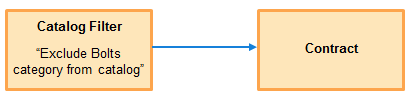
You can assign catalog filters to different types of contracts. For more information, see Catalog filter assignment and contracts.
Catalog filter usage: Price rules
Limitations
- Catalog entry properties and attribute dictionary attributes that have different values in different languages are not supported.
- Attribute dictionary attributes that have assigned values, rather than predefined values, are not supported in the filter conditions.
- Attributes that are not stored in the attribute dictionary are not supported because they are not shared by multiple catalog entries.
- Catalog filtering does not support workspaces or content versioning.
- There is no migration tool to migrate existing catalog filters in Commerce+ to the Catalog Filter and Pricing tool.
Notes
- When you assign a catalog filter that is created in the Commerce Lab to a contract, this catalog filter overrides any Commerce+ catalog filter.
- If you do not have a Commerce Lab catalog filter that is assigned to the contract, the Commerce+ catalog filter is used instead.
- For B2C store, the Search entitlement is not enabled by default for better
performance in Search. To take Catalog filter effect in store front search, you
will have to enable it. For example:
UPDATE STORECONF set VALUE='1' where STOREENT_ID=11001 and NAME='wc.search.entitlement';where storeent_id 11001 is AuroraStorefrontAssetStore idThen update the store related registry. See Updating registry components for more info.