
Filters
Narrow the whole Patch Dashboard Overview page to a subset of Fixlets. Filters are applied to all KPI cards and charts simultaneously, except the Deployment Backlog card.
Applying a filter
- Select the Filter icon on the top-right of the Overview page. The Filter data panel opens on the right.
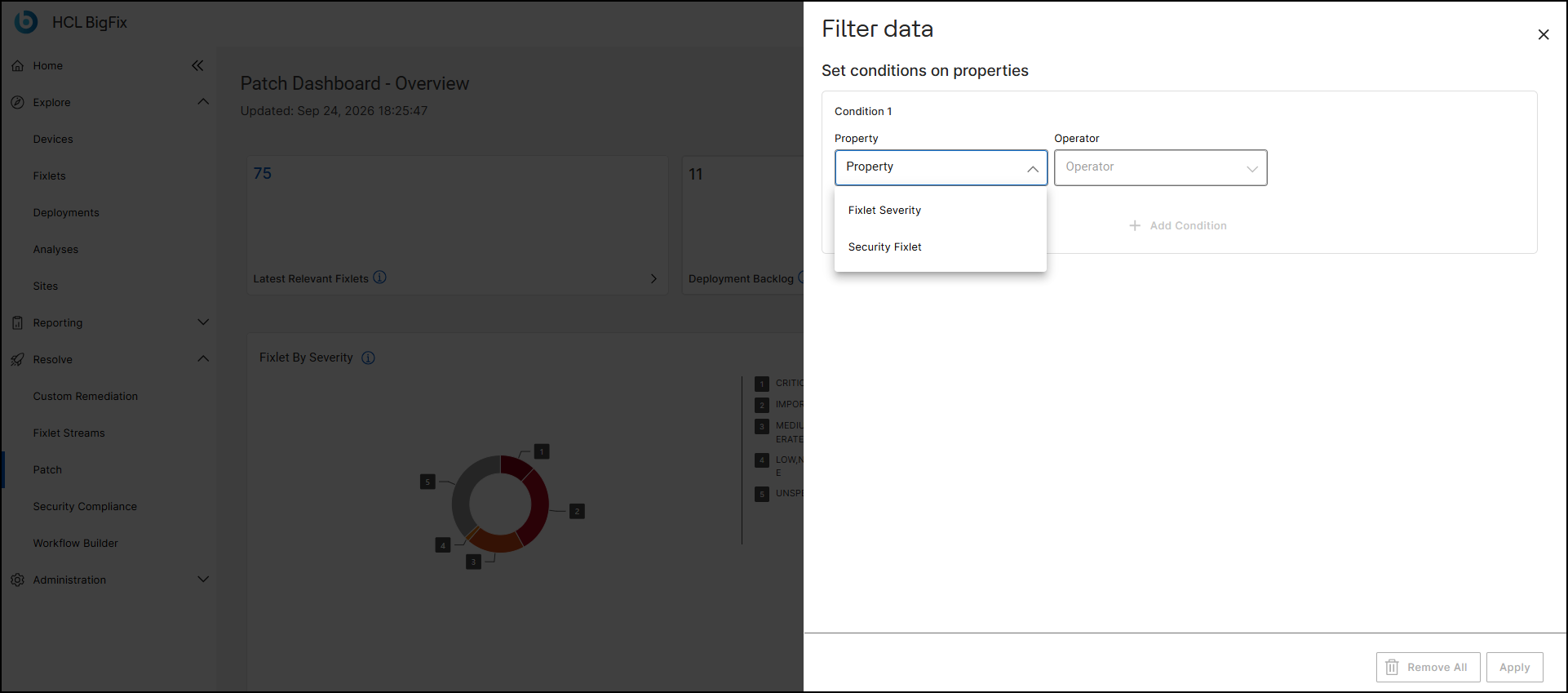
- Under Condition 1, select a
Property:
- Fixlet Severity - One or more severity values, for example Critical, Important, or Medium.
- Security Fixlet - Yes or
No, to show only security patches (Fixlets
associated with a CVE ID) or only non-security content. By default, the
dashboard shows both.
- Select an Operator (In for multi-value properties, Is for Security Fixlet), and then select the Value or values. Selected values appear as removable chips under the condition.
- Optional: To combine conditions, select Add Condition. Conditions are joined with AND.
- Select Apply. The cards and charts refresh, and the
counts and drill-down links reflect the filtered data set.
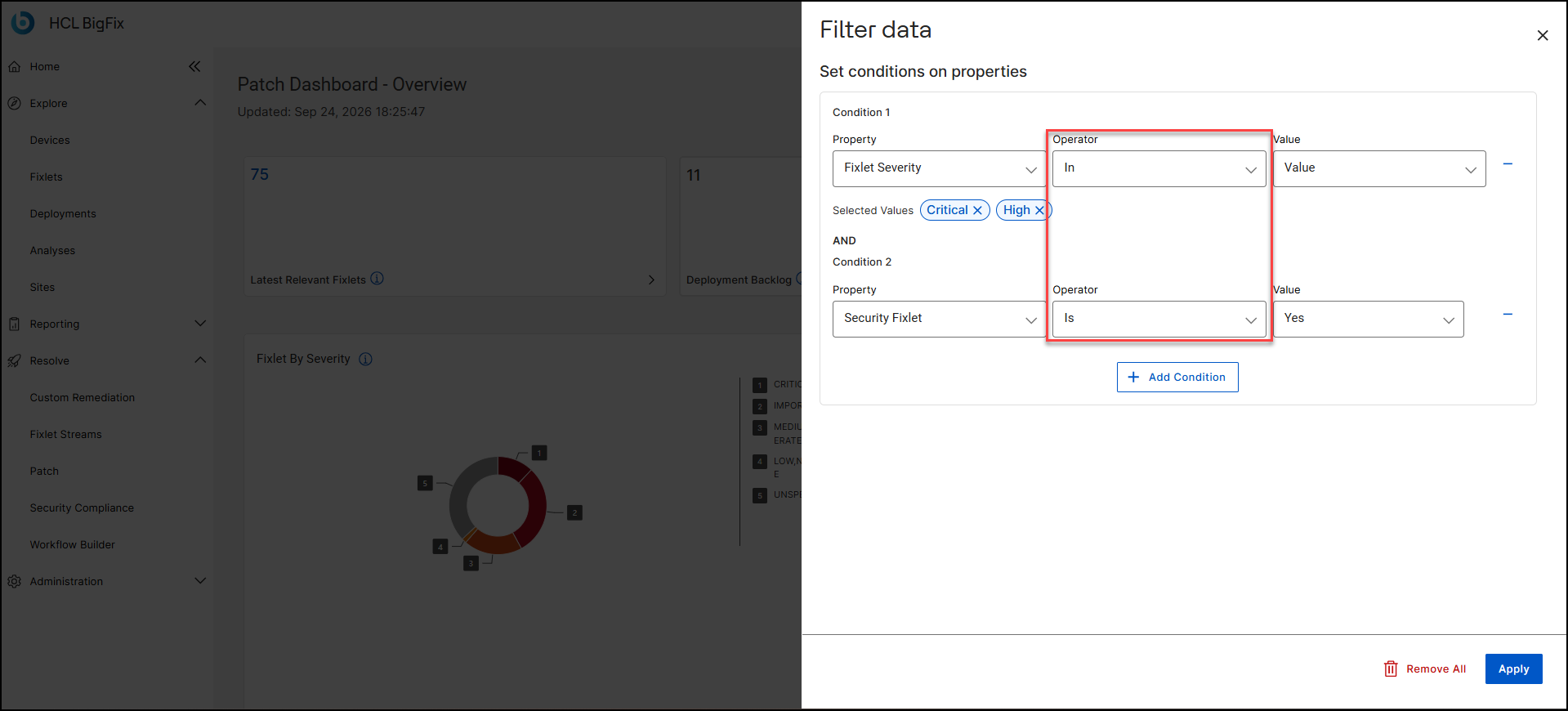
To clear all conditions, open the panel again, select Remove All, and then select Apply.
Tip: The Top 5 charts and the High-Risk Devices card
default to Critical, High, and Mandatory severities. To include lower severities in
those widgets, add a Fixlet Severity condition that lists the
severities you want.