
Configuring Geofencing Settings in WebUI
After creating a Geofence zone, you must configure Geofence Settings to define how devices behave when they enter or exit that zone.
These settings allow administrators to assign policies or actions based on device type, user role, or zone activity.
Accessing Geofencing Settings
-
In the BigFix WebUI, go to:
Admin → Geofencing → Manage Geofence Setting.
The Manage Geofence Setting page displays a table listing all existing settings with details such as:
-
Name — Unique name for the geofence configuration.
-
Associated Device — Associated device to a setting.
-
Device Entry/Exit Policies — Actions triggered when a device enters or exits the zone.
-
Android/iOS/iPadOS Entry/Exit Policies — Platform-specific policy rules.
-
Created By — User who created the configuration.
Action — Options to edit or delete the setting.
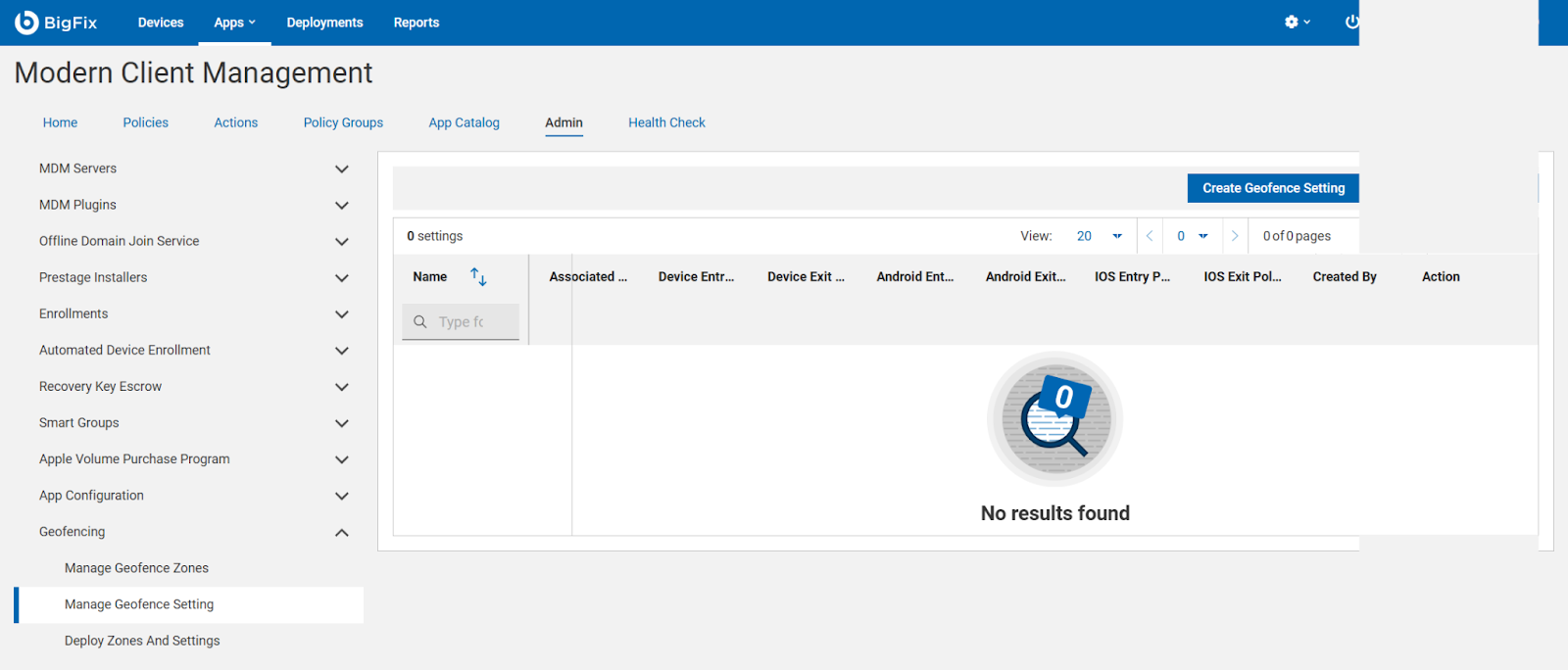
Setting up rules for when a device enters or leaves a zone
Click Create Geofence Setting, to define how managed devices should respond when they enter or exit a specific geofence zone. This allows dynamic policy enforcement — for example, locking a device when it leaves the office area or enabling Wi-Fi when it enters.
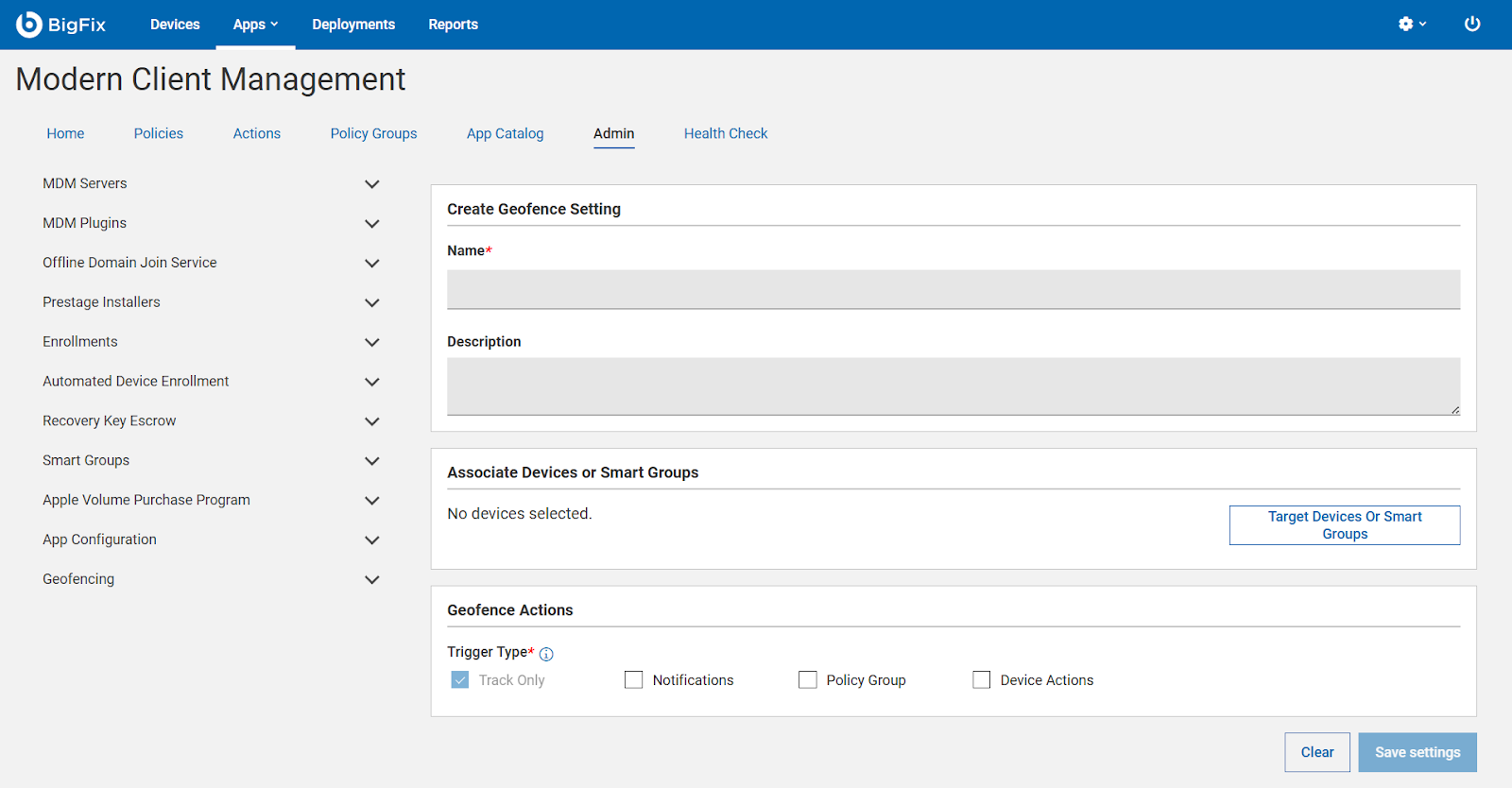
Target Devices or Smart Groups
You can set up rules for:
- Device-specific actions (based on OS or enrollment type)
- Role-based actions (based on user roles or organizational hierarchy)
Device-wise Rules
Device-wise rules determine what happens when specific types of devices (Android, iOS, iPadOS or Windows) cross a zone boundary.
For example:
- Android devices
- Entry Policy: Automatically connect to corporate Wi-Fi and enable work profile.
- Exit Policy: Disable work apps or enforce stricter passcode rules.
- iOS devices
- Entry Policy: Apply VPN or compliance configuration when the device enters the office zone.
- Exit Policy: Remove sensitive access (like mail or shared drives) when leaving the geofence.
Administrators can select different combinations depending on business security requirements.
Role-wise Rules
Role-wise rules apply actions based on the user’s role or department rather than device type.
For example:
- Executives — Automatically allow access to secure meeting rooms (Wi-Fi and VPN auto-enable).
- Field Staff — Enforce GPS tracking or disable camera when entering certain zones.
- Contractors — Restrict app access or data sync outside approved zones.
By combining role-based and device-based triggers, organizations can create flexible, context-aware geofencing policies.
Tip: Before deploying these settings to production devices, test them with a small pilot group to ensure that entry and exit triggers work correctly for all device types and roles.