
Configuring Actions (for example, Wipe)
Actions are commands you can trigger on managed devices through the WebUI. Common actions include Wipe, Lock, Passcode Reset, and App Installation. Configuring actions allows administrators to enforce security policies or manage devices remotely.
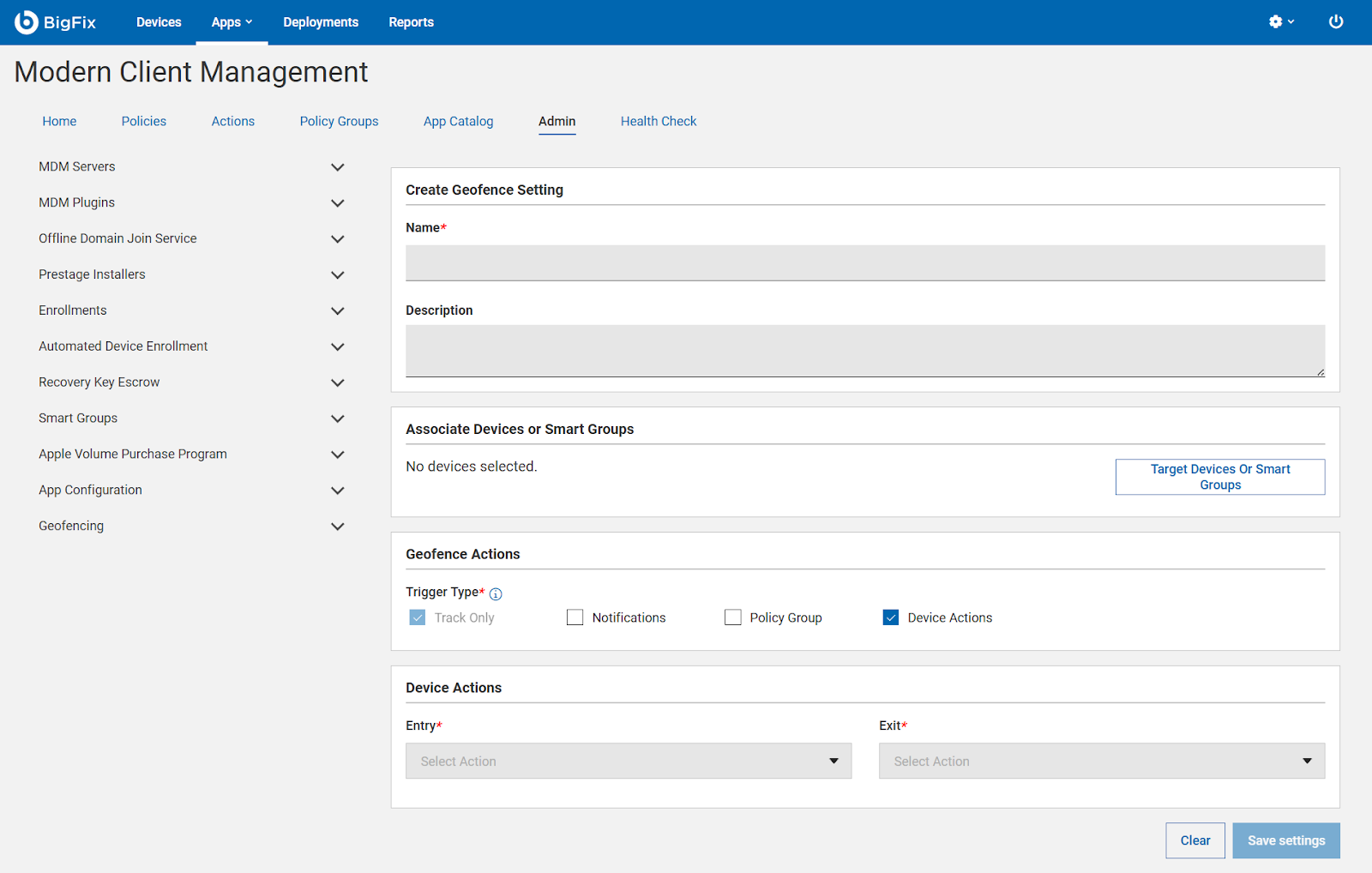
For Actions, make sure the Device Actions checkbox is selected.
-
Navigate to Actions
-
Open the WebUI and go to Device Management → Actions.
-
Select the type of action you want to configure (e.g., Wipe).
-
-
Select Devices or Groups
-
Choose individual devices or device groups that should receive the action.
-
Ensure that the devices are enrolled and connected to the MDM server.
-
-
Configure Action Parameters
-
For Wipe, options may include:
-
Full Wipe: Erases all data and restores the device to factory settings.
-
Selective Wipe: Removes only corporate data, leaving personal data intact (if supported).
-
-
Optionally, configure additional settings such as:
-
Notification: Alert the user before the action is executed.
-
Schedule: Execute the action immediately or at a specified time.
-
Review and Confirm
-
-
Review the action summary to ensure the correct devices and parameters are selected.
-
Confirm the action to deploy it to the selected devices.
-
Monitoring Action Status
-
Once deployed, you can monitor the status of the action in the WebUI under Actions → History.
-
Status indicators may show Pending, In Progress, Successful, or Failed.
-
Best Practices:
-
Test wipe actions on a small set of devices before mass deployment.
-
Notify users in advance to avoid data loss surprises.
-
Ensure device backups are available before performing a full wipe.