
Install MDM Plugin for Windows
Starting with MCM v3.4, administrators can install both the MDM Plugin and MDM Server from a single interface, making setup faster and simpler. This page will be deprecated soon.
Before you begin
About this task
To install MDM plugins on a Windows or Linux Plugin Portal:
Procedure
- From the WebUI main page, select .
- On the Modern Client Management page, click .
-
On the Admin page, from the left navigation under MDM
Plugins, click Install ,
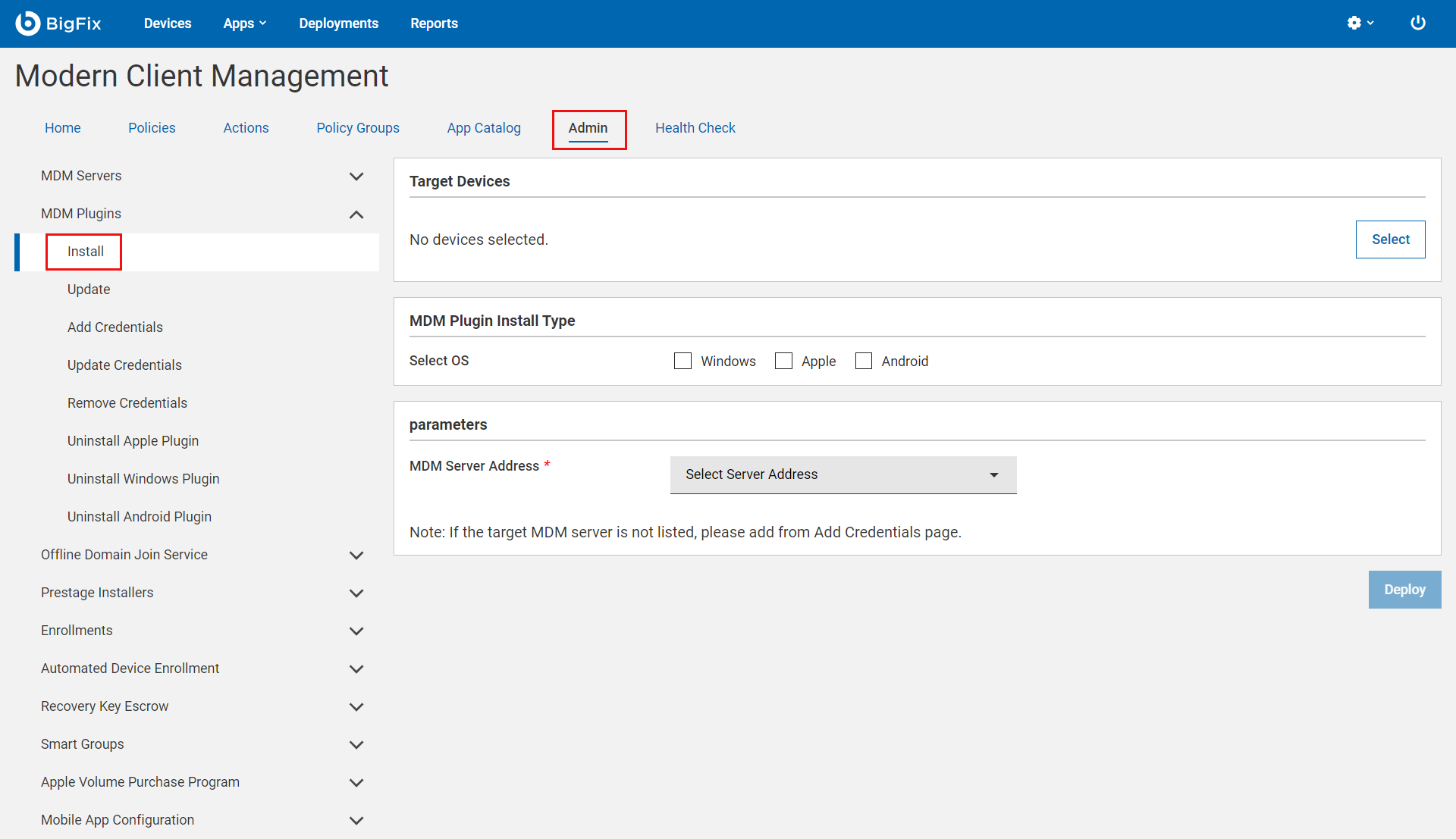
- In the Target Device section, click Select to select the Windows or Linux Plugin Portal in which you want to install the MDM plugin.
-
Under MDM Plugin Install Type, select Windows as the
operating system.
Note: You can select more than one operating system to install MDM Plugins for the selected operating systems simultaneously.
- Under Parameters, from the MDM Server Address dropdown, select the same MDM Server host name or IP address that you have entered to Install BigFix MDM Service for Windows. This selection enables the Plugin Portal to establish a connection with the selected MDM Server located in the DMZ.
- Click Deploy.
Results
- Windows — C:\Program File (x86)\BigFix Enterprise\BES Plugin Portal\Plugins
- Linux
- Binaries — /opt/BESPluginPortal/Plugins
- Data files — /var/opt/BESPluginPortal