
Remove Apps
The Remove App feature enables administrators to uninstall previously deployed applications from managed devices across Android, iOS, iPadOS, macOS, and Windows platforms. Applications can be removed directly or through Policy Groups for large-scale deployment. For Apple VPP applications, the system automatically revokes and returns associated licenses to the available pool after successful removal, ensuring accurate license tracking and optimized license utilization.
About this task
-
Remove banned or deprecated applications
-
Enforce compliance policies
-
Reclaim and redistribute VPP licenses
-
Perform targeted or bulk app removal
- Log in to WebUI.
- From the WebUI main page, click .
- Click Create Policy.
- Select Remove Apps to create a policy to remove
apps.
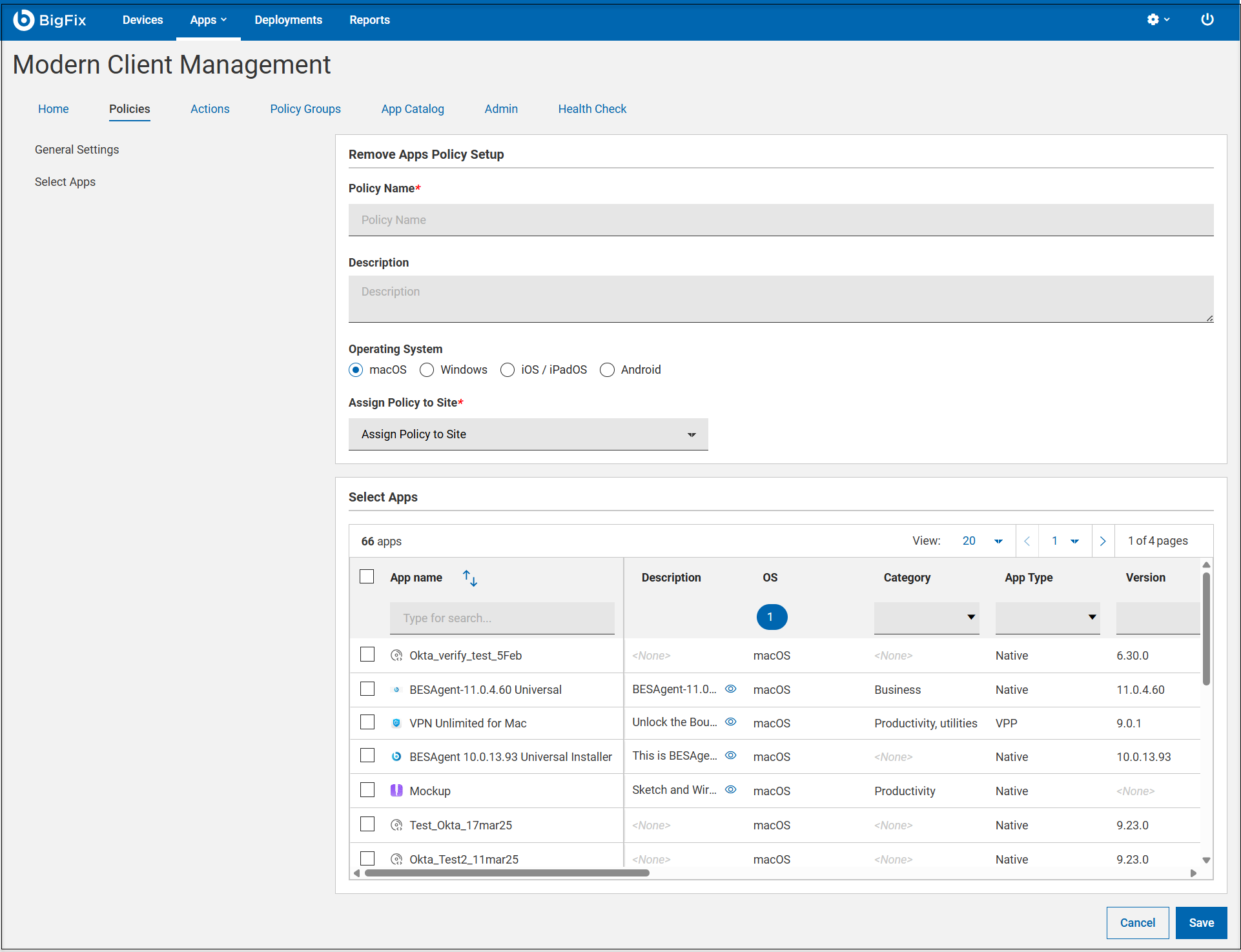
- Enter the details in General Settings.
- Enter Policy Name.
- Enter Description of the policy.
- Select the operating system. Once you select the operating system,
additional fields specific to that operating system appear.
- macOS
- Windows
- iOS/iPadOS
- Android
- To assign a policy to site, select a site from the Assign Policy to Sitedrop down. Non-master operators can see only those sites in the dropdown to which they have access.
- Select one or more applications to remove. Multiple applications can be
included in a single Remove App Policy.
- iOS and iPadOS
-
- Only managed applications can be removed. By default, applications deployed through BigFix MCM are installed as managed apps, and can be removed directly.
- If the app was already installed on the device without management, before creating the remove app policy, create an App Deployment Policy to enable Assume Management for the desired app, deploy the App Deployment Policy, and after the app becomes managed, deploy the Remove App Policy.
- macOS
-
- To remove an application from a macOS device, the Install as Managed flag must be set to Enabled during app deployment.
- If the application is already present on the device without this flag, create an App Deployment Policy with Install as Managed and Assume Managementflags and deploy the App Deployment Policy. Once the app becomes managed, deploy the Remove App Policy. Without these flags enabled, the application cannot be removed remotely.
Note: When an Apple VPP app is removed using the Remove App Policy, the system automatically uninstalls the app from the device and revokes the associated VPP license. The license is returned to the available pool for reassignment. App removal and license revocation are tightly linked to prevent orphaned licenses or inconsistencies between device installation status and license allocation. - Click Save. The passcode policy is created and is ready to deploy.
- Policy Deployment Options
- Administrators can deploy the policy in the following methods:
- Direct Deployment – Apply the policy directly to selected devices or device groups.
- Policy Group Deployment – Add the policy to a Policy groupP and deploy the updated group to selected devices or groups.
After the policy is deployed, the selected applications will be uninstalled from assigned devices.
What to do next
After deploying the Remove App Policy, administrators can verify successful removal by:
- Navigating to Devices, selecting the target device, and reviewing the Installed Applications section on the device details page. The removed application will no longer appear in the list.
- For VPP applications, confirming that the available license count for the respective app has increased, indicating that the license has been successfully reclaimed.