
Health and Cleanup
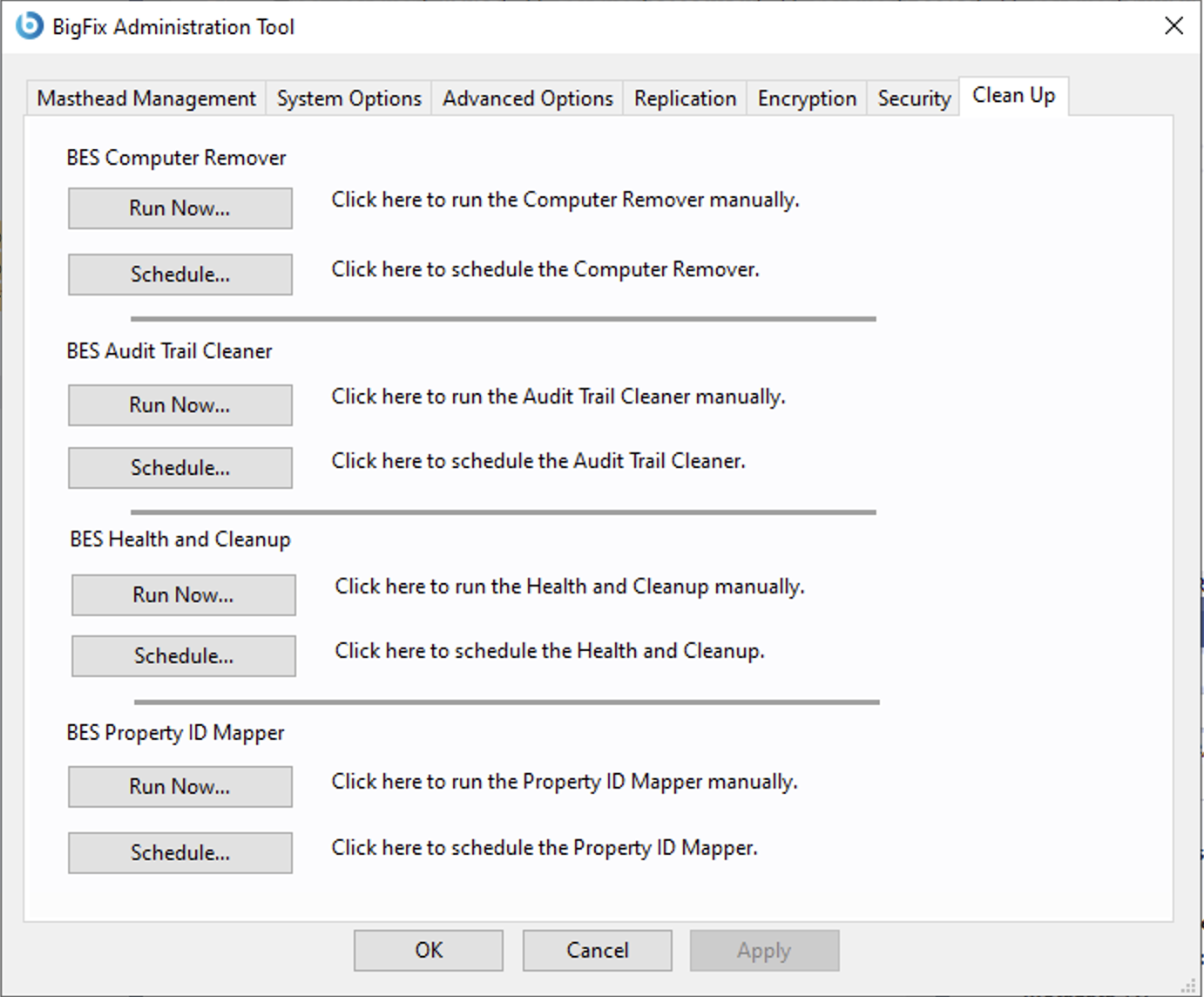
Click Run Now... in the BES Health and
Cleanup section to mark as deleted the expired or stopped actions if a specific
number of days, which is configurable, has passed since the actions were stopped or expired.
This feature is available starting from BigFix Version 11.0.6 and later.
The following window is displayed:
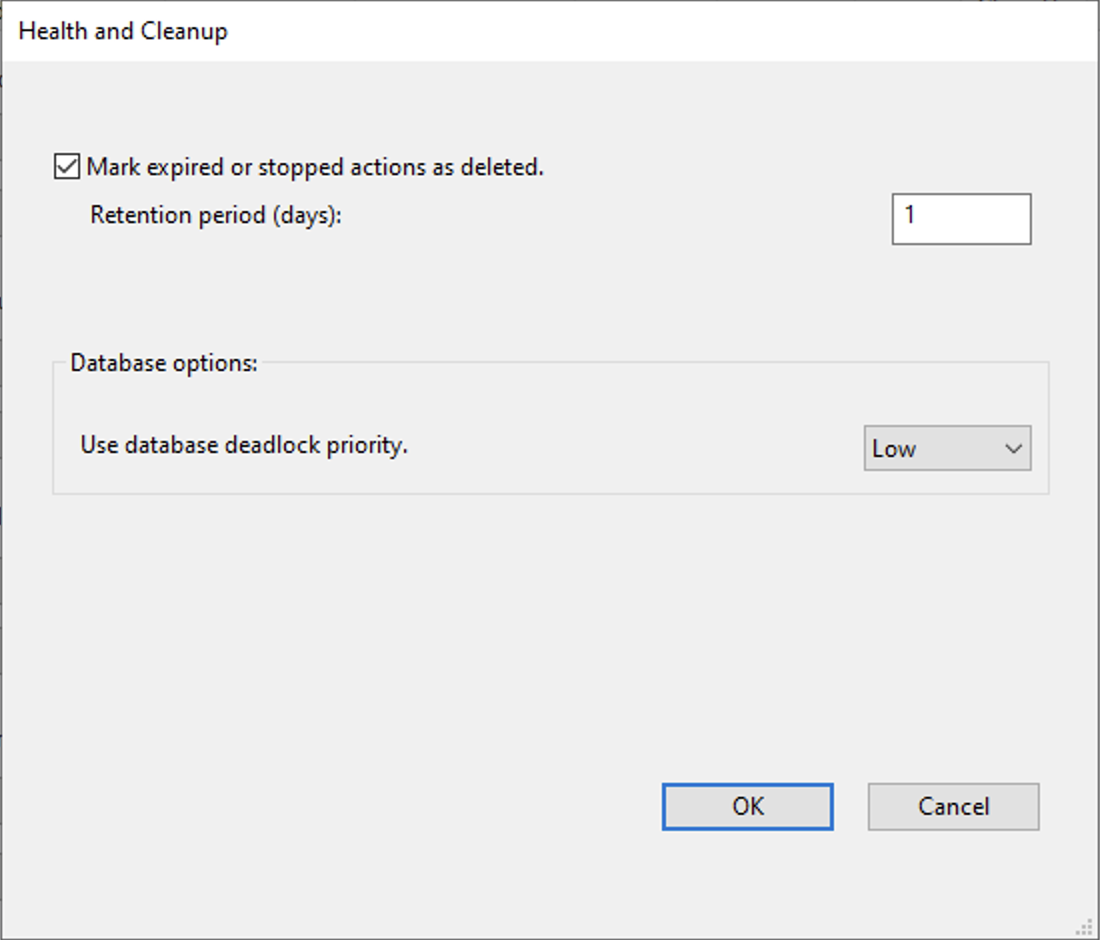
You can specify to mark the following data:
- Expired or stopped actions by selecting Mark expired or stopped actions as deleted. The expired or stopped actions are marked as deleted after the specified amount of time.
- After selecting the Mark expired or stopped actions as deleted check box, you can specify, in the Retention period (days) text edit, the amount of days after which the expired or stopped actions will no longer be visible in the BigFix Console.
- In Use database deadlock priority, in the Database options box, you can set the priority in case of transaction deadlocks in the Microsoft SQL Server database. Available values are Low, Normal and High. The default value is Normal. Setting the value to High and Low influences how Microsoft SQL Server resolves the potential deadlocks. Setting the priority to High means that the BigFix Administration Tool transaction is more likely to survive in case of deadlocks. Setting the priority to Normal means that Microsoft SQL Server will decide which transactions will survive based on rollback costs. Setting the priority to Low means that the BigFix Administration Tool transaction is more likely to be terminated in case of deadlocks.
To automate the process of marking as deleted the expired or stopped actions, which are
displayed in the BigFix Console, and updating the data in the database, you can
schedule the process by clicking Schedule... in the BES Health and
Cleanup section of the BigFix Administration Tool GUI.
The following window is displayed:
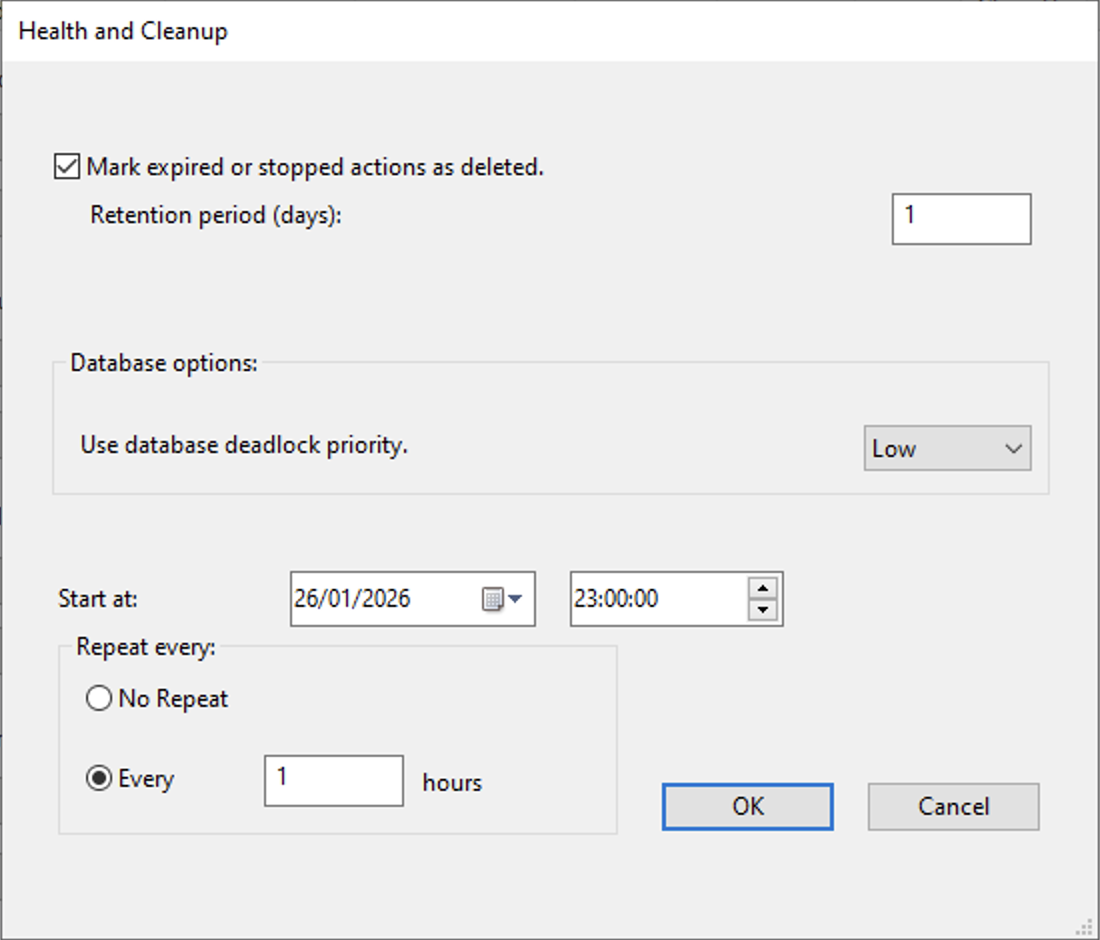
In addition to the fields present in the Run Now... dialog and
already described above, the Schedule... dialog contains the following fields:
- In Start at, you can define the date and time when the Health and Cleanup schedule task will be executed for the first time. The task will not run before the specified date and time. The selected time is based on the server local time.
- The Repeat every section controls whether the Health and Cleanup
schedule task should be executed only once or repeated periodically.
- No Repeat When selected, the Health and Cleanup schedule task runs only once at the date and time specified in Start at.
- Every When selected, the Health and Cleanup schedule task is executed repeatedly at a fixed interval. The time interval is defined in hours. The first execution occurs at the Start at date and time. Subsequent executions occur every N hours after the initial run. This option is suitable for regular cleanup activities that need to run continuously.
Using this window, you can:
- Create a new schedule task, which is saved into the BigFix Database. BigFix allows to save one Health and Cleanup schedule task only.
- Modify the saved Health and Cleanup schedule task as needed.