Generating WNS credentials
This document describes how to get Windows Notification Service (WNS) credentials that you can upload during installing or upgrading Windows MDM server.
Before you begin
Note: For detailed instructions
about how to create a paid Microsoft developer account, see https://bigfix-wiki.hcltechsw.com/wikis/home?lang=en-us#!/wiki/BigFix%20Wiki/page/How%20to%20create%20a%20Microsoft%20developer%20account
About this task
To get WNS credentials for the MDM server, complete the following steps:
- Login to Microsoft Partner Center: Open the URL
https://partner.microsoft.com/en-us/dashboard and enter the
Microsoft developer account credentials. The following page is
displayed.
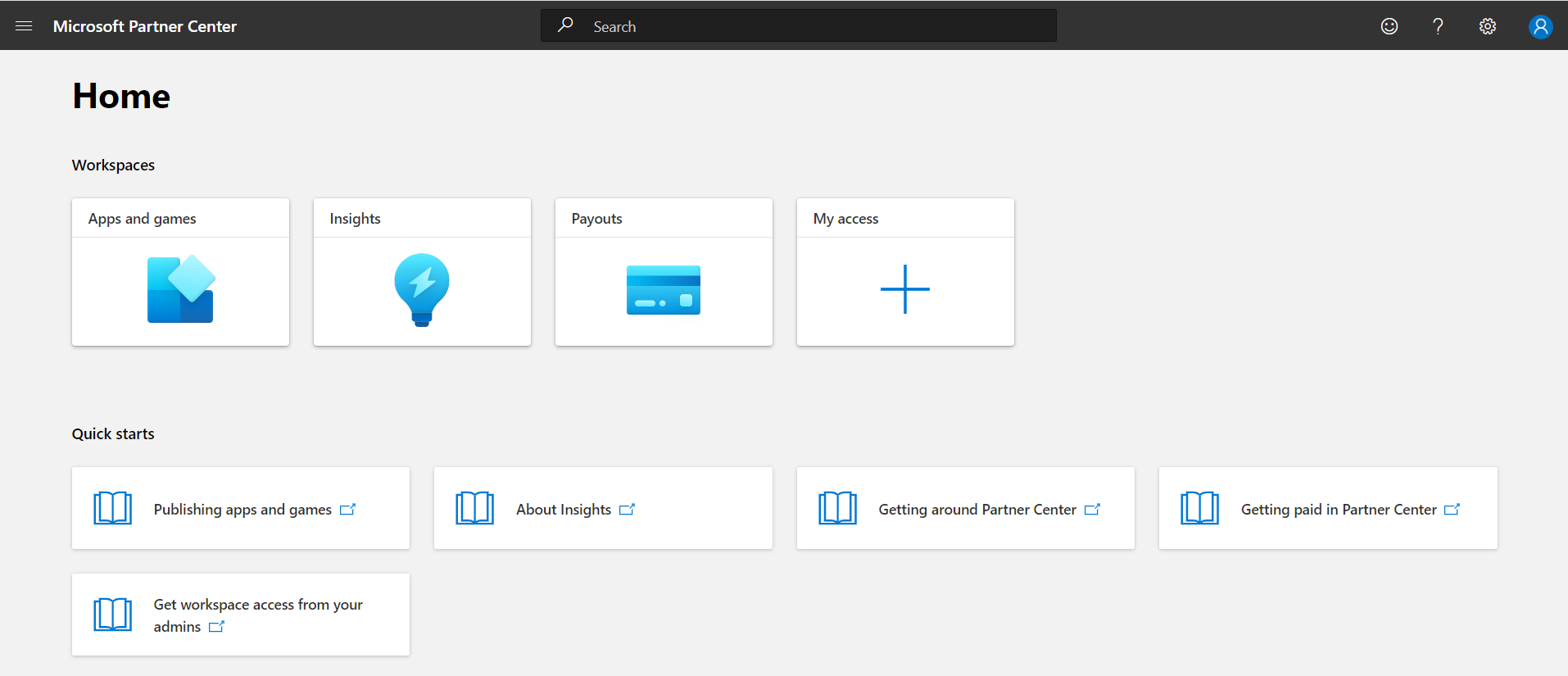
- Click Apps and games. The Apps and games Overview page is displayed.
- Create an app and get WNS push credentials (client secret, PFN, and SID). To
do that, complete the following steps.
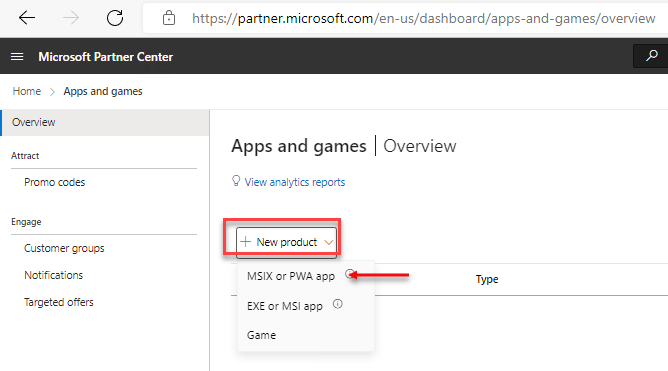
- From the Overview page, click and select MSIX or PWA app.
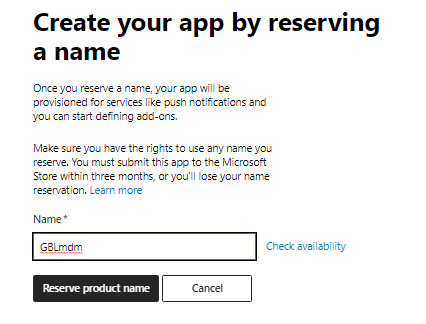
- On the page, enter an appropriate name for the application
(which will be the WNS server name) and click Reserve
product name.
- From the Overview page, click and select MSIX or PWA app.
- Create wnscredentials.json file.
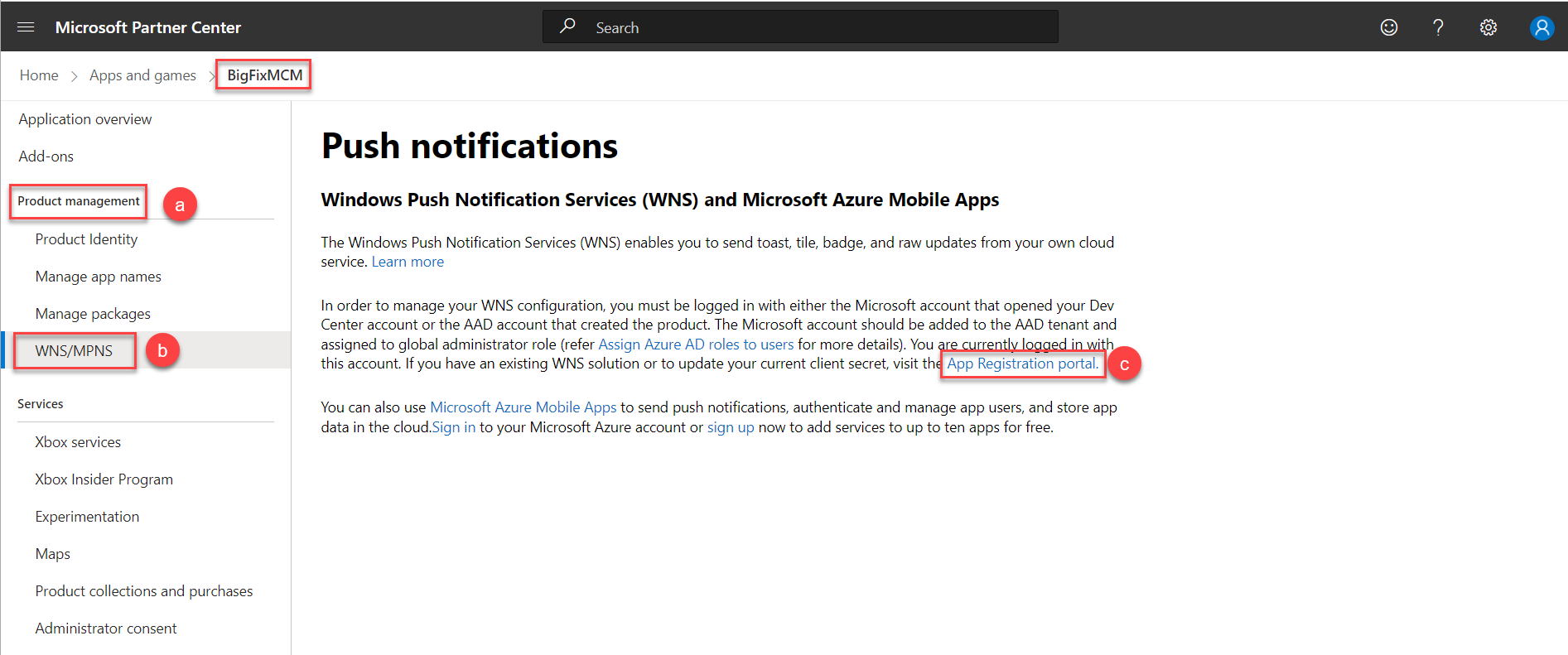
- Go to , and from the product list, select the application
you have created.
- From the product page, navigate to and click the App Registration portal
link.
-
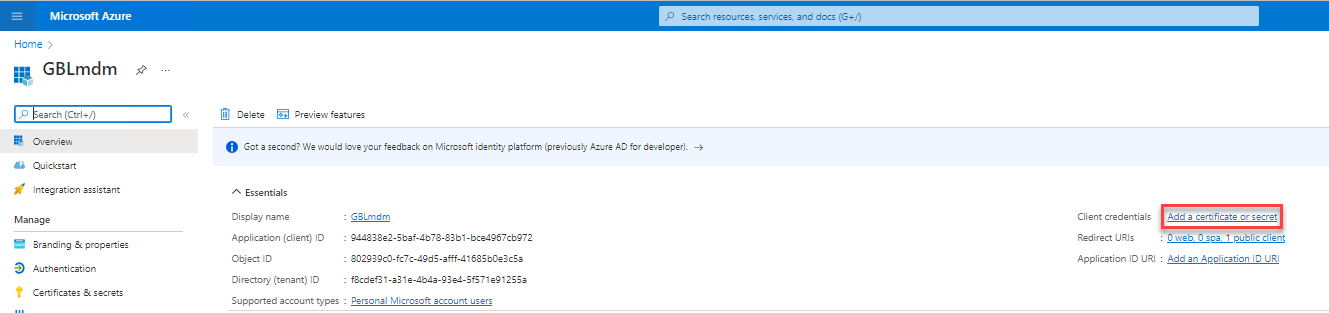
Microsoft Azure portal page for your app is displayed. Click the Client credentials link to add a certificate or secret.
-
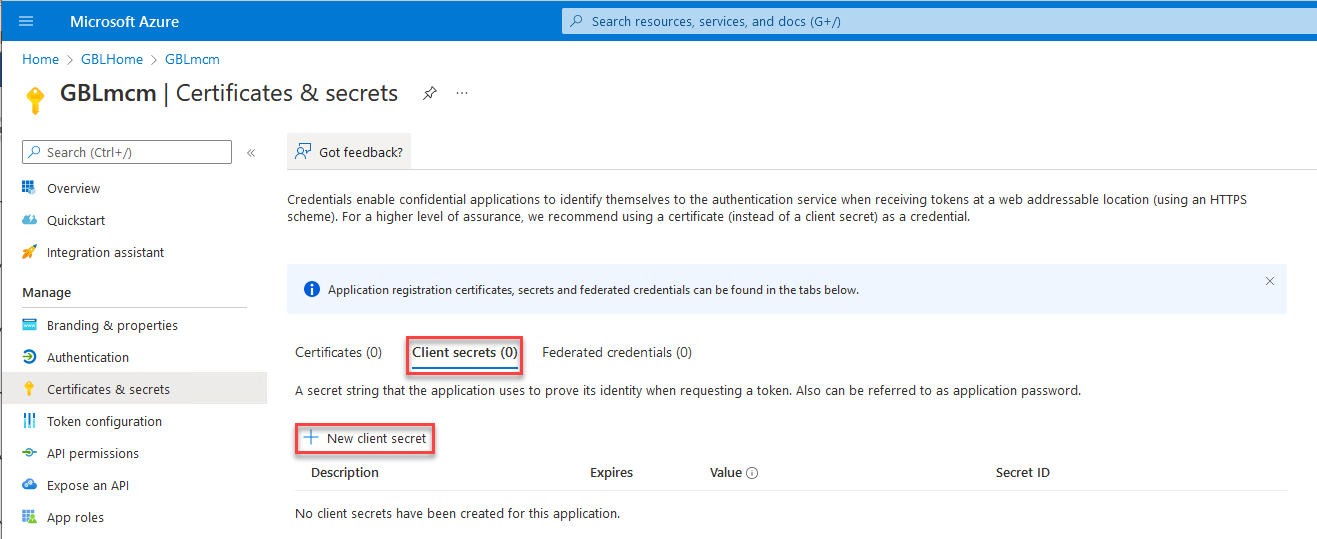
On the Certificates & secretes page, under Client secrets tab, click + New client secret.
-
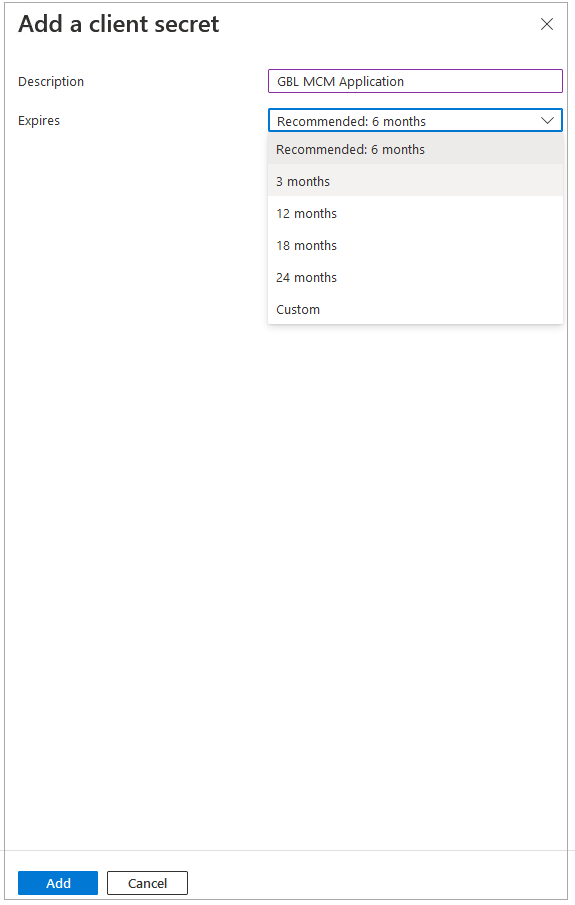
Enter Description of the client secret, click the Expiresdrop-down and select the validity period of the client secret, and click Add.
- Copy the Value of the Secret ID to
use it as the
client_secretvalue in the WNScredential.json file.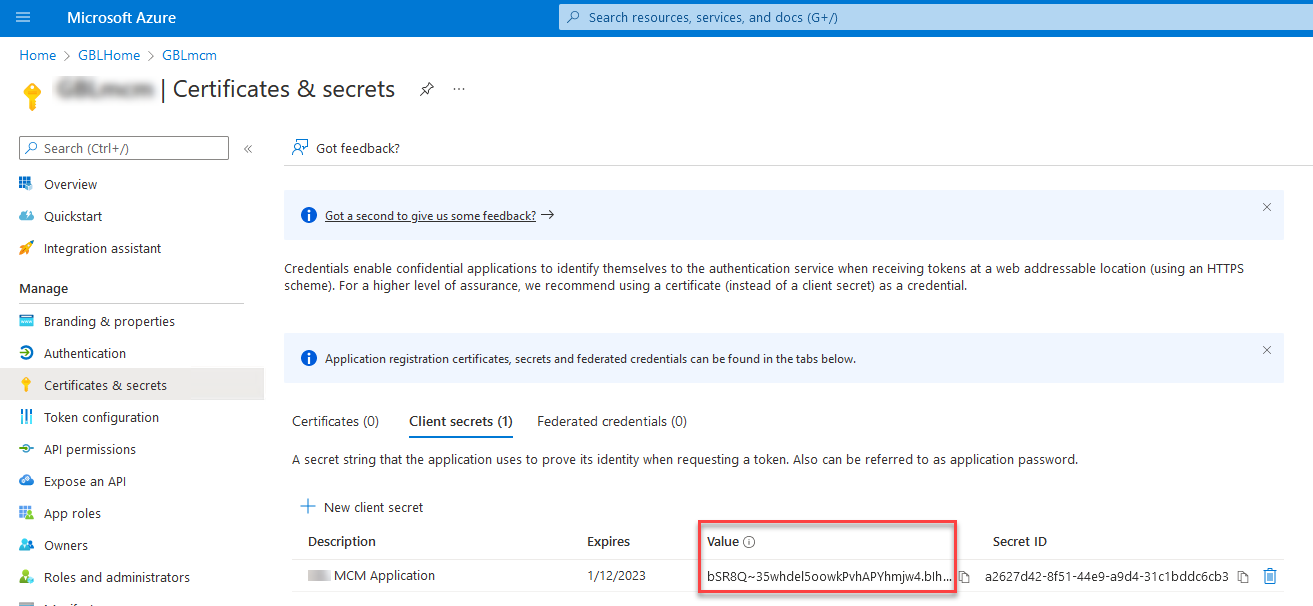
- Navigate to and copy the PFN and Package SID to add them
to the WNScredential.json file.
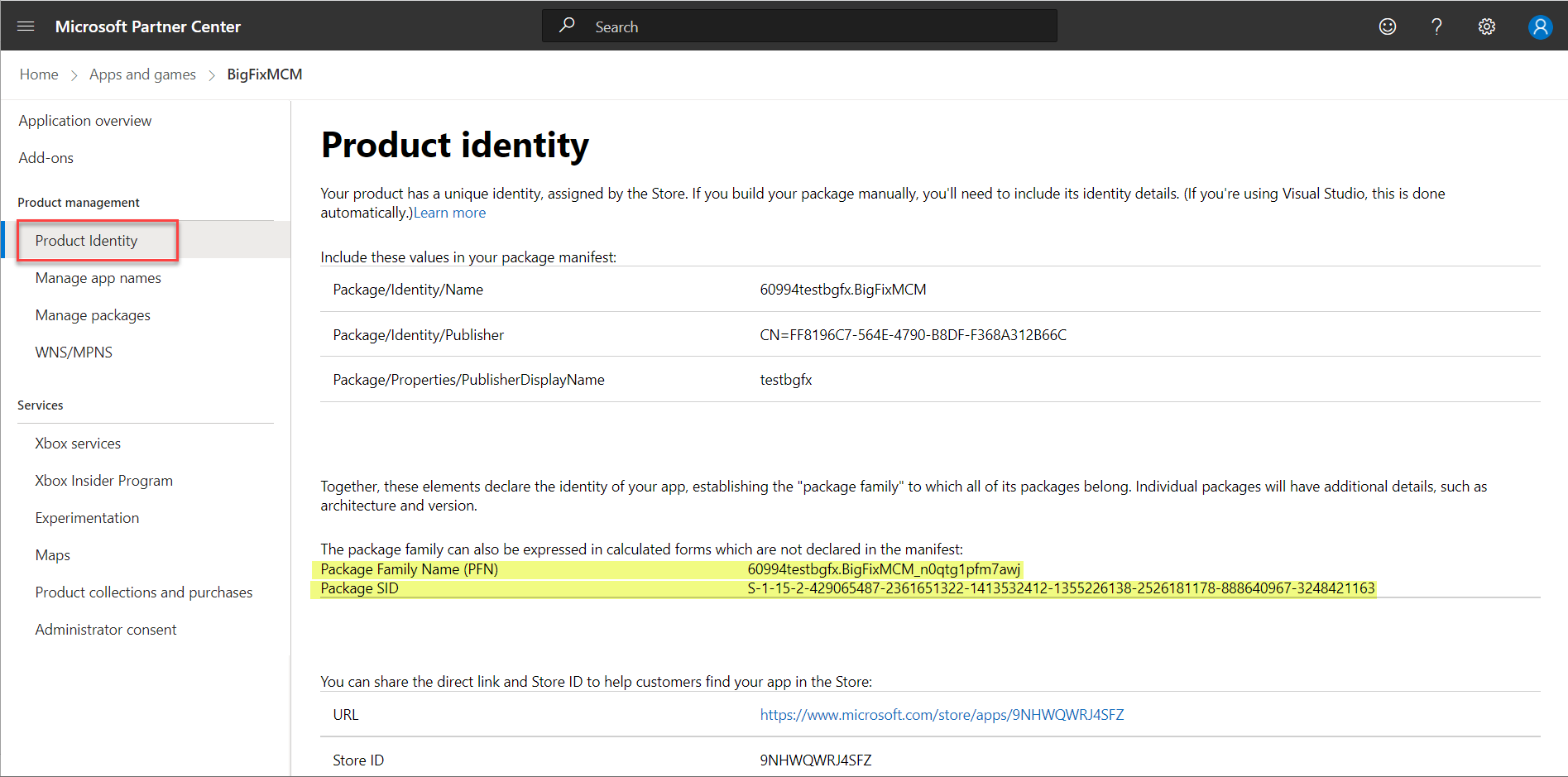
- Furnish the copied information in the following format and
save the file as wnscredentials.json.
{
"client_id": "ms-app://<Package SID>",
"client_secret":"<Application Secrets>",
"PFN":"<PFN>"
}
- From the product page, navigate to and click the App Registration portal
link.
- Go to , and from the product list, select the application
you have created.