Provision the TPM-Enforced WDAC Policy Signing Certificate on the WDAC Management Node
Provision a TPM 2.0–enforced code-signing certificate on the dedicated WDAC Management Node (BAC_MGMT) to enable secure WDAC policy signing. Choose from three certificate modes: self-signed using the Microsoft Platform Crypto Provider, Enterprise CA integrated with Active Directory PKI, or a customer-managed OpenSSL CA using a two-pass CSR generation and trust store import workflow. This task requires Task 352 (WDAC Management Node installation) to be completed first.
Before you begin
About this task
- Self Signed: Generates a TPM hardware-bound self-signed certificate
locally using Microsoft Platform Crypto Provider. Custom
validity (1-5 years) is supported. Outputs both binary
.cerand Base64.pemfiles. - CA External (OpenSSL / Customer-Managed): Operates in a two-stage sequential workflow using Run 1 and Run 2.
- Run 1 (CSR Generation): Select CA External and Run 1. Generates a TPM-backed private key container and creates a Certificate Signing Request (.req) in the Certs\ directory.
- External OpenSSL Signing: Copy the generated .req file to your OpenSSL CA system and sign it.
- Copy Certificate Back: Copy the signed public certificate (.cer) back to <BES Client Path>\BFAC\BAC_MGMT\Certs\. (Optional: include rootCA.crt and intermediateCA.crt).
- Run 2 (Key Binding & Trust Registration): Select CA External and Run 2. Registers CA trust chains if present, binds the signed .cer to the TPM private key via certreq -accept, and converts it to .pem.
| Exit Code | Description |
|---|---|
| 20 | Target .cer file not found in the Certs\ directory during Run 2. |
| 31 | Output file creation or encoding failure (.req, .cer, or .pem missing). |
| 32 | TPM hardware or Microsoft Platform Crypto Provider failure during certificate/CSR request generation. |
| 33 | Certificate store read or permission access failure while accessing LocalMachine\My. |
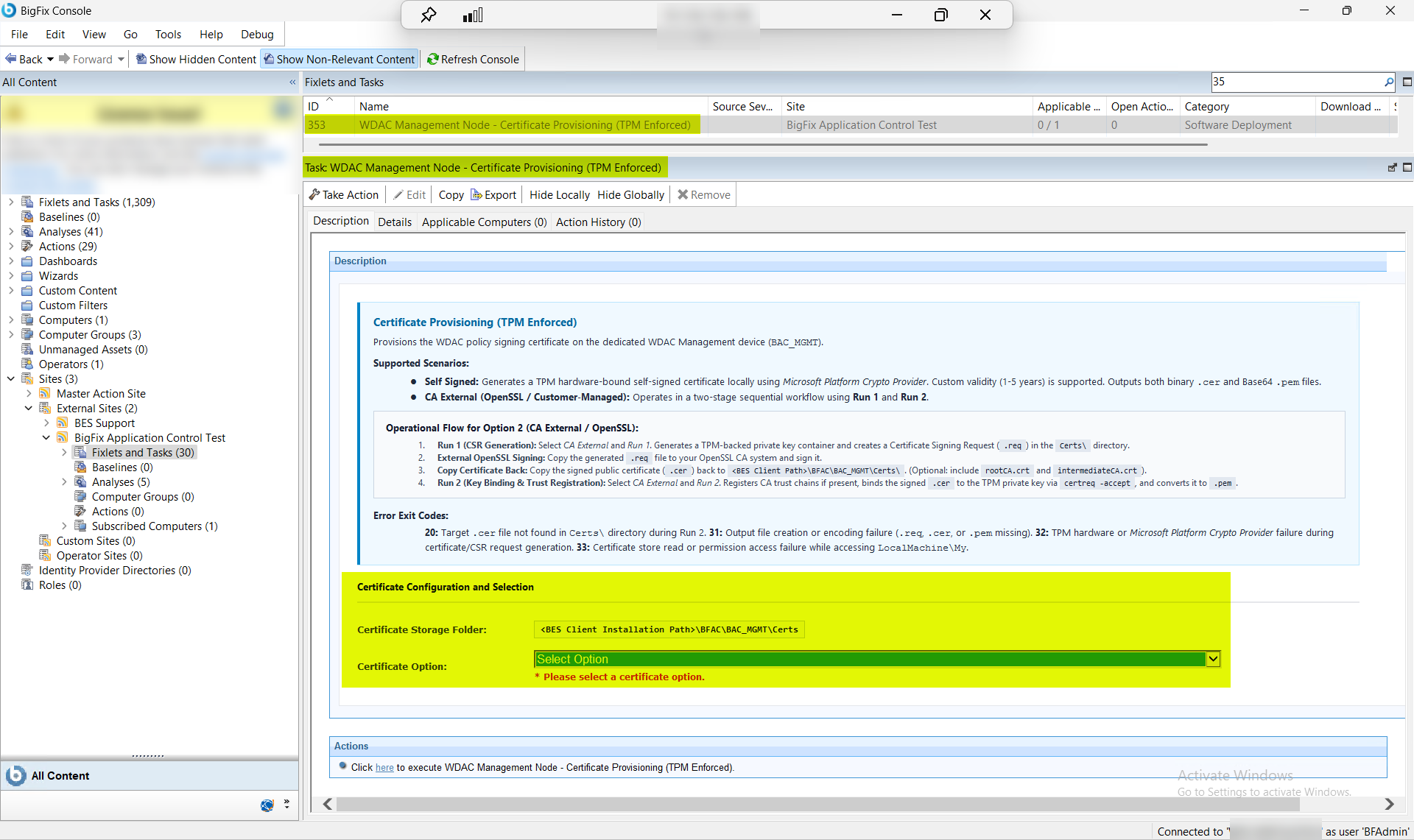
Procedure
- In the BigFix Console, navigate to .
- From the Fixlets and Tasks pane, select Task: WDAC Management Node - Certificate Provisioning (TPM ENFORCED).
-
From the Task: WDAC Management Node - Certificate Provisioning (TPM
ENFORCED) pane, under Certificate Configuration and
Selection, select the desired certificate option -
Self Signed or CA External (OpenSSL /
Customer-Managed).
Figure 2. WDAC Management Node Certificate Provisioning — Configuration Options: Certificate Mode Selection 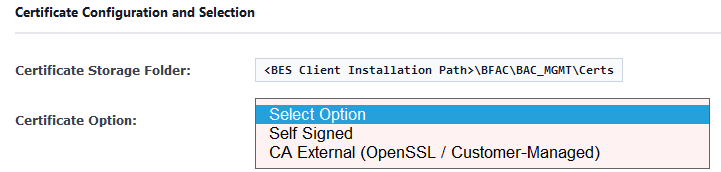
-
For the Self Signed option, fill the following
fields:
Figure 3. WDAC Management Node Certificate Provisioning — Self Signed Certificate Option 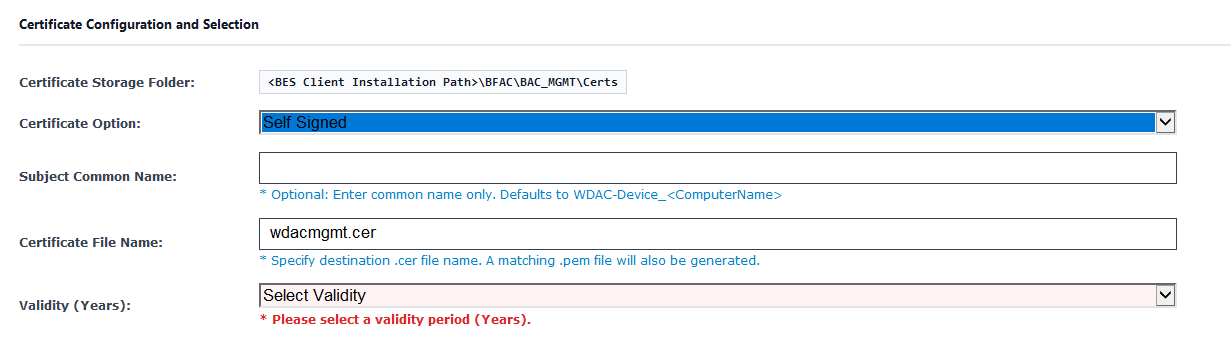
Table 2. Certificate Option — Self Signed: Field Descriptions Field Name Description Certificate Storage Folder The directory on the WDAC Management Node where the generated certificate files ( .cerand.pem) are written. Defaults to <BES Client Path>\BFAC\BAC_MGMT\Certs\. Ensure this path exists and is writable by the BigFix Client service account before running the task.Certificate Option Set to Self Signed to generate a TPM hardware-bound self-signed certificate locally using the Microsoft Platform Crypto Provider. Select this mode when no enterprise CA or external certificate authority is available. The private key is generated inside the TPM and cannot be exported. Subject Common Name The X.509 Subject Common Name (CN) for the self-signed certificate. This value appears in the signature metadata of all WDAC policies signed by WdacManager.exe. Use a name that identifies the WDAC Management Node or organization, for example WDAC_Management_Node_ProdorBAC_MGMT_Policy_Signing. Maximum 64 characters; avoid special characters except hyphens and underscores.Certificate File Name The base filename for the generated certificate output files. The task writes two files to the Certificate Storage Folder using this name: a binary DER-encoded file ( .cer) and a Base64-encoded PEM file (.pem). For example, enteringwdac_self_signedproduceswdac_self_signed.cerandwdac_self_signed.pem.Validity (Years) The certificate lifetime in years. Supported range: 1 to 5 years. Choose based on your organization's certificate lifecycle policy. A shorter validity period (1–2 years) increases security through more frequent rotation; a longer period (3–5 years) reduces operational overhead but requires proactive renewal planning before expiration to prevent policy signing outages. -
For the CA External (OpenSSL / Customer-Managed)
option, fill the following fields:
Figure 4. WDAC Management Node Certificate Provisioning — CA External (OpenSSL / Customer-Managed) Certificate Option 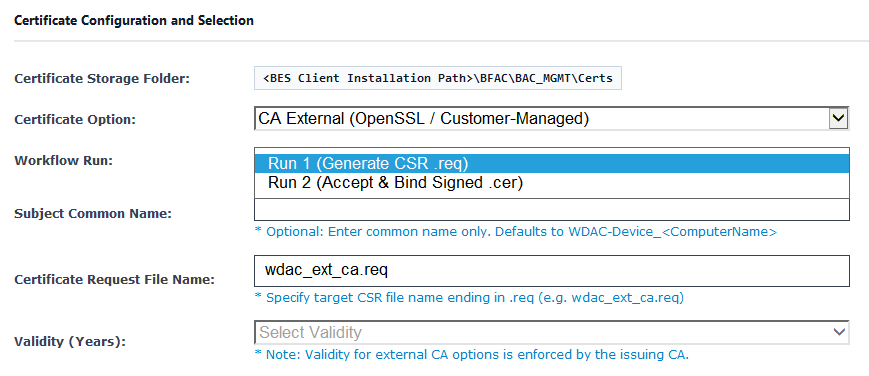
Table 3. Certificate Option — CA External (OpenSSL / Customer-Managed): Field Descriptions Field Name Description Certificate Storage Folder The directory on the WDAC Management Node used for both the outgoing CSR file (Run 1) and the incoming signed certificate and CA chain files (Run 2). Defaults to <BES Client Path>\BFAC\BAC_MGMT\Certs\. Before running Run 2, ensure the signed certificate ( .cer) and any CA chain files (rootCA.crt,intermediateCA.crt) are copied to this folder.Certificate Option Set to CA External (OpenSSL / Customer-Managed) to use the two-pass CSR workflow. Select this mode when your organization uses a customer-managed or third-party certificate authority (such as an OpenSSL CA, Sectigo, or DigiCert) that requires an external certificate signing request. Workflow Run Identifies which pass of the two-pass workflow to execute: - Run 1: Creates the TPM-backed private
key container and generates the Certificate
Signing Request (
.req) file in the Certificate Storage Folder. Run this first, then transmit the.reqfile to your external CA for signing. - Run 2: Imports the signed certificate and CA chain files from the Certificate Storage Folder, binds the certificate to the TPM private key container via certreq -machine -accept, and registers CA chain certificates in the Windows trust store. Run this after the signed certificate is returned by your external CA and copied to the Certificate Storage Folder.
Subject Common Name The X.509 Subject Common Name (CN) to embed in the Certificate Signing Request. This must match the CN your external CA will sign. Use a name that identifies the WDAC Management Node or organization, for example WDAC_Management_Node_ProdorBAC_MGMT_Policy_Signing. The CN appears in all signed WDAC policies and must match exactly across Run 1 and Run 2.Certificate Request File Name The filename for the Certificate Signing Request output file generated in Run 1. The task writes a .reqfile with this name to the Certificate Storage Folder. Default:wdac_ext_ca.req. After Run 1, copy this file to your external CA system for signing. The signed certificate returned by your CA (typicallywdacmgmt_ext_ca.cer) is imported during Run 2.Validity (Years) The requested certificate lifetime in years (1 to 5). This value is included in the CSR and submitted to your external CA; the actual validity period in the signed certificate is determined by your CA's policy. If your CA overrides the requested validity, ensure the issued certificate validity is acceptable before proceeding to Run 2. - Run 1: Creates the TPM-backed private
key container and generates the Certificate
Signing Request (
-
For the Self Signed option, fill the following
fields:
- From the Task: WDAC Management Node - Certificate Provisioning (TPM ENFORCED) pane, click the Applicable Computers(n) tab and view the endpoints on which you want to run the task.
- Select the Take Actions tab and select the endpoints on which you want to apply this installer task.
- Click OK.
Results
A successful execution provisions a TPM 2.0–enforced code-signing certificate on the WDAC Management Node. The outcome depends on the selected certificate mode:
- Self Signed mode: A self-signed certificate is generated using the
Microsoft Platform Crypto Provider and bound to the TPM hardware module. Binary
(
.cer) and Base64 (.pem) certificate files are written to the Certificate Storage Folder. No external CA is required; the certificate is immediately available for WDAC policy signing by WdacManager.exe. - CA External — Run 1 (CSR Generation): A TPM-backed private key container
is created and a Certificate Signing Request (
.req) is written to the Certificate Storage Folder. Transmit the.reqfile to your external CA for signing, then copy the signed certificate (and any CA chain files) back to the Certificate Storage Folder before proceeding to Run 2. - CA External — Run 2 (Key Binding and Trust Registration): The signed
certificate is bound to the TPM private key container via certreq
-machine -accept. Root and intermediate CA chain certificates
present in the Certificate Storage Folder are registered in the Windows trust
store (
Cert:\LocalMachine\RootandCert:\LocalMachine\CA). The certificate is converted to.pemformat for use by WdacManager.exe.
After successful provisioning, WdacManager.exe can use the TPM-bound signing certificate to sign WDAC policies. Verify the binding by opening Certificates (Local Computer) > Personal > Certificates and confirming the Subject CN and Key Storage Provider (Microsoft Platform Crypto Provider) match your configuration. The WDAC Management Node is now ready for the next step in the deployment sequence: managing and compiling WDAC policies.
TRUST_E_CERT_SIGNATURE (0x80096004), verify that all root and
intermediate CA certificates are imported into
Cert:\LocalMachine\Root and
Cert:\LocalMachine\CA before running the task. See the
troubleshooting guide for resolution steps.